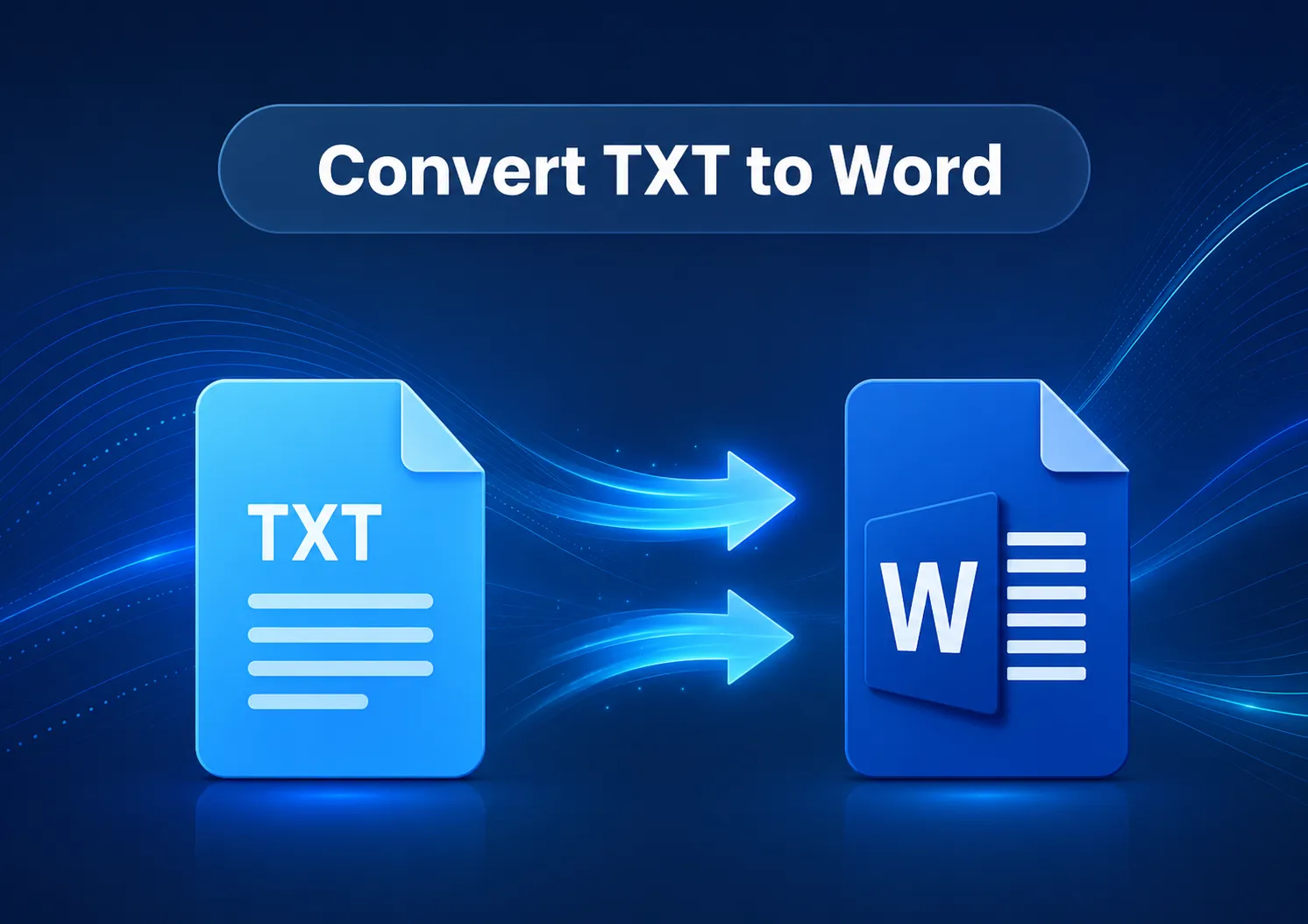
6 Ways to Convert TXT to Word: From Plain Text to Polished Docs
The Ultimate Guide to Converting TXT to Word (6 Easy Methods)
Plain text files (.txt) are everywhere. They’re lightweight, universally compatible, and work on literally any device. But when it comes to sharing, printing, or presenting—nothing beats the polish of a proper Word document (.docx).
The good news? Converting TXT to Word is easy. The better news? There are multiple ways to do it, each suited to different needs. Whether you’re dealing with a single quick file, working without Microsoft Office, or managing hundreds of documents with strict formatting requirements, this guide covers six practical methods to get the job done.
Let’s dive in.
Part I: The Classic & Built-in Desktop Solutions
Method 1: The Traditional Copy-and-Paste
Sometimes the simplest solution is all you need. This is the “brute force” method—open your TXT file, select everything, copy it, and paste it into a blank Word document.
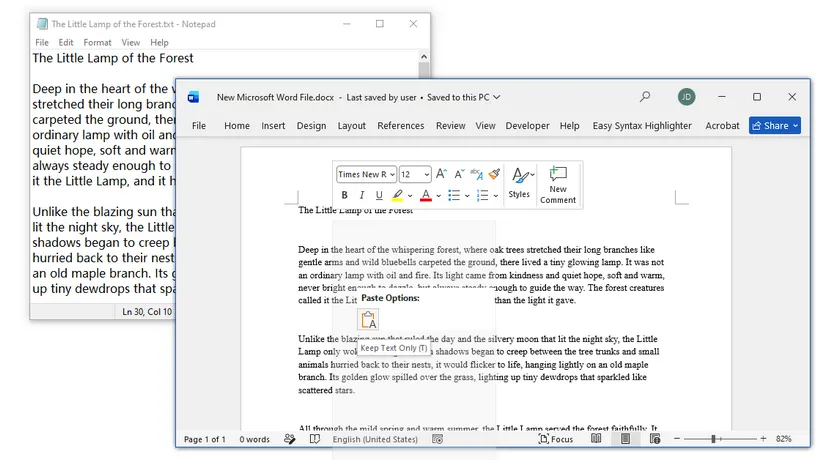
How to do it:
- Open your
.txtfile in any text editor (Notepad, TextEdit, etc.). - Press
Ctrl+A(Windows) orCmd+A(Mac) to select all text. - Press
Ctrl+CorCmd+Cto copy. - Open Microsoft Word, create a new blank document, and press
Ctrl+VorCmd+Vto paste.
Pros: Zero software installation, works everywhere, completely free.
Cons: You’ll lose any original formatting (though TXT files don’t have much to begin with). You’ll also need to manually adjust fonts, spacing, and page settings after pasting.
Best for: Quick and dirty conversions where formatting doesn’t matter.
Method 2: The Native Word Shortcut – “Open with Word”
This is the fastest built-in way to turn a plain text file into a fully editable Word document. Instead of copying, pasting, or navigating through hidden import menus, you simply open the TXT file directly in Word—just like you would any other file. Once it’s open, you save it as a .docx document, and you’re ready to go.
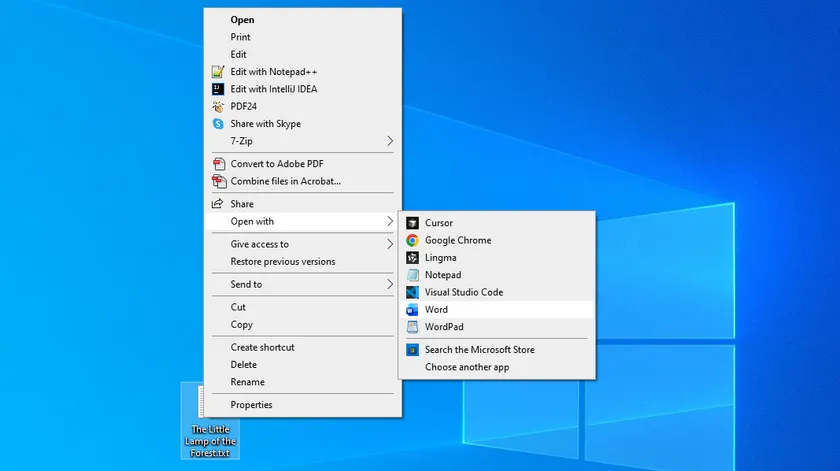
How to do it:
- Locate your
.txtfile in File Explorer (Windows) or Finder (Mac). - Right-click the file and select Open with → Word (Windows) or Open With → Microsoft Word (Mac).
- Word will automatically open the file and interpret the plain text.
- Go to File → Save As , and choose Word Document (.docx) as the file type.
- Name your file and save it.
Pros: No copy-paste involved—Word handles the import natively. It’s fast, free, and works offline.
Cons: Manual operation; not ideal for batch conversions. You’ll still need to apply any desired styling after opening.
Best for: Single-file conversions when you already have Microsoft Word installed.
Part II: Cloud & Browser-Based Alternatives
Method 3: Free Online Converters – Convenience with a Catch
Online converters are the go-to choice for many people. You upload your file, the service converts it, and you download the result—all in your browser, no installation required.
One excellent example is CloudxDocs TXT to Word Converter. It’s a free, no-watermark online tool that runs entirely in your browser.
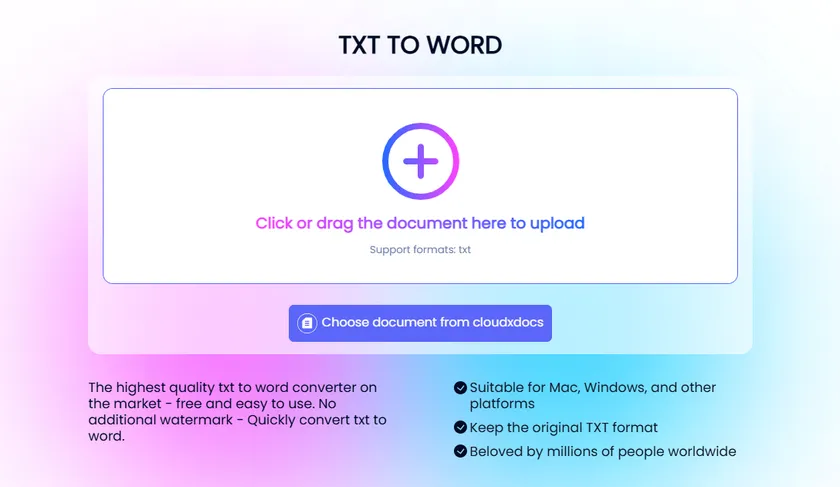
How to use CloudxDocs:
- Visit the TXT to Word online converter.
- Drag and drop your TXT file into the upload area, or click to select it.
- Wait a few seconds for the conversion to complete.
- Download your fully editable Word document instantly.
What makes CloudxDocs stand out:
- Preserves original formatting – maintains fonts, images, tables, and layouts during conversion.
- 100% free with no watermarks – no hidden charges or added watermarks.
- No sign-up required – use it directly in your browser without creating an account.
- Cross-platform – works on Windows, Mac, Linux, iOS, and Android.
- Privacy-focused – all uploads are protected with SSL/TLS encryption, fully GDPR-compliant, and files are automatically deleted from servers within one hour.
- Lightning-fast – conversion completes in seconds.
The catch: While tools like CloudxDocs do an excellent job preserving existing formatting, they generally don’t allow you to customize output styles —such as choosing specific title fonts, paragraph fonts, page margins, or line spacing. You get a clean conversion, but you’ll need to do any advanced styling manually after downloading.
Best for: Quick conversions when you don’t have Office installed, or when you’re on a device that doesn’t have desktop software available.
Method 4: Google Docs – The Zero-Installation Cloud Savior
If you have a Google account, Google Docs offers a completely free, cloud-based way to convert TXT files to Word format. No software installation required—just a browser and an internet connection.
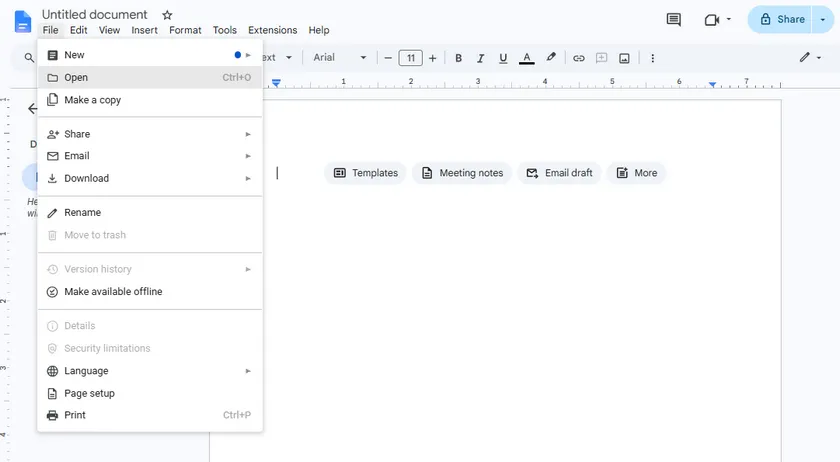
How to do it:
- Open Google Docs in your browser and sign in with your Google account.
- Create a new blank document.
- Go to File → Open → Upload , and select your TXT file.
- Google Docs will open the file, displaying the text.
- Go to File → Download → Microsoft Word (.docx) .
Pros: Completely free, requires no Office installation, stores your files in the cloud for access from anywhere.
Cons: Requires an internet connection. Files are uploaded to Google’s servers (though this is generally secure). Limited formatting control compared to desktop Word.
Best for: Users without Microsoft Office who prefer a familiar, browser-based workflow.
Part III: Advanced Automation & AI-Powered Workflows
Method 5: AI Agents – Commanding Perfect Layouts with Natural Language
This is where things get exciting. AI Agents represent the next generation of document conversion—instead of just translating file formats, they actually understand what you want and apply precise formatting based on your instructions.
CloudxDocs AI Document Agent is a prime example. It’s an advanced AI agent designed to process and generate Word documents, Excel spreadsheets, presentations, and PDF files. It intelligently identifies document types and handles them accordingly.
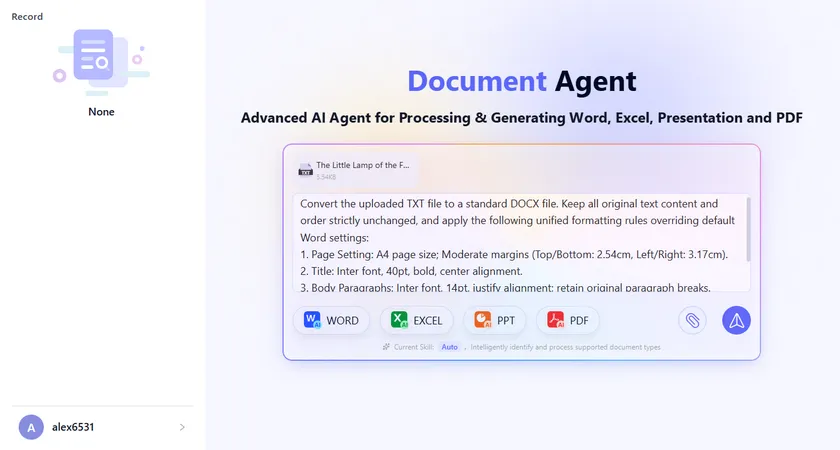
How it works:
Instead of manually adjusting fonts, margins, and spacing after conversion, you simply tell the AI what you want in plain language:
- “Convert this TXT to Word with Arial 14pt for titles, Times New Roman 11pt for body text, 1.5 line spacing, and 1-inch margins on all sides.”
- “Turn this text file into a formal business report with a cover page, numbered headings, and a table of contents.”
- “Convert this to Word with double spacing, 12pt Calibri, and 2.5cm left margin for binding.”
The AI agent processes your request and delivers a fully formatted Word document that matches your specifications—no manual tweaking required.
Pros:
- Precision control – dictate exactly how your final document should look.
- Time-saving – eliminates the post-conversion formatting grind.
- Intelligent processing – the agent understands document structure and applies appropriate styles.
- Multi-format support – works with Word, Excel, PPT, and PDF files.
Cons: Requires access to the AI agent platform (typically cloud-based). May have usage limits depending on the service plan.
Best for: Users who need consistently formatted documents and want to skip the manual styling work entirely.
Method 6: Batch Processing – Automating Hundreds of Files at Once
When you need to convert dozens or even hundreds of TXT files to Word, doing them one by one is simply not an option. Fortunately, Microsoft Word has a built‑in automation tool that can handle this in seconds—no extra software required.
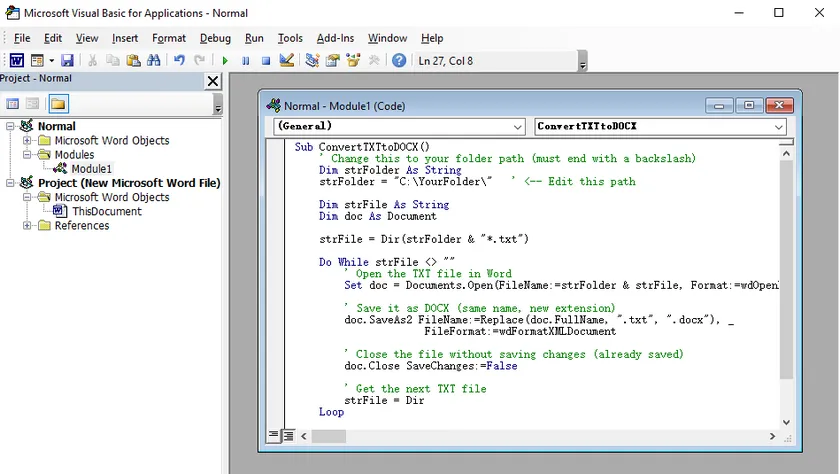
Here’s how to do it in 5 easy steps:
- Open Microsoft Word and press
Alt+F11to launch the VBA (Visual Basic for Applications) editor. - In the editor, go to Insert → Module to create a new code module.
- Copy and paste the code below into the blank module, then change the folder path to point to your own TXT files.
- Press
F5on your keyboard or click the Run button to start the macro. - Wait a few moments—all TXT files in that folder will be converted to
.docxand saved right next to the originals.
The VBA code to copy and paste:
1 | Sub ConvertTXTtoDOCX() |
Pros: Completely free, highly customizable, runs locally on your machine.
Cons: Requires some programming knowledge to set up and debug. Not beginner-friendly.
Best for: Users who need to convert large volumes of files regularly and are willing to spend 2 minutes setting up the macro for unlimited future use.
Final Checklist & Pro Tips
Before you convert, keep these tips in mind to avoid common pitfalls:
1. Check your file encoding
- TXT files can use different character encodings (UTF-8, ANSI, UTF-16). If your converted document shows weird characters (like “é” instead of “é”), your encoding is mismatched.
- Fix: In Word, go to File → Options → Advanced → General → Web Options → Encoding , and select the correct encoding (usually UTF-8).
2. Preserve line breaks
- Plain text files often use line breaks to separate paragraphs or lines. Word may interpret these differently.
- Fix: When pasting or opening in Word, use Paste Special → Keep Text Only or adjust paragraph settings to remove extra spacing.
3. Watch for extra spaces
- TXT files sometimes have trailing spaces or inconsistent indentation.
- Fix: Use Word’s Find and Replace (
Ctrl+H) to clean up extra spaces (find two spaces, replace with one).
4. Set page size and margins early
- If you’re using Method 5 (AI Agent), specify your page size (A4, Letter, etc.) and margins upfront.
- If converting manually, set these in Word before you paste or open the file.
5. Consider your final use case
- Are you printing? → Use standard fonts (Times New Roman, Arial) and 1-inch margins.
- Are you submitting to a publisher? → Check their style guide first.
- Is it just for internal reading? → Keep it simple—readability matters more than aesthetics.
With these six methods and pro tips, you’re now equipped to handle any TXT-to-Word conversion challenge. Whether you’re a student rushing a last-minute assignment, a professional managing document workflows, or just someone who wants a clean, shareable file—there’s a method here for you.
Conclusion: The Quick Decision Matrix
Not sure which method to choose? Here’s a simple guide:
| Your Situation | Best Method |
|---|---|
| One file, need it fast, have Word installed | Method 2 (Open with Word) |
| Don’t have Microsoft Office, prefer online | Method 4 (Google Docs) |
| Need a quick conversion on any device | Method 3 (CloudxDocs online converter) |
| Want precisely controlled formatting without manual work | Method 5 (AI Agent) |
| Have 100+ files to convert | Method 6 (Batch processing) |
| Just need the raw text, don’t care about formatting | Method 1 (Copy and paste) |
FAQs
Are online converters safe to use?
Reputable services like CloudxDocs use SSL encryption, and delete your files within an hour. For sensitive documents, stick with offline methods like Method 2 (Open with Word) or Method 6 (VBA batch processing).
Why is my converted document showing weird characters (like é instead of é)?
This is an encoding mismatch. In Word, go to File → Options → Advanced → Web Options → Encoding , and switch between UTF-8 and ANSI until the text displays correctly.
Can I convert TXT to Word without Microsoft Office?
Absolutely. Use Method 3 (online converters like CloudxDocs) or Method 4 (Google Docs) — both work in your browser on any operating system.
When should I use an AI Agent instead of a free online converter?
When you need more than just a conversion — AI Agents apply specific fonts, margins, and paragraph styles automatically, saving you from manually formatting the document afterward.