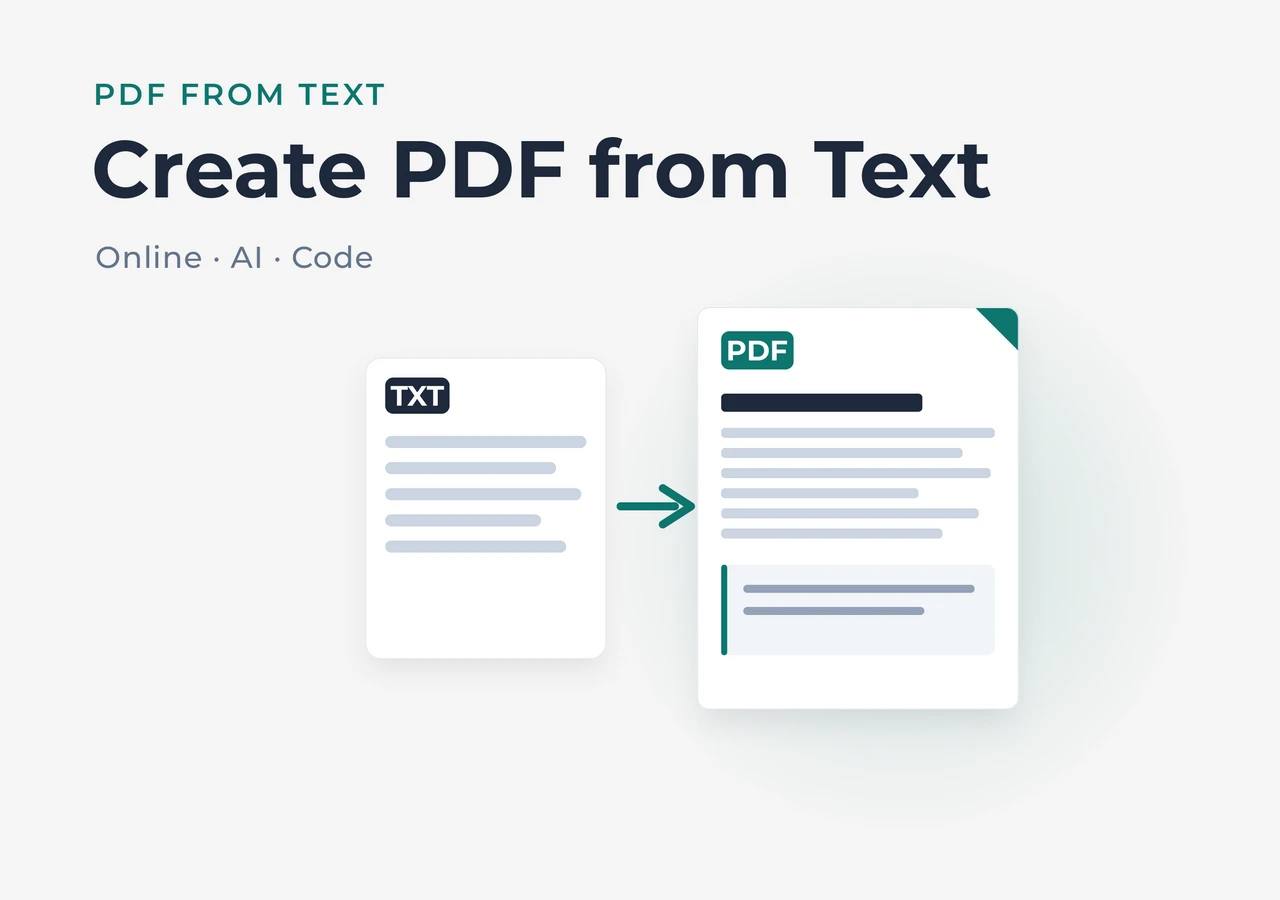
How to Create PDF from Text: 3 Methods for Every Workflow
How to Create PDF from Text: Online, AI, and Code Solutions
“Create PDF from text” sounds straightforward, but the right approach depends on what you actually need to create.
One person may want to convert a plain .txt file into a PDF in seconds. Another may need to turn raw text into a formatted business document with professional layouts, tables, and structured sections. A developer may be looking for a library that generates PDFs from database records inside a web application.
All of these scenarios fall under the same search phrase, but they require different approaches and tools.
This guide covers the most practical ways to create PDF from text — from one-click online converters to AI-powered document generation and programmable libraries for automated workflows. Whether you need to make PDF from text for a one-time task or build a system that generates thousands of documents, you will find an approach that fits your workflow.
Different workflows require different approaches. Choose the method that matches your needs:
- Need a quick conversion? → Create PDF from Text Online
- Need a professionally formatted document? → Generate PDF from Text with AI
- Need programmatic PDF generation? → Create PDF from Text Using Programming Libraries
- Need automated document workflows? → Automate PDF Generation at Scale
What “Create PDF from Text” Actually Means
Before choosing a tool, it helps to clarify what you are starting with and what you expect as the result.
The phrase “create PDF from text” covers a wider range than “convert text to PDF.” Conversion implies taking an existing file and changing its format — typically a .txt file to .pdf, with little to no formatting involved. Creation, on the other hand, can also mean building a document from scratch using text as the raw material.
| Text to PDF Conversion | Create PDF from Text | |
|---|---|---|
| Input | Existing .txt file |
Any text source — files, copied content, AI output, database records |
| Purpose | Change file format | Produce a finished document |
| Formatting | Basic (font, size, margins) | Advanced (layouts, tables, images, branding) |
| AI assistance | Rarely available | Supported with AI document generators |
| Automation | Limited to batch file processing | Flexible — integrates with APIs, code, and business systems |
In practice, many people use these terms interchangeably. If you searched for create pdf from text but only need a quick .txt → .pdf conversion, Method 1 below is what you are looking for. If you need something more — a polished document, a generated report, or an automated pipeline — the later methods are built for that.
Method 1: Create PDF from Text Online with Instant Conversion
Best for: Quick conversions, one-off tasks, users who do not want to install anything.
If you are looking for an online PDF creator from text, a browser-based converter is the fastest option. You upload a .txt file (or paste raw text), and the tool returns a PDF — no software, no configuration, no learning curve.
This approach covers the most common search intent behind create pdf online from text and make pdf online from text. It is the digital equivalent of hitting “Print to PDF,” except the tool handles encoding, line breaks, and basic layout cleanly.
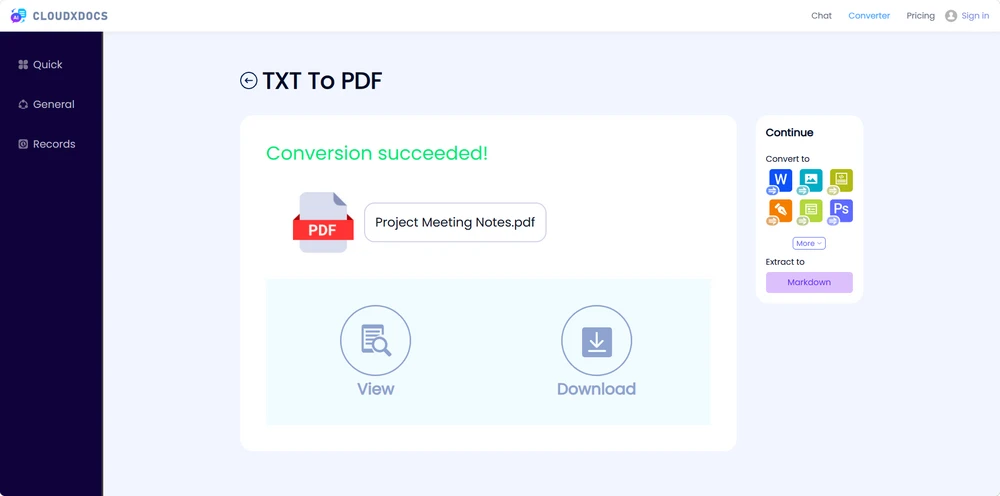
For example, CloudXDocs provides a browser-based Text to PDF converter that allows users to create PDFs from plain text without installing additional software. You open the Text to PDF converter, drop in your file, and download the result within seconds.
How to convert a text file to PDF with CloudxDocs:
Step 1. Open the CloudxDocs Text to PDF Converter in your browser.
Step 2. Upload your .txt file or paste the text directly. The tool reads the content and prepares it for PDF output.
Step 3. Click Download to save the generated PDF file.
CloudXDocs Text to PDF Converter interface
What you get:
- Conversion in seconds, even for large text files
- No installation or account required
- Accessible from any device with a browser
- Files processed securely without manual configuration
In general, browser-based converters can handle plain TXT files and multilingual text efficiently while preserving the original content.
Limitations to keep in mind:
- Output is a plain PDF — no headers, footers, tables, or images are added automatically
- Complex formatting (columns, embedded media) is not supported
- Not designed for building multi-page structured documents from scratch
If you need to make further edits after conversion, you can also turn the generated PDF into an editable Word document.
For occasional conversions, an online tool is usually enough. However, if your goal is to create polished business documents rather than simply convert text, AI-powered PDF generation becomes a better choice.
Method 2: Generate PDF from Text with AI
Best for: Business proposals, reports, product documentation, and structured documents that require professional formatting.
When plain text needs to become a polished document rather than a simple PDF file, AI-powered generation is a better choice. Instead of just converting your text as-is, AI analyzes the content you provide, organizes it into a logical structure, and generates a professionally formatted PDF automatically.
The workflow is different from a traditional converter:
Your text + formatting instructions → AI structures and layouts the content → Professional PDF
Rather than producing a plain PDF with your raw text, the AI organizes your content into proper sections, headings, tables, and professional layouts. Tools like CloudXDocs AI Agent make this process as simple as uploading your text and describing how you want the document to look.
This approach is especially useful for:
- Business proposals and reports that need professional layouts
- Product documentation with structured sections
- Documents where presentation quality matters as much as content
Unlike traditional converters, AI can reorganize your content and apply document-level formatting decisions. It can create sections, headings, tables, and layouts based on your instructions.
How to Generate a PDF from Text with AI
Step 1. Open CloudXDocs AI Agent in your browser.
Step 2. Upload a text file or paste your text content, then describe how you want the document to be structured and formatted.
Example prompt:
1 | I have the following text content for a business proposal. |
Step 3. Review the generated document and export it as PDF.
The entire process — from text input to finished PDF — can be completed much faster than manually designing the document.
Beyond formatting existing text, CloudXDocs AI Agent can also generate documents directly from a topic or description — for example, creating a complete business proposal from a brief project summary. This is a separate capability that goes beyond text-to-PDF conversion.
Example: Text Input and Generated PDF
The image below shows the workflow in practice — text content and formatting instructions on the left, and the generated PDF on the right:
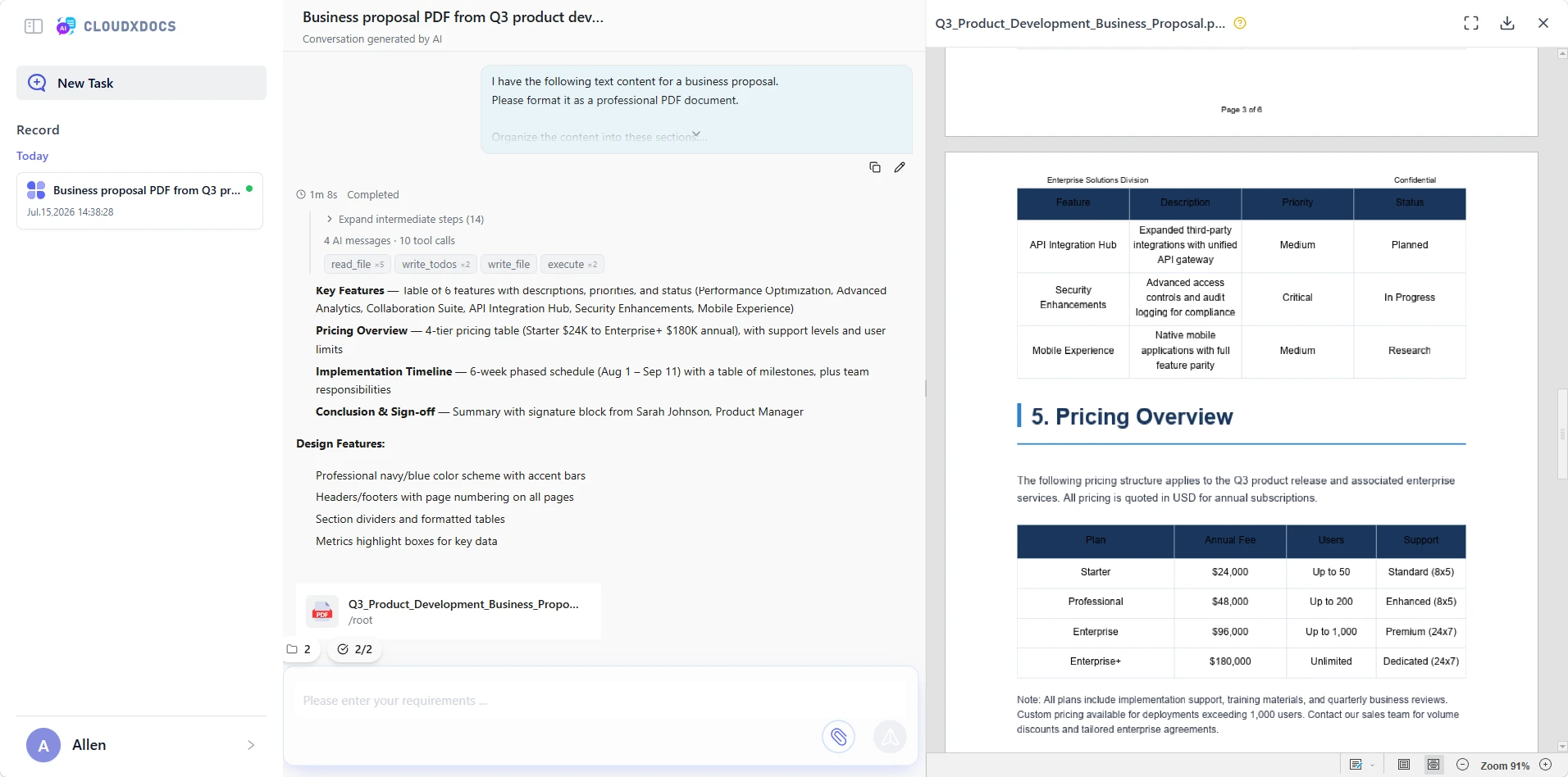
Example of transforming text into a professional PDF document with CloudXDocs AI Agent
The result is not a plain text file inside a PDF wrapper. It is a structured document with logical sections, consistent formatting, and a layout that looks like it was designed — not just converted.
Why AI Generation Is Different from Simple Conversion
A traditional converter changes the file format. An AI generator creates the document for you. The difference changes how you work:
| Traditional Conversion | AI PDF Generation |
|---|---|
| Text → PDF | Text + Instructions → Document → PDF |
| Keeps original structure | Creates document structure |
| Limited formatting | Automatic sections and layouts |
| Requires manual editing | AI assists content organization |
With a traditional converter, you are responsible for every heading, every table, every layout decision. AI removes that burden — you provide your text and describe the structure you need, and the document takes shape on its own.
Tips for Better AI-Generated PDFs
For better results, include the following in your instructions:
- Desired document structure and sections
- Target audience
- Formatting preferences
- Preferred style and tone
Clear instructions give the AI enough context to organize your text into a document that is useful on the first pass — not just a rough draft.
Advantages:
- Automatically creates document structure
- Generates professional layouts
- Saves time on formatting
- Works with natural language instructions
- No design or typesetting skills required
Limitations:
- May require review for highly customized branding
- Complex documents may need refinement
- AI generation requires more processing time than direct conversion
This method fills the gap between “I have text” and “I have a finished document.” It handles the formatting work that makes a PDF look professional, not just functional.
If AI handles the layout, programming libraries handle the logic — which is where the next method comes in.
Method 3: Create PDF from Text Using Programming Libraries
Best for: Developers integrating PDF generation into applications, SaaS platforms, and automated services.
When you need to generate PDFs inside an application — from user-submitted text, database content, or API responses — programming libraries give you full control over every pixel on the page.
This approach maps to developer-oriented searches like create PDF from text Python or generate PDF automatically. Instead of a user interface, you write code that defines exactly how text becomes a PDF.
Libraries like Spire.PDF handle the heavy lifting: text rendering, font management, page layout, and file output — all programmable.
Example: Generating a PDF from meeting notes with Spire.PDF for Python
1 | from spire.pdf.common import * |
Below is a preview of the generated PDF document:
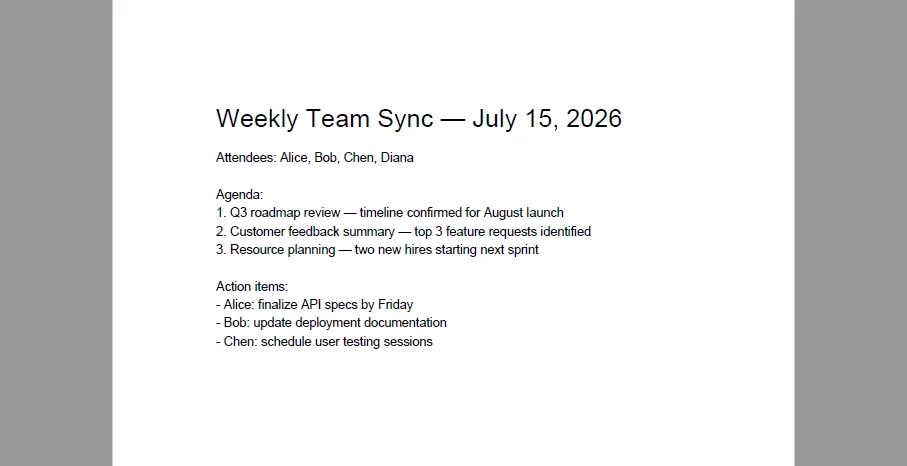
A few lines of code turn raw text into a real PDF with styled headings and structured body content. The PdfTextWidget class handles text flow across pages automatically — useful when the content length is unpredictable. From here, you can add tables, images, headers, footers, watermarks, and page numbers — everything a production PDF needs.
Why developers choose this path:
- Full control over every element on the page
- No dependency on external services or internet connectivity
- Native integration into Python, .NET, Java, and other environments
- Scales to handle thousands of documents in automated pipelines
- Supports advanced features: encryption, digital signatures, form fields
What to consider:
- Requires programming knowledge
- Development time is higher than using an online tool or AI generator
- Complex layouts may need additional coding for precise positioning
For applications that generate invoices, certificates, reports, or any document from text data at scale, a programmatic library is the foundation. CloudxDocs AI Agent is built on top of document processing technologies like Spire, allowing non-developers to achieve similar results without writing code.
If you are exploring Python-based PDF generation, you can also learn more about creating and manipulating PDF documents programmatically.
Once PDF generation becomes part of your workflow, the next question is how to scale it across your organization.
Enterprise Use Cases: Automating PDF Generation Workflows
Creating one PDF from text is simple. However, many organizations need to generate hundreds or thousands of similar documents — reports, invoices, certificates, contracts, and customer communications.
In these scenarios, PDF generation becomes part of an automated workflow:
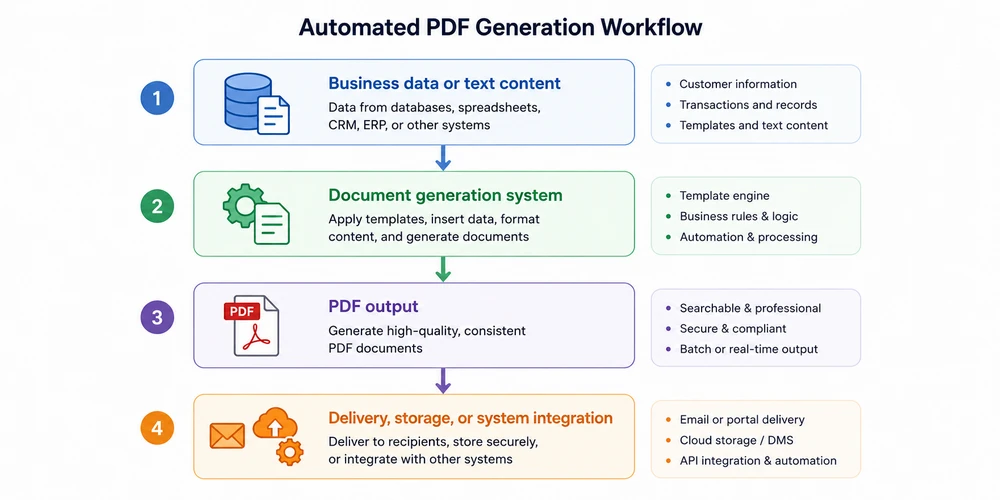
Common examples include generating recurring reports from business data, creating invoices after transactions, and producing personalized documents from stored information.
Businesses can implement these workflows in different ways:
- PDF libraries such as Spire.PDF for developers who need full control over generation logic and backend integration.
- AI-powered document solutions such as CloudXDocs AI Agent for documents that require flexible formatting and intelligent content handling.
- Automation workflows that connect databases, APIs, and document generation services.
Automation transforms PDF creation from a repetitive manual task into a reliable business process that runs whenever new data or events are available.
Comparison Table: Which Method Fits Your Needs?
| Method | Best For | Requires Coding | AI-Powered | Formatting Control | Automation Support |
|---|---|---|---|---|---|
| Online Text to PDF | Quick one-off conversions | No | No | Basic | None |
| AI PDF Generation | Professional documents from text | No | Yes | Automatic, high quality | Limited |
| Programming Libraries | App-integrated PDF generation | Yes | No | Full | Full (via code) |
Decision Flowchart: How to Pick the Right Method
If you are unsure which approach to take, start from what you are actually trying to accomplish:
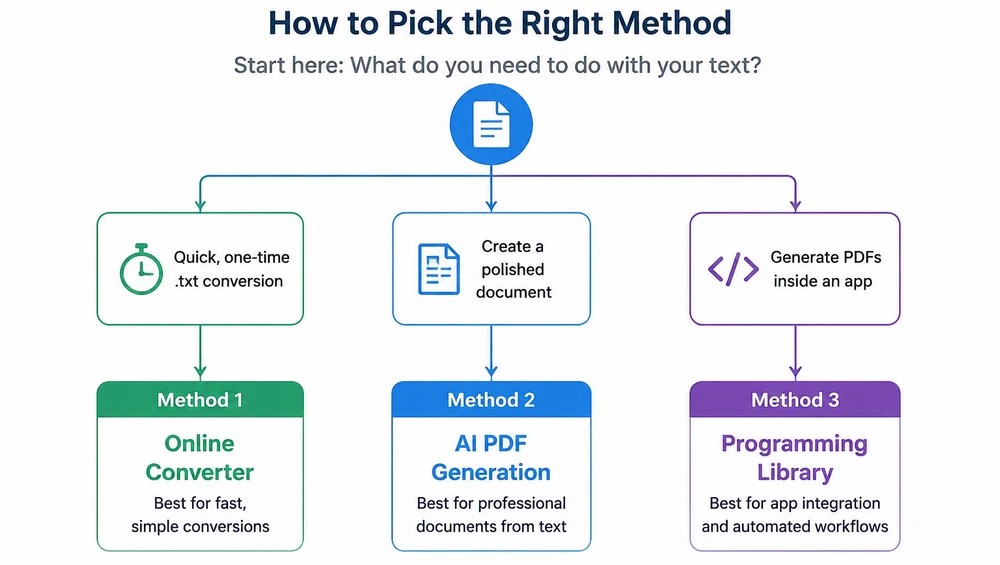
For businesses that need to generate PDFs at scale, programming libraries and AI-powered tools can be integrated into automated workflows — connecting data sources to document generation on a schedule.
Frequently Asked Questions
How do I create a PDF from text?
You can create a PDF from text in several ways. For quick conversions, use an online text-to-PDF converter. If you need a professionally formatted document, AI-powered PDF generation can structure your content automatically. Developers can also generate PDFs programmatically using PDF libraries.
What is the easiest way to create a PDF online from text?
The easiest method is using a browser-based text-to-PDF converter. Upload your text file or paste your content, then export the result as a PDF without installing software.
Can AI generate PDF documents from text?
Yes. AI document generators can transform text input into structured PDF documents with sections, headings, tables, and professional formatting. This is useful for reports, proposals, and business documents.
Can Python create PDFs from text?
Yes. Python PDF libraries allow developers to create documents from text programmatically. Libraries such as Spire.PDF for Python provide control over pages, fonts, layouts, and document generation workflows.
What is the difference between converting text and generating PDF?
Text conversion focuses on changing an existing text file into PDF format, while PDF generation can involve creating a structured document with formatting, layout, and automation. AI tools and programming libraries provide more flexibility than simple conversion.
Create Your PDF from Text
Creating a PDF from text is no longer limited to simple file conversion. Depending on your workflow, the right solution may be an online converter, an AI document generator, or a programming library for automated pipelines. Start with the simplest approach that meets your current needs, and scale to more advanced solutions as those needs grow.
- Try the CloudxDocs Text to PDF converter for instant, free conversions.
- Use the CloudxDocs AI Agent to generate professional documents from your text.
- Explore Spire.PDF for programmatic control in Python, .NET, and Java.