How to Convert PDF to PNG: 4 Simple Methods (Free & Online)
How to Convert PDF to PNG: 4 Simple Methods (Free & Online)
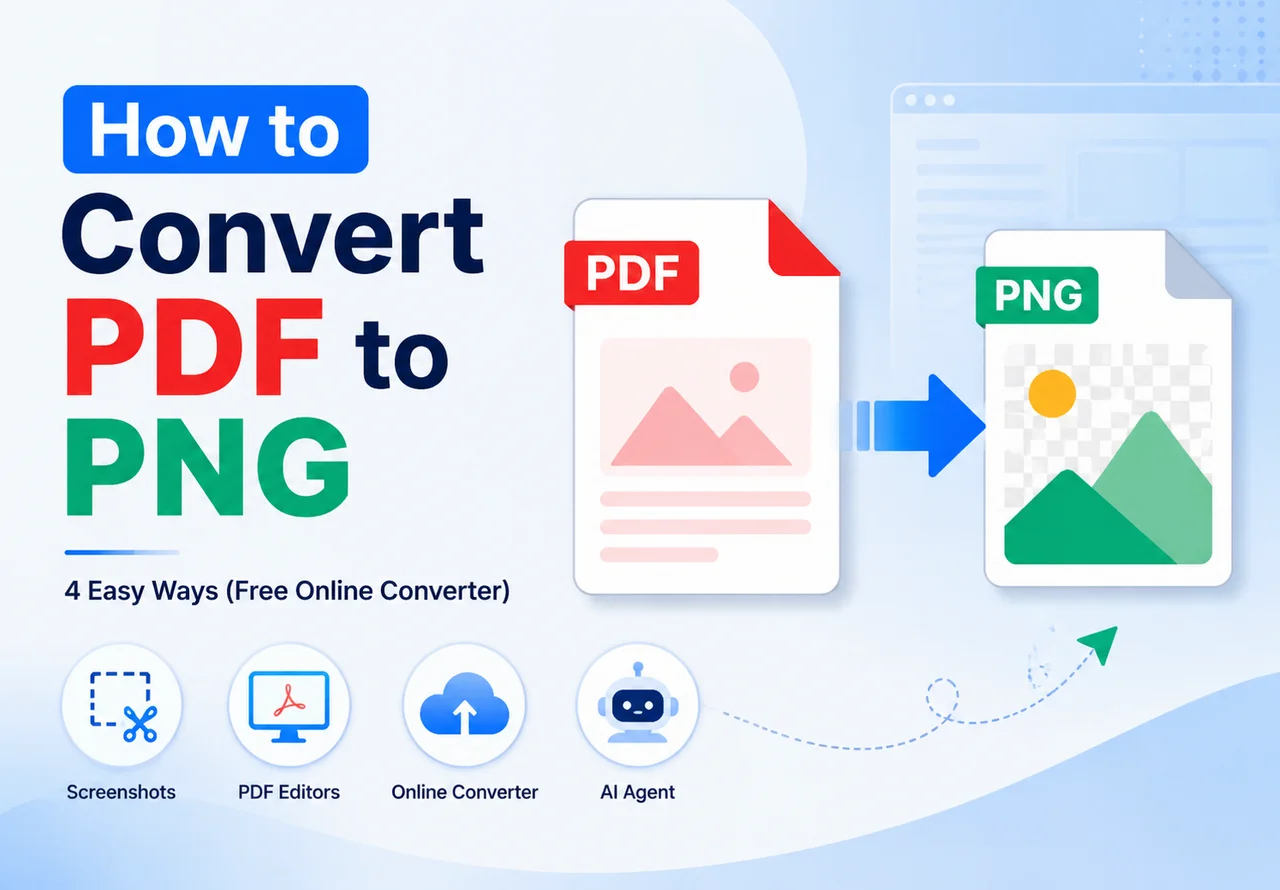
Have you ever struggled to share a PDF because the recipient couldn’t open it on their phone? Or maybe you need to embed a PDF page into a PowerPoint slide. In these cases, converting PDF pages to PNG images can make sharing and editing much easier. PNG files keep your content clear and support transparent backgrounds. In this guide, we will walk you through 4 easy ways to turn your PDFs into high-quality PNGs, including keyboard shortcuts, Save As feature, online converters, and an AI helper.
Contents
- Quick Comparison
- How to Convert PDF to PNG Using Screenshots
- Using PDF Editors as a PDF to PNG Converter
- Free Online PDF to PNG Converter: CloudXDocs
- Convert PDF to PNG with AI Tools
- FAQs about Convert PDF to PNG
Quick Comparison
| Method | Speed | Cost | Quality | Best For |
|---|---|---|---|---|
| Screenshot | Seconds | Free | Low (Blurry) | One-off, quick drafts |
| Adobe | Minutes | Expensive | High | Offline professional use |
| CloudXDocs | Seconds | Free | High | Daily office tasks |
| CloudXDocs AI Agent | Seconds | Free | High | Complex & custom tasks |
👉 Try the CloudXDocs Free Online PDF to PNG Converter Now
How to Convert PDF to PNG Using Screenshots
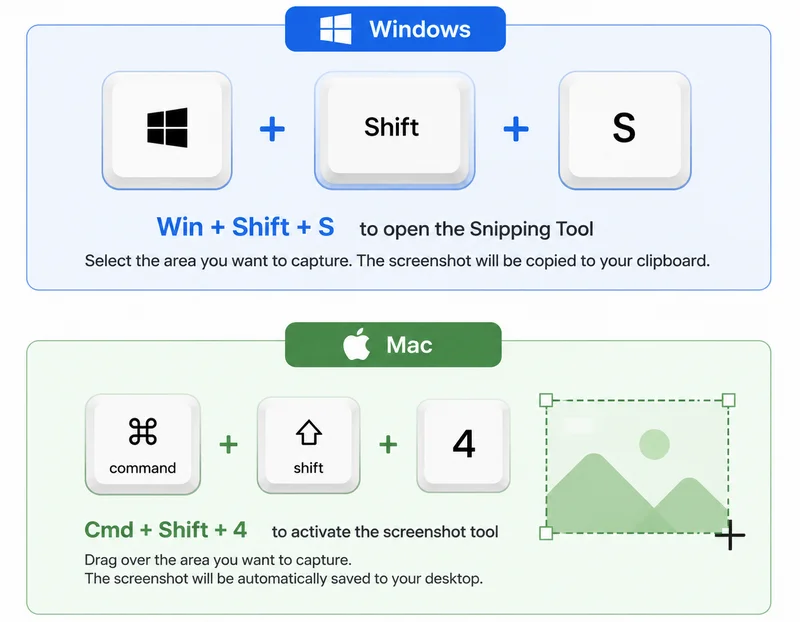
When most people need a quick image of a PDF, the first method that may come to mind is capturing the screen. As an everyday habit in both work and daily life, taking a screenshot is a quick way to convert a PDF to a PNG. This method is incredibly straightforward, though the exact steps differ slightly depending on your device:
- On Windows: Open your PDF and press
Win + Shift + Sto open the Snipping Tool, then select the PDF page area you want to capture. The screenshot will be copied to the clipboard. Paste it into a paint application and save it as a PNG. - On Mac: Open your PDF, press
Cmd + Shift + 4to bring up the crosshair pointer, drag it over the PDF page area, and the cropped image will save automatically to your desktop.
Pros and Cons:
- Pros: 100% free; requires no internet connection; works instantly for a single page.
- Cons: The resolution depends entirely on your monitor’s pixels, which often leaves text looking blurry. Furthermore, if you have a 50-page document, capturing pages one by one is incredibly effort-taking.
Using PDF Editors as a PDF to PNG Converter
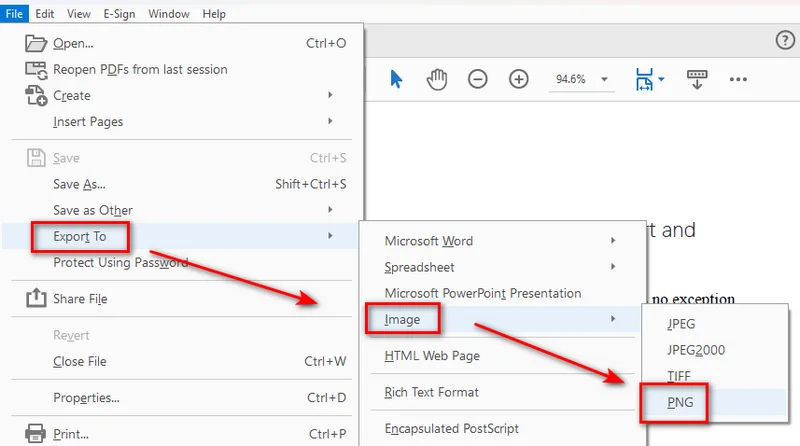
If you need to convert PDF to high-quality PNG images while offline, using a professional desktop application is a better choice. Adobe Acrobat works on both Windows and macOS, while Mac users can also use the built-in Preview app for simple conversions. Both tools allow you to effortlessly turn each PDF page into an individual PNG file. Here are the step-by-step instructions:
For Adobe Acrobat Pro users:
- Step 1: Open your PDF file inside Adobe Acrobat Pro.
- Step 2: Click File in the top-left corner, hover over Export To, then select Image and click PNG.
- Step 3: Choose your destination folder in the pop-up window and click Save.
For Mac Preview users:
- Step 1: Double-click your PDF to open it in the native Mac Preview app.
- Step 2: Click the View menu at the top and select Thumbnails to open the sidebar. Click any page thumbnail in the sidebar, then press
Cmd + Ato select all pages. - Step 3: Go to the top menu, click File, and select Export Selected Images…
- Step 4: Click the Options button at the bottom left of the pop-up window, change the format dropdown to PNG, set your resolution, and click Choose to save all pages.
Note: The menu name may vary slightly depending on your macOS version.
Pros and Cons:
- Pros: Offers high-resolution outputs; works entirely offline; supports basic multi-page exports.
- Cons: Adobe Acrobat Pro requires a costly monthly subscription. Mac Preview is completely free but only works on macOS, leaving Windows users behind. Additionally, you cannot run these heavy programs on a mobile phone.
Free Online PDF to PNG Converter: CloudXDocs
If you need a simple solution that works across different devices without installing software, an online PDF to PNG converter can be a convenient option. A tool like CloudXDocs runs directly in a web browser, making it lightweight, fast, and accessible from any device without losing quality.
Here is how you can use it to convert PDF files in just a few seconds:
- Step 1: Open a web browser and go to the CloudXDocs PDF-to-Image page.
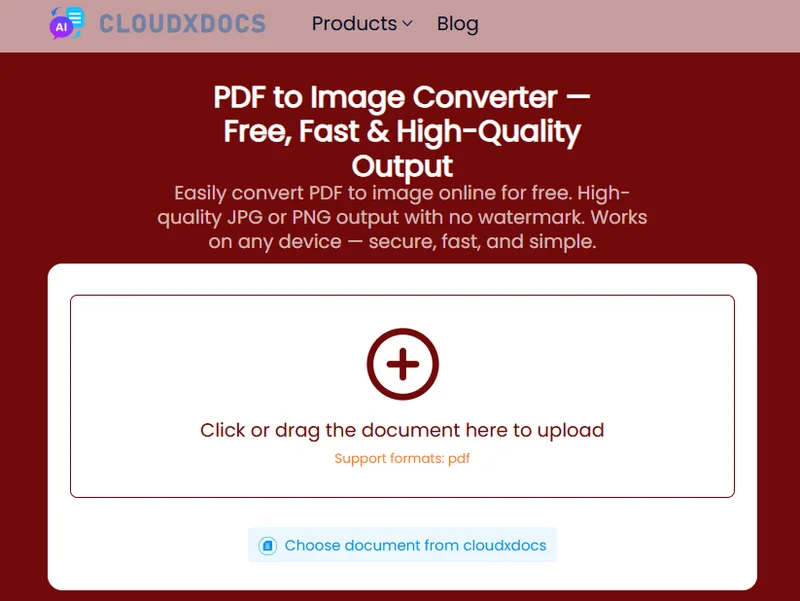
- Step 2: Upload your PDF document and wait a few seconds.
- Step 3: Download the converted PNG to the device.
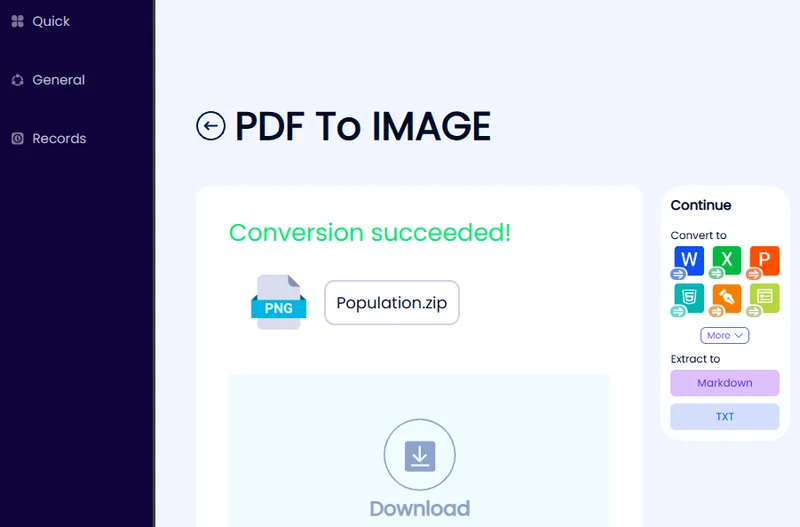
Why Choose an Online PDF to PNG Converter?
An online converter is a convenient choice when you need a quick and flexible way to turn PDF files into PNG images. It is especially useful in the following situations:
- Need quick conversion: Convert PDF pages into PNG images within seconds without opening desktop applications.
- Work across different devices: Access the converter from Windows, macOS, Linux, iOS, or Android without worrying about software compatibility.
- Do not want to install software: Complete the conversion directly in your browser without downloading additional applications.
- Need different output options: Convert PDFs into PNG and other image formats based on your workflow requirements.
- Handle files remotely: Process documents wherever you have an internet connection.
CloudXDocs provides these capabilities through a simple browser-based workflow. It allows users to convert PDF files without installing additional software and supports convenient document processing across different devices.
Moreover, CloudXDocs features a built-in AI agent that can handle more complex document workflows beyond simple file conversion. By using natural language instructions, users can request customized processing tasks. We will explore this AI-powered workflow in the next section.
Convert PDF to PNG with AI Tools
Many document tasks are more complicated than simple format conversion. You may need to translate a multi-page PDF report, convert selected pages into images, extract a signature page, or remove a background before exporting the final PNG files. A traditional converter usually handles only one step, which means additional editing is still required afterward.
CloudXDocs AI agent simplifies these multi-step workflows. You can describe your requirements in natural language and let AI handle related document processing tasks without switching between different applications.
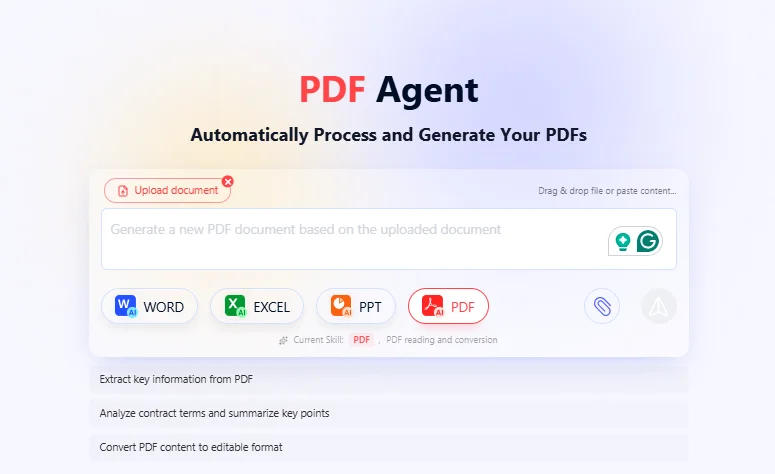
Here’s how it works:
Step 1: Navigate to CloudXDocs AI Agent in a browser.
Step 2: Upload the PDF to be processed.
Step 3: Type your request using simple, natural language.
- Example 1 (Page filtering): “Convert pages 3 to 5 of this document to PNG.”
- Example 2 (Complex office task): “Translate this English PDF to Spanish, then convert the final signed page into a PNG for me.”
Step 4: Hit send. The AI agent will immediately analyze your command, process the file, and generate a direct download link for your PNGs.
Conclusion
The best way to convert PDF to PNG depends on your needs. For occasional tasks, screenshots may be enough, while desktop software can provide high-quality output for offline processing. If you need a faster and more flexible PDF to PNG conversion solution, CloudXDocs offers an easy online option. For more advanced tasks such as translating documents, selecting specific pages, or applying custom processing, CloudXDocs AI Agent can help you complete the workflow with simple instructions.
FAQs about Convert PDF to PNG
Q1: Is there a completely free online PDF to PNG converter that keeps high resolution?
Yes. CloudXDocs is a completely free online PDF to PNG converter that supports high-resolution output. It ensures your text and graphics remain sharp and easy to read.
Q2: How to convert PDF to PNG without downloading any software?
The easiest way is to use a trusted online PDF to PNG converter like CloudXDocs. Because it runs entirely in your web browser, you can convert documents on almost any device without installing an application.
Q3: Will a multi-page PDF be saved as a single long PNG or multiple separate images?
Most PDF conversion tools export each page as a separate PNG image, although some tools may provide additional output options.