How to Convert Word to XML: 5 Methods from Online Tools to APIs
How to Convert Word to XML: 5 Methods from Online Tools to APIs
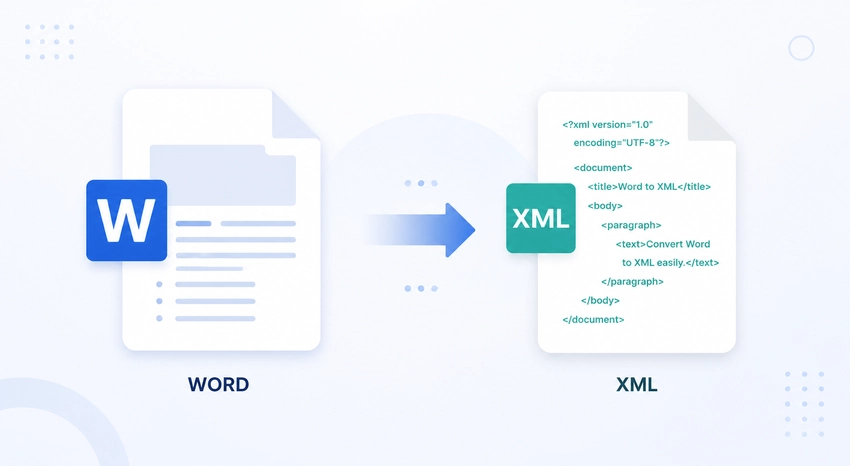
Need to convert a DOCX file into XML but are not sure which method to choose? XML provides a structured and machine-readable format that makes document content easier to process, exchange, and integrate with other systems.
Depending on your requirements, you can convert Word to XML using different approaches, from simple manual conversion and online tools to AI-powered solutions, scripts, and developer APIs. In this guide, we will explore five practical methods and help you choose the right solution based on your document volume, workflow, and technical needs.
Method 1: Manual Conversion in Microsoft Word
Manual conversion is the fastest starting point for anyone who already has Microsoft Word installed and needs to convert a single document without additional software.
Best For: One-off conversions, non-technical users, quick tests before committing to an automated workflow.
How to convert Word to XML manually
- Open your document in Microsoft Word.
- Click File > Save As.
- In the “Save as type” dropdown, select Word XML Document (*.xml).
- Choose a save location and click Save.
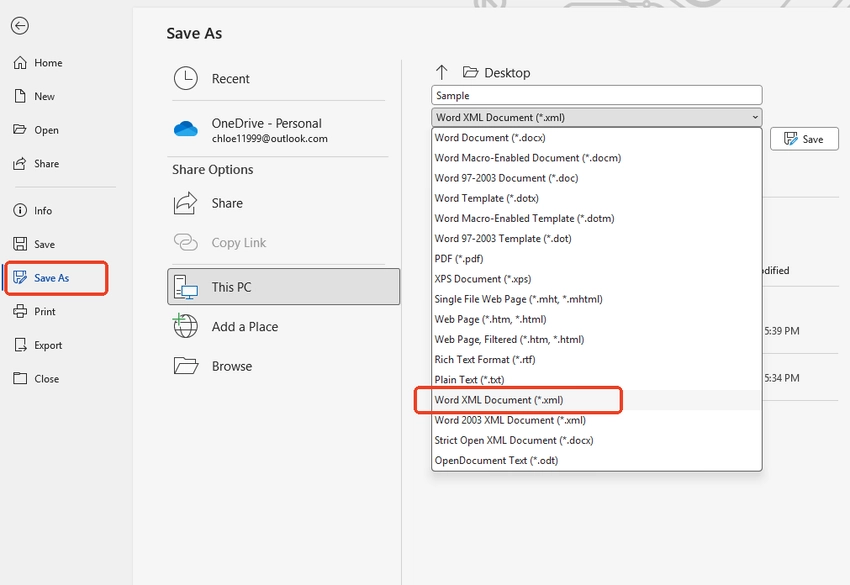
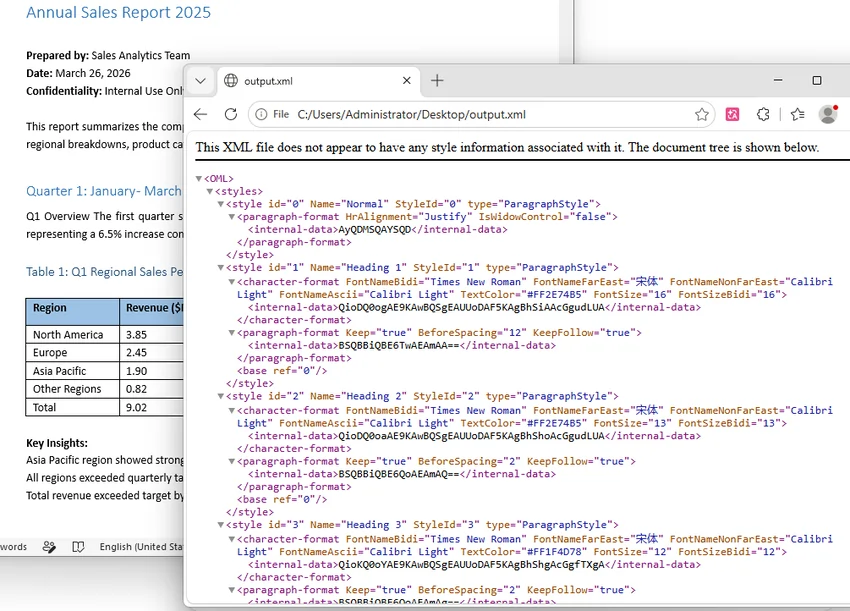
This produces a WordprocessingML file — Microsoft’s XML-based format that represents the document’s content, formatting, and structure as tags.
Limitations
- Word’s native XML export (Flat OPC or WordprocessingML) is often more verbose and Word-specific than the clean, custom-structured XML many systems expect
- No batch processing — each file must be converted individually
- Formatting-heavy documents can produce complex, deeply nested XML that requires further parsing
- Not suitable for recurring or high-volume conversion needs
Pros
- Zero cost, no additional tools needed
- Works entirely offline
- Familiar interface for most users
Cons
- Manual, one file at a time
- Output format may not match target XML schema
- Not scalable for batch or automated workflows
Method 2: Convert Word to XML with Online Converter
For users who want a faster, more consistent result without relying on Word’s built-in export, an online conversion tool offers a practical middle ground between manual conversion and full automation. CloudxDocs provides a simple browser-based solution for converting Word documents to XML without requiring Microsoft Word or additional software installation. Users can upload a DOCX file, complete the conversion online, and download the generated XML file within a few steps.
Best For: This approach works well for users who need occasional conversions and don’t want to configure a local environment.
How to use the CloudxDocs online converter
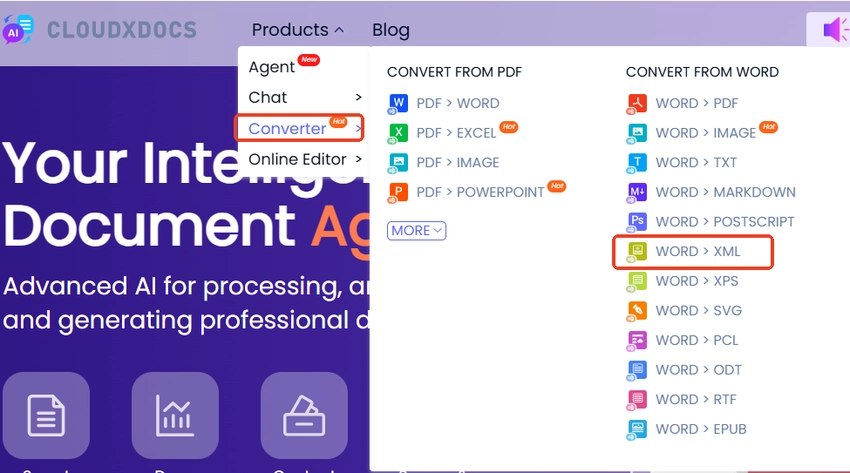
- Open CloudxDocs and choose WORD > XML.
- Click or drag your .docx file onto the upload area, or use the file picker.
- Wait a few seconds while the conversion runs.
- Download your XML file.
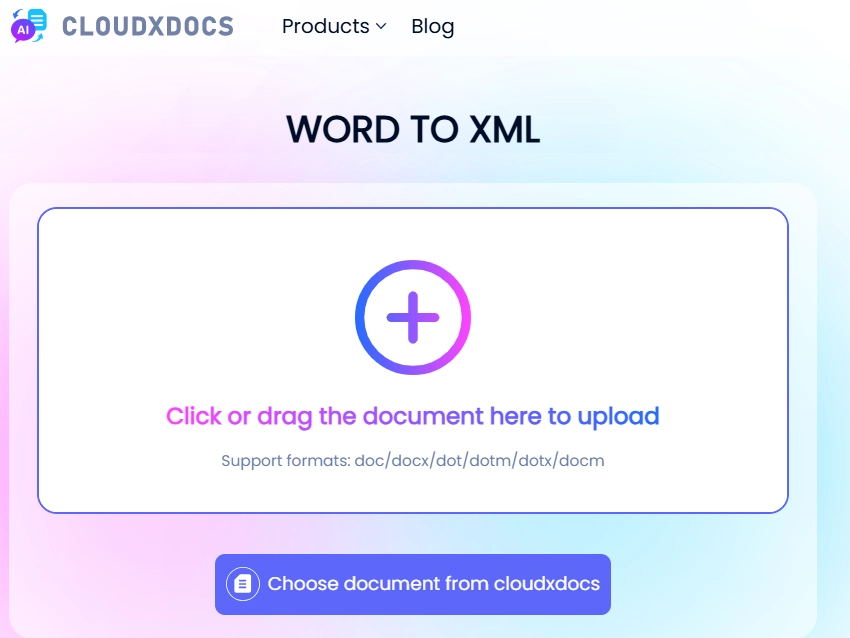
The entire conversion process runs online, allowing users to convert Word files from any device without configuring a local environment or installing document-processing software.
Key benefits
- No registration required: Start converting immediately without creating an account.
- Cross-platform: Works on any operating system with a modern browser.
- No software installation: Nothing to download or maintain.
- Consistent output: Provides a reliable XML conversion process without requiring Microsoft Word installation.
- Multiple format support: Beyond Word to XML, CloudxDocs also handles Word to TXT, Markdown, PDF, and other common document conversions.
Pros
- Fast and accessible from any device
- No software installation required
- Works across different operating systems
- Free conversion without watermarks
Cons
- Requires internet access
- File upload needed for each conversion
Method 3: AI Agent-Assisted Conversion
Traditional converters work well for standard document conversions, but some documents require additional processing logic, such as extracting specific elements or restructuring content. In these situations, an AI-powered document agent provides a more flexible way to process document content before generating XML. Instead of relying only on predefined conversion rules, users can describe their requirements in natural language and adjust the output based on the result.
Best For: Complex documents requiring intelligent structure detection, users who want conversion guided by natural language instructions rather than fixed settings.
How it works
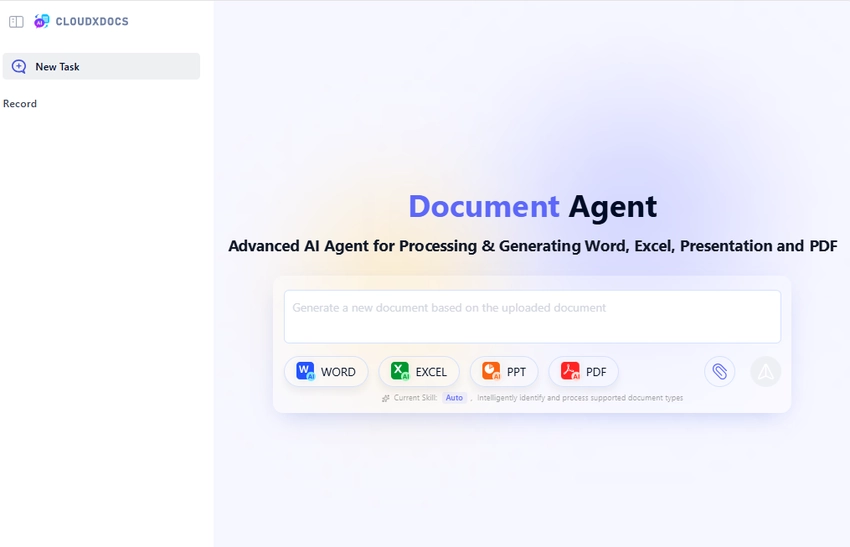
The CloudxDocs Agent extends the standard online converter with AI-driven processing. Instead of applying a single fixed conversion logic to every document, the agent analyzes the document’s content and structure to generate XML output based on user requirements and document context.
- Go to the CloudxDocs AI Document Agent.
- Upload your .docx file.
- Describe your requirements in plain English—for example, “extract only the tables as XML” or “preserve heading hierarchy and ignore images”.
- Review the output and, if needed, ask the agent to refine it.
- Download the final XML file.
How it differs from the standard online tool
| Feature | Online Tool | AI Agent |
|---|---|---|
| Processing logic | Fixed conversion rules | Context-aware, adapts to document structure |
| Instructions | Not supported | Accepts natural language guidance |
| Best for | Simple, straightforward documents | Complex documents with varied formatting |
Pros
- Handles complex document structures well
- Accepts natural language instructions
- Reduces manual post-processing/cleanup
Cons
- Processing time may be longer than static converters
- Newer technology, results may need review
Method 4: Script-Based Batch Conversion
While online tools are convenient, they still require users to upload files manually. Script-based automation helps eliminate repetitive steps by processing multiple Word documents automatically or integrating conversion into existing workflows.
Best For: IT administrators handling batch conversions, scheduled or unattended conversions, teams that already use Word or LibreOffice and want to automate existing workflows without introducing new tools.
On Windows: PowerShell (Word COM)
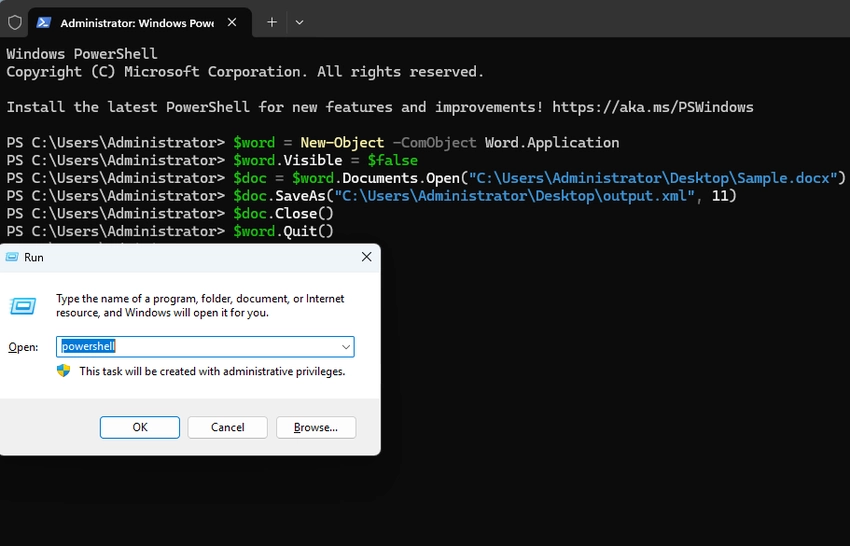
Windows users can automate conversions with PowerShell by controlling Microsoft Word through its COM interface. This approach is useful for desktop automation or controlled Windows environments where Microsoft Word is already installed.
1 | $word = New-Object -ComObject Word.Application |
The 11 parameter specifies the WordprocessingML XML format when saving.
The script launches Word in the background, opens the document, saves it in XML format, and closes the application. By adding a loop and error handling, the same approach can be extended to process multiple files automatically.
Cross-Platform: LibreOffice Command Line
If you are working on Linux or macOS, or want to avoid Microsoft Office dependencies, LibreOffice provides a headless command-line mode for automated document conversion. LibreOffice can be scripted directly from the terminal without opening a user interface.
1 | soffice --headless --convert-to xml input.docx --outdir /output |
Pros
- No additional software cost
- Can be scheduled for unattended, recurring runs
- LibreOffice route works across Windows, macOS, and Linux
- Good for IT/ops-driven batch workflows
Cons
- Requires some command-line familiarity
- Environment-dependent (Word COM on Windows, LibreOffice elsewhere)
Method 5: Programmatic Word to XML Conversion with Spire.Doc
For developers who need to integrate Word-to-XML conversion directly into an application, remotely controlling Word or LibreOffice isn’t practical — it’s slow, fragile at scale, and doesn’t fit cleanly into application code. This is where a dedicated document processing library like Spire.Doc allows conversion logic to be embedded directly into software, with full control over the output.
Best For: Developers building document processing features into applications, teams that need conversion integrated into existing software systems, scenarios requiring fine-grained control over output structure.
Why use Spire.Doc
Spire.Doc is a document processing library that allows applications to create, read, edit, and convert Word documents without requiring Microsoft Word to be installed. With support for .NET, Java, and Python, it enables developers to integrate Word-to-XML conversion into applications across different technology environments.
Example: converting Word to XML in C#
1 | using Spire.Doc; |
Python
1 | from spire.doc import * |
Just a few lines of code load the source document and export it directly to XML, with no manual steps required.
Key advantages
- No Microsoft Word dependency: Works on servers where Word isn’t installed
- Multi-language support: Available for .NET, Java, and Python projects
- Integrates into existing workflows: Conversion logic runs as part of the application itself
- Fine-grained control: Developers can customize how content, formatting, and structure map to XML
Pros
- No external software dependencies at runtime
- Supports deployment in various application environments
- Flexible control over document processing workflows
- Handles encrypted and complex documents out of the box
- Enterprise-grade reliability
Cons
- Requires programming knowledge
- Commercial license for full feature set (free version available with limitations)
Comparison Table
| Method | Best For | Technical Skill Needed | Office Needed | Automation |
|---|---|---|---|---|
| Manual Word Export | One-off conversions | None | Yes (Word) | None — fully manual |
| CloudxDocs Online Converter | Quick online conversion | None | No | Low — manual upload per file |
| CloudxDocs AI Agent | Intelligent document processing | None | No | Low-Medium — guided by instructions |
| Scripts | Scheduled batch jobs, IT/ops automation | Basic scripting | Yes (Word or LibreOffice) | Medium — automated, requires scheduling setup |
| Spire.Doc API | Application integration, high-volume conversion | Programming | No | High — fully embedded, no manual steps |
Choosing the Right Method
Here’s a simple guide:
One document, no urgency? Manual conversion in Word gets it done without any setup.
Need a clean result quickly, no installation? The online converter at CloudxDocs handles it from any browser.
Complex document with specific structure requirements? The AI agent lets you describe what you want and refine the output through conversation.
Dozens or hundreds of files on a schedule, using software you already have? A PowerShell or LibreOffice script turns a manual task into a single command.
Building an application that processes Word documents? Spire.Doc provides programmatic conversion capabilities without requiring Microsoft Office installation, making it a practical option for automated document-processing systems.
If you’re not sure, start simple. You can always move up the chain as your needs grow.
Conclusion
Word-to-XML conversion covers a broad spectrum, from one-click desktop exports to fully automated processing pipelines. Each of the five methods we’ve explored serves a distinct use case, and the right conversion method depends on your document volume and technical needs. The good news is that regardless of where you fall on that spectrum, reliable Word-to-XML conversion is accessible at every level of technical investment.
FAQs
Q1: Is converting Word to XML free?
Yes, mostly. Manual conversion, the online tool, AI agent, and scripts (PowerShell/LibreOffice) are all free. Spire.Doc has a free tier, with a commercial license needed for production.
Q2: Will my formatting be preserved in the XML output?
It depends on the conversion method. For simple documents, yes across all methods. For complex layouts, AI Agent-based workflows and Spire.Doc provide more options for handling specific document processing requirements.
Q3: Can I convert Word to XML without Microsoft Word?
Yes. You can convert Word documents to XML without Microsoft Word. Online tools like CloudxDocs allow you to convert files directly in a browser, while APIs like Spire.Doc help developers automate Word-to-XML conversion in applications without requiring Microsoft Office.
Q4: Is the online converter safe for confidential documents?
Before uploading confidential documents, users should review CloudxDocs’ privacy and data handling policies to ensure the service meets their requirements.
Q5: When should I use an AI Agent instead of a free online converter?
Use the AI agent when your document has complex formatting or you need specific elements extracted rather than a full conversion. It’s also the right choice when you want custom output structure without writing code.