Convert TXT to Excel: 3 Proven Methods (Local, AI, and Code)
Convert TXT to Excel: 3 Proven Methods (Local, AI, and Code)
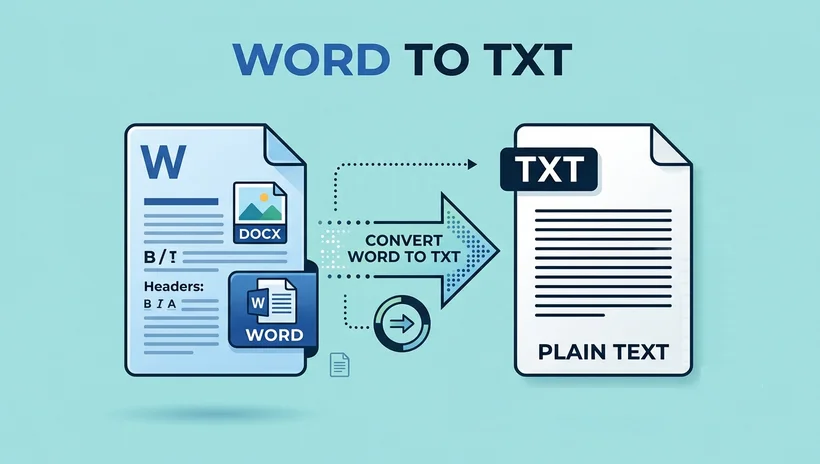
TXT files are easy to create and share, but raw text is difficult to sort, filter, calculate, or visualize. Converting a TXT file to Excel turns the content into structured rows and columns that are easier to analyze and reuse.
This guide covers three TXT to Excel methods: Microsoft Excel for structured files, the CloudxDocs AI Agent for irregular or unstructured text, and C# for automated batch conversion.
Quick Comparison
The right method depends on how structured the TXT file is and whether the conversion is a one-time task or part of a recurring workflow.
| Method | Best use case | Main advantage |
|---|---|---|
| Excel Import Tool | Clean files with consistent delimiters such as tabs or commas | Fast, local, and requires no additional software |
| CloudxDocs AI Agent | Mixed, irregular, or unstructured text | Interprets the content and creates a structured workbook |
| C# Automation | Repeated conversions, batch processing, or application workflows | Provides full control over automation and formatting |
Let’s go through all 3 methods step-by-step so you can choose the best one for your file.
Method 1: The Local Way (Microsoft Excel Built-in Tool)
When a TXT file uses a consistent delimiter—such as a comma, tab, semicolon, or space—Excel’s built-in import tool can separate the values into columns without additional software.
Step 1: Open a blank workbook
Launch Microsoft Excel and create a new blank workbook.
Step 2: Open the Text/CSV import tool
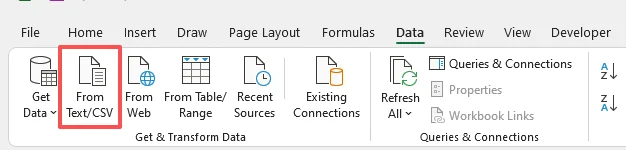
Go to the Data tab on the Ribbon, and select From Text/CSV (in older versions of Excel, the option may appear under Get External Data > From Text).
Step 3: Select the TXT file
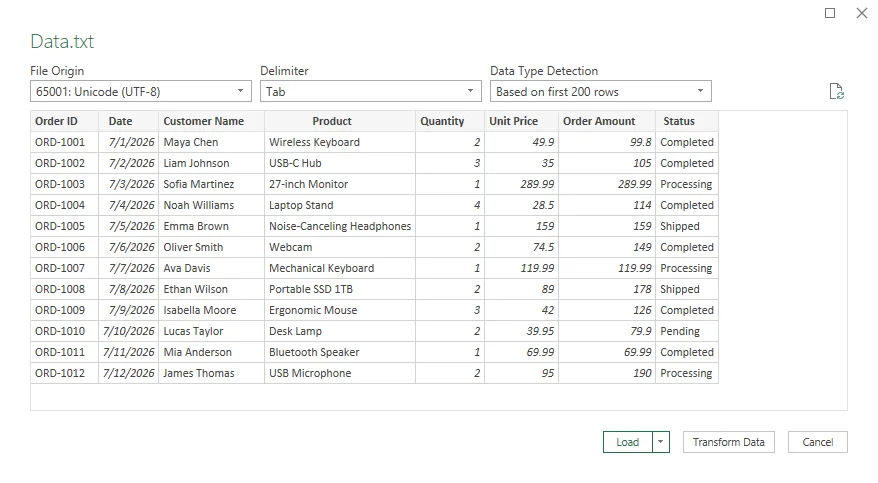
Browse to your TXT file, select it, and click Import. Excel will open a preview of the detected data.
Step 4: Check the encoding and delimiter
In the preview window, verify the following settings:
- File Origin: Select UTF-8 when the file contains non-English characters, accents, or symbols.
- Delimiter: Select Tab, Comma, Space, Semicolon, or another appropriate separator.
Check if the values appear in the correct columns. If all the data appears in one column, you probably selected the wrong delimiter.
Step 5: Load the data
Once the preview looks correct, click Load to import the data into a worksheet.
Tip: If Excel’s automatic column detection doesn’t quite match your data, use Transform Data to open Power Query, where you can manually adjust column names, remove unwanted rows, change data types, and filter records before loading.
Step 6: Save the workbook
Go to File > Save As, select Excel Workbook (*.xlsx) and save the file.
Limitations of This Method
While this method works for clean, highly consistent data, it has its boundaries. If your text file mixes multiple delimiters, contains uneven spacing, or includes messy, unstructured sentences, you will likely spend a lot of time manually cleaning up rows afterward.
If your file falls into that messy category, skip right to Method 2 below.
Method 2: The AI Way (CloudxDocs AI Agent)
A traditional importer separates text based on fixed characters such as commas or tabs. It does not understand what the text means.
An AI-powered tool such as Cloudxdocs AI agent can instead interpret the content and organize it according to your instructions. For example, it can extract customer names, dates, products, amounts, and statuses from natural-language order records even when each line uses a different format.
It can also create workbook formatting such as:
- Bold header rows
- Background shading
- Cell borders
- Alternating row styles
- Adjusted column widths
- Sorting and filtering
- Multiple worksheets
Step 1: Upload your file
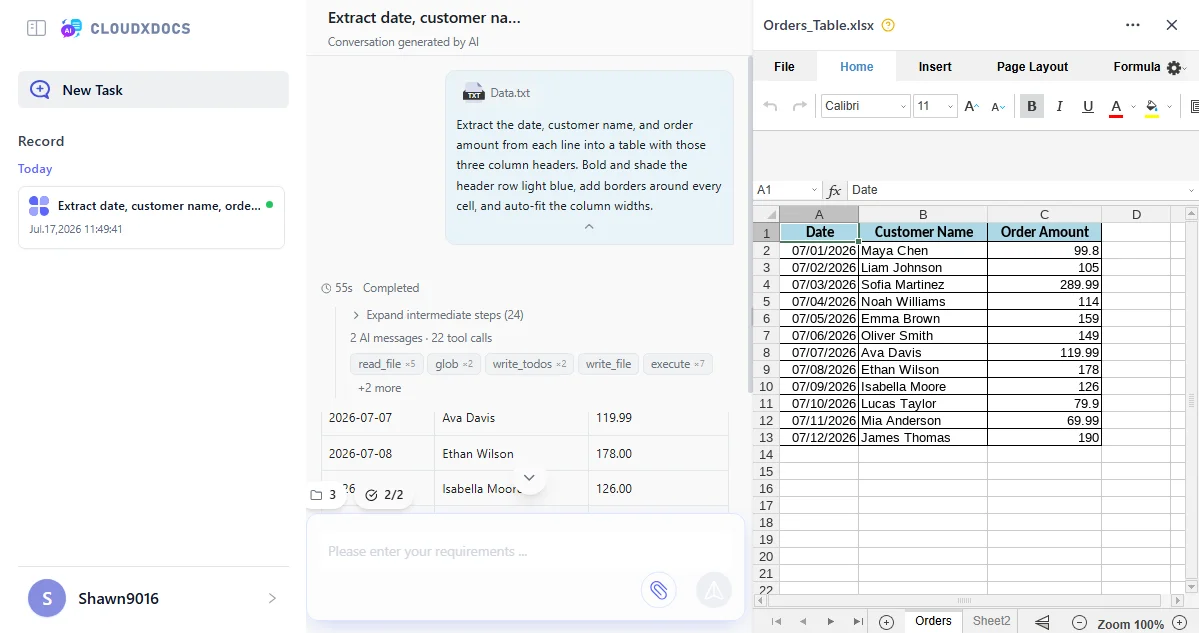
Go to the CloudxDocs AI Agent page and upload your TXT file.
Step 2: Describe the required spreadsheet
Give the AI Agent a specific, detailed command describing both the structure and the formatting you want. Vague instructions get vague results — be explicit. For example:
- “Extract the date, customer name, and order amount from each line into a table with those three column headers. Bold and shade the header row light blue, add borders around every cell, and auto-fit the column widths.”
Step 3: Review the generated workbook
Review the table it generates. If something’s off, keep refining with follow-up instructions — for instance, “Sort by order amount descending” or “Merge the first and last name into one column.”
Step 4: Download the Excel file
Once it looks right, download it as an Excel (.xlsx) file.
Limitations of the AI method
AI-based conversion is flexible, but it is not deterministic. Because an AI model is interpreting the text rather than mechanically splitting it, you should spot-check the output against the source — especially numbers, dates, and anything that determines a business decision — before relying on it.
For confidential, regulated, or commercially sensitive information, review the service’s current privacy, retention, and data-processing terms before uploading the file. Use an offline method when the data is not authorized for third-party processing.
Method 3: The Programmatic Way (C# Code Automation)
None of the first two methods scale well once you’re processing hundreds of files on a schedule. For that, a code library is the practical choice. Spire.XLS for .NET library supports creating and manipulating Excel files in C# without requiring Microsoft Office, and it gives you full control over both the data and the formatting.
Step 1: Install Spire.XLS
Using the Visual Studio Package Manager Console:
1 | Install-Package Spire.XLS |
Using the .NET CLI:
1 | dotnet add package Spire.XLS |
Step 2: Read the TXT file and create the workbook
The following code example reads the TXT file, split each line by a delimiter, and write the values into a new workbook — while also applying some formatting so the output doesn’t look like a raw data dump:
1 | using Spire.Xls; |
Step 3: Run the program
Press F5 to run the program. The resulting .xlsx file will have the parsed data, a bolded and shaded header row, borders, and properly sized columns — no manual cleanup needed afterward.
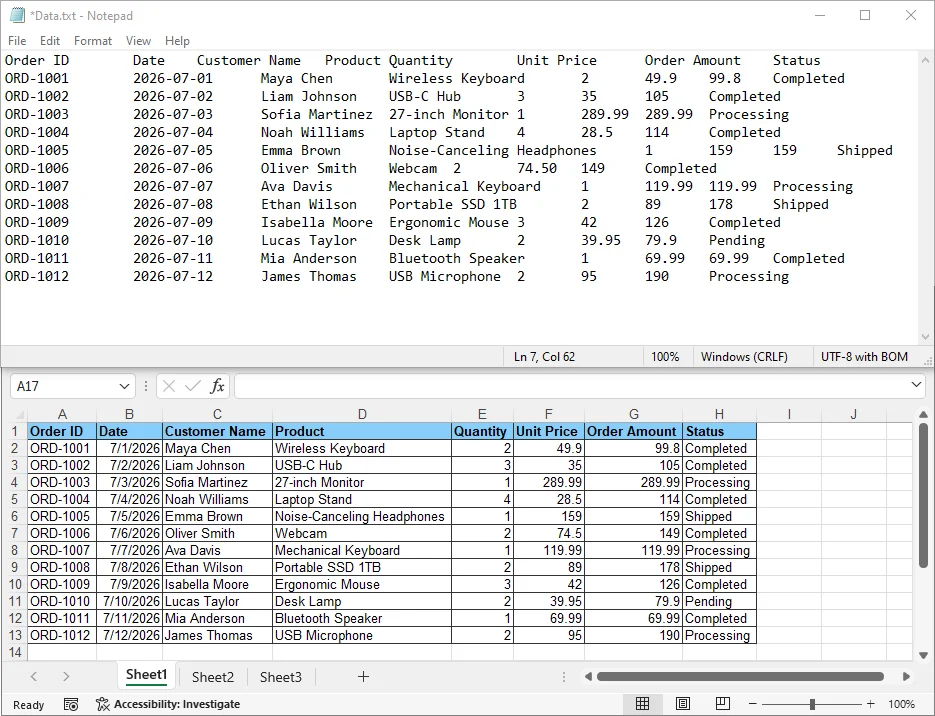
You can wrap the code in a loop to convert an entire folder of TXT files with consistent formatting applied to every one.
Note: The trial version of Spire.XLS for .NET adds an evaluation sheet to saved files if no valid license is applied; for test in production-like environments, request a 1-month trial license.
Common Issues When Converting TXT to Excel
- Wrong column splits: Usually means the delimiter you selected doesn’t match what’s actually in the file. Open the TXT in a plain text editor first to check whether it’s comma-, tab-, or space-separated.
- Garbled special characters: Almost always an encoding mismatch. Set the file origin/encoding to UTF-8 during import.
- Everything landing in one column: The importer didn’t detect a delimiter at all — switch to manual/custom delimiter selection, or use the AI Agent if there isn’t a consistent delimiter to select in the first place.
- Large files timing out in a browser tool: Very large TXT files (tens of thousands of lines) are best handled in desktop Excel or with code rather than an online converter.
- Vague AI results: If the AI Agent’s output doesn’t match what you wanted, the instruction was probably too vague. Name the exact columns, the exact formatting, and any sorting or splitting rules explicitly.
FAQs
Can I convert TXT to Excel for free?
Yes. Microsoft Excel’s native import feature is free if you already own Excel, CloudxDocs AI Document Agent offers free tokens to use without installation, and Spire.XLS for .NET has a free version for development and light use.
Will converting TXT to Excel preserve formatting?
TXT files don’t contain formatting to begin with — only raw text. Methods 1 focus purely on organizing that raw text into rows and columns; formatting has to be applied afterward by hand. Methods 2 and 3 can apply formatting as part of the conversion itself — the AI Agent through natural-language instructions, and Spire.XLS through explicit code.
What if my TXT file doesn’t use commas or tabs to separate data?
If there’s no consistent delimiter at all, a rules-based converter (Method 1) will struggle. This is exactly the case the CloudxDocs AI Agent (Method 2) is designed for, since it interprets the content rather than splitting on a fixed character.
Is it safe to upload sensitive TXT files to an online converter?
Reputable tools like CloudxDocs process files only for conversion and delete them from their servers shortly afterward. If your data is highly sensitive, the offline Excel method (Method 1) or a local code-based conversion (Method 3) avoids uploading anything at all.
Can I convert multiple TXT files to Excel at once?
Not with Excel’s built-in import, which handles one file at a time, and not efficiently with a browser tool either. For batch conversion of many files, Method 3 (Spire.XLS for .NET) is the right tool — wrap the conversion logic in a loop over a folder of files.
Summary: Which TXT to Excel Method to Choose
There is no single best TXT to Excel method that covers all cases. A practical decision order is:
- Try Excel when the structure is consistent.
- Use the AI Agent when the text needs interpretation.
- Build C# automation when the process needs to be repeated reliably.
For sensitive files, also consider where the data can be processed. Excel and local C# code keep the file on your device, while an online AI Agent requires uploading it to a third-party service.