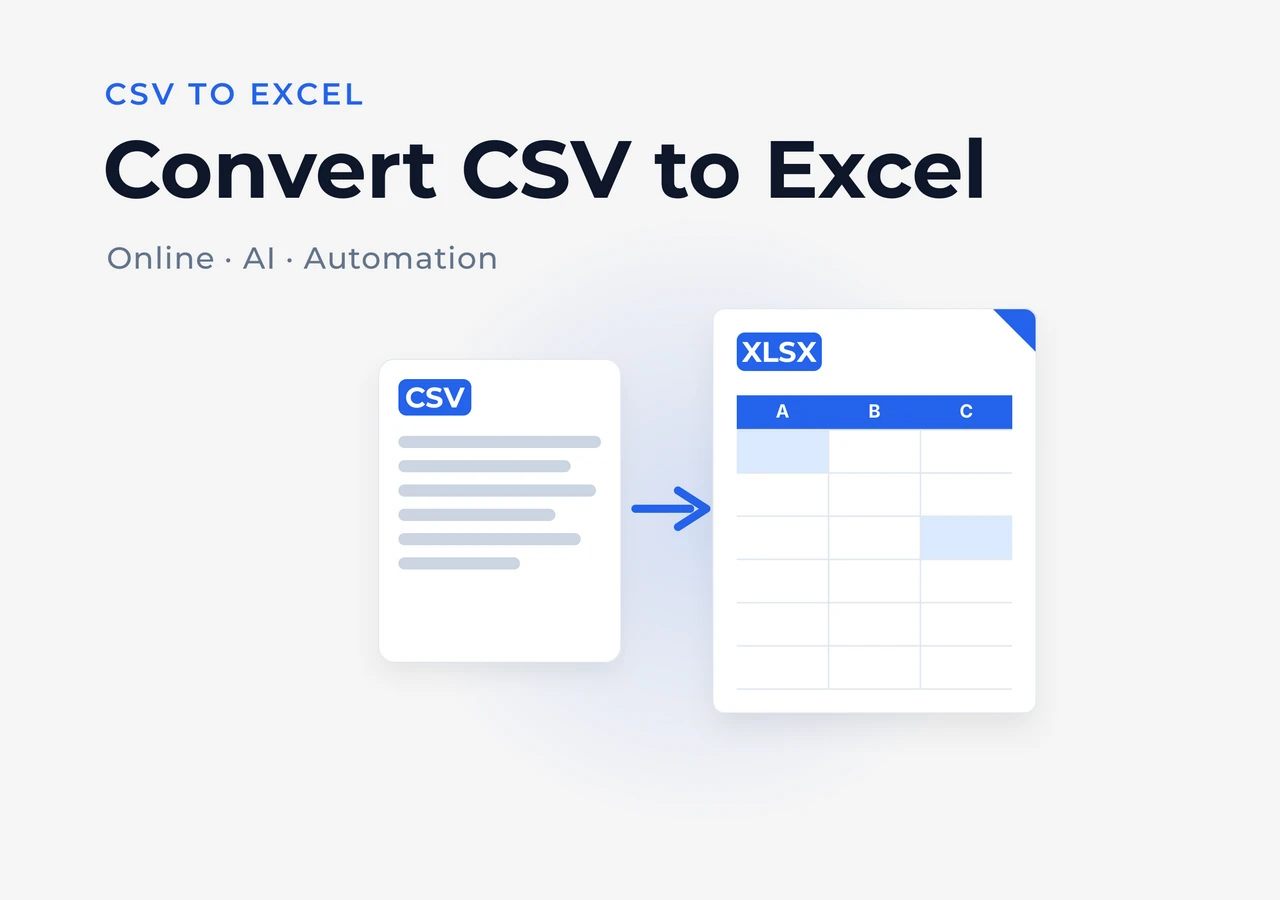
CSV to Excel: Open, Fix, Clean, and Convert CSV Files
CSV to Excel: Open, Fix, Clean, and Convert CSV Files
You double-click a CSV file. Excel opens it. But instead of clean, organized data, you see garbled characters where names should be. Dates have shifted by four years. Long product IDs turned into 1.23E+15. And you have four more files just like this one that need to be merged into a single report.
The truth is, converting a CSV file to Excel is often more than a simple format change. It’s about opening it correctly, cleaning the data, and getting it into a usable state — whether that means a formatted spreadsheet, an automated pipeline, or an AI-assisted workflow.
In this guide, we’ll cover the most practical approaches to handling CSV files in Excel, organized by what you actually need:
| What you need | Skip to |
|---|---|
| Just open and view a CSV | Section 1 |
| Fix garbled text or wrong delimiters | Section 2 |
| Clean, merge, analyze, and transform CSV data with AI | Section 3 |
| Quick online conversion | Section 4 |
| Automate the process with code | Section 5 |
| Decide which method fits your situation | Section 6 |
1. How to Open a CSV File as an Excel Spreadsheet
If you simply need to open a CSV file in Excel, there are two common approaches. One is quick and convenient. The other gives you full control over how Excel interprets your data.
Method 1: Double-click the CSV file (fastest)
On most Windows systems, CSV files are associated with Excel by default. Double-click the file, and Excel opens it immediately.
For a quick preview, this is often enough. However, Excel may automatically interpret the data in ways you didn’t intend. Text encoding, dates, long numeric values, and identifiers with leading zeros can all be altered during import.
If the data looks incorrect after opening, don’t worry — we’ll cover the most common causes and fixes in the next section.
Method 2: Import the CSV through Excel (recommended)
If you need accurate results, Excel’s built-in import tool is the safer option because it lets you control encoding and delimiter settings before the data is loaded.
Open a blank Excel workbook.
Go to Data → Get Data → From File → From Text/CSV.
Select your CSV file.
In the preview window:
- Set File Origin to
65001: Unicode (UTF-8)if your file contains non-English characters. - Select the correct Delimiter (Comma, Semicolon, Tab, etc.).
- Set File Origin to
Click Load.
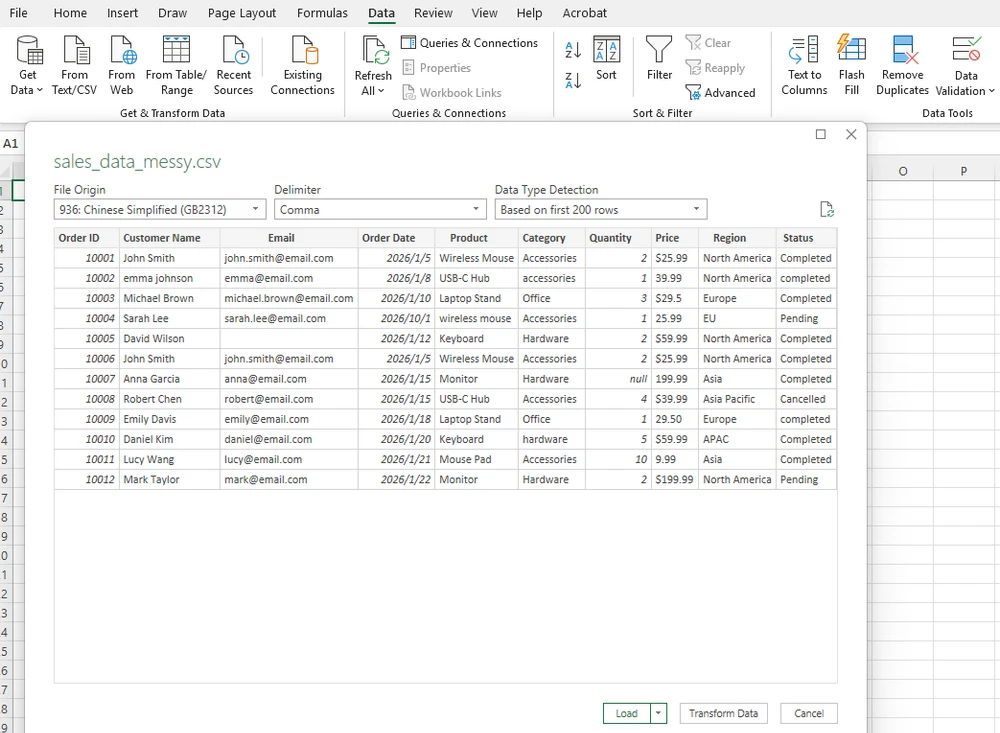
This approach gives Excel the information it needs to interpret the file correctly before importing the data into a worksheet.
Bottom line: If you’re only checking a CSV file, double-clicking may be sufficient. If the data matters, use Excel’s import tool. And if the file opens with garbled text, missing columns, or unexpected formatting, the next section explains exactly how to fix it.
2. Fix CSV UTF-8 Encoding and Delimiter Issues
Two things cause the majority of “my CSV looks wrong in Excel” complaints: encoding and delimiters. Fortunately, both are easy to fix once you know where to look.
Garbled text: use UTF-8 during import
CSV files don’t store encoding information. A file created on a Mac or Linux system is often saved as UTF-8, while Excel on Windows may assume a different encoding when opening it directly. The result is garbled characters such as é instead of é.
How to fix it: Import the file through Data → Get Data → From Text/CSV, then set File Origin to 65001: Unicode (UTF-8) in the preview window before loading the data. If you create CSV files yourself, saving them as CSV UTF-8 (with BOM) helps Excel recognize the encoding automatically.
Data in one column: check the delimiter
CSV files use a delimiter to separate columns, but that delimiter isn’t always a comma. Depending on regional settings and the software that created the file, it may be a semicolon (;), tab, or another character.
If all of your data appears in a single column, re-import the file using Data → Get Data → From Text/CSV and select the correct delimiter in the preview window. Excel will immediately show whether the columns are being parsed correctly before you load the data.
The manual vs. automated trade-off
Fixing encoding or delimiter issues manually takes less than a minute per file, which is perfectly reasonable for occasional use. But when you’re dealing with dozens of CSV files from different sources, repeatedly checking encodings, delimiters, and data quality becomes tedious. That’s where an automated approach — whether script or AI — starts to save significant time.
If you ever need to go the other direction, our guide on how to convert Excel to CSV covers the reverse process in the same level of detail.
3. AI-Powered CSV Processing: Clean, Analyze, and Convert
Opening a CSV file is only the first step. In real-world workflows, the bigger challenge is cleaning inconsistent data, combining files from different sources, and turning raw records into a spreadsheet that’s actually ready to use.
This is where an AI document agent becomes valuable. Instead of manually fixing issues one by one, tools such as CloudXDocs Document Agents can analyze CSV files, identify data-quality problems, and generate Excel-ready workbooks with minimal manual effort.
How AI-powered CSV processing works
Using an AI document agent is straightforward:
Upload one or more CSV files.
Describe your task using natural language instructions.
(For example, “Clean this CSV file, fix inconsistent data formats, remove duplicate records, standardize dates and categories, and export it as a professionally formatted Excel report with charts and a summary sheet.”)
Review the generated workbook and AI summary.
Download the finished Excel file.
Here’s an example of AI-powered CSV processing in action:
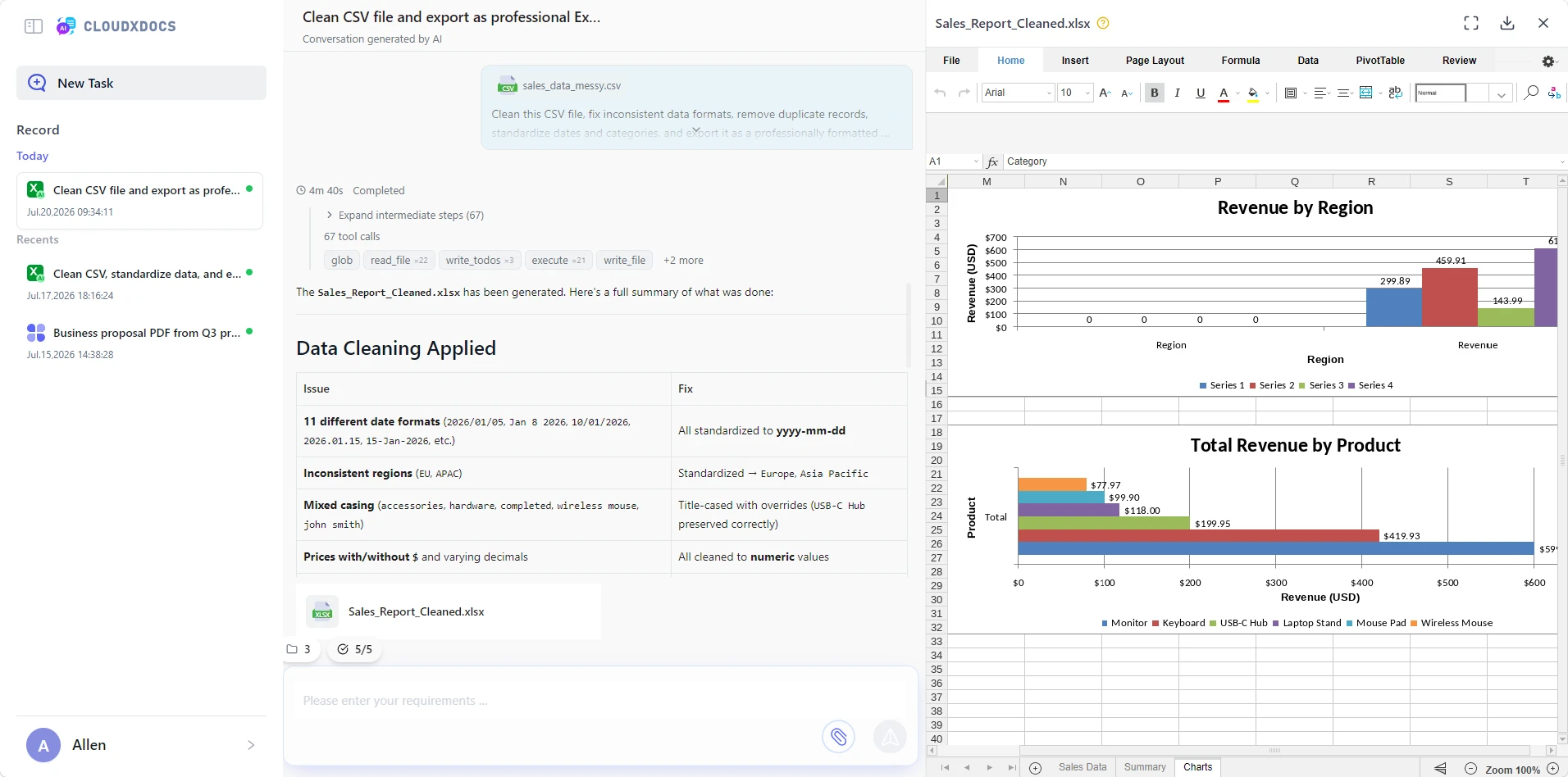
What AI brings to CSV processing that traditional tools don’t
Traditional CSV processing follows a fixed set of rules. If the input changes—a different delimiter, inconsistent headers, or unexpected data formats—the workflow often requires manual intervention.
An AI document agent works differently. Rather than relying entirely on predefined rules, it analyzes the document structure and adapts to the data it receives.
| Traditional tools | AI document agent |
|---|---|
| Manual encoding and delimiter selection | Detects common encoding and delimiter issues automatically |
| Requires consistent column layouts | Handles files with different structures more flexibly |
| Limited data validation | Identifies duplicates, missing values, and inconsistent formats |
| Manual file merging | Assists with mapping and merging related datasets |
| Outputs only a converted file | Generates an Excel workbook together with a processing summary |
Cleaning and merging CSV files with AI
Beyond simply converting CSV to Excel, AI can automate many of the repetitive tasks that usually happen beforehand, such as:
- Removing duplicate records.
- Standardizing inconsistent date and number formats.
- Detecting missing or suspicious values.
- Combining multiple CSV files into a single workbook.
- Applying professional spreadsheet formatting and generating charts when appropriate.
Instead of spending time fixing dozens of small issues manually, you can review the AI’s suggested changes before exporting the final workbook.
Beyond conversion: understand your data
A traditional converter produces an XLSX file. An AI document agent can also help explain what’s inside it by generating:
- Column summaries and detected data types.
- Data-quality reports highlighting anomalies or missing values.
- Basic statistical summaries and trends.
- Natural-language insights that make large datasets easier to understand.
For recurring business reports, this turns CSV processing into a repeatable workflow instead of a manual cleanup task.
Why use a document agent instead of a general AI chatbot?
General AI chatbots are great for answering questions, but document agents are designed to complete document workflows. In addition to analyzing CSV data, they can process multiple files, generate formatted Excel workbooks, apply consistent spreadsheet formatting, create charts when appropriate, and produce reusable outputs that fit into reporting and business processes.
If you regularly work with CSV exports from different systems, using a document agent can save hours of manual spreadsheet work while delivering more consistent results.
4. Convert CSV to Excel Online
If your CSV is already clean and you simply need to convert it into an Excel workbook, an online converter is usually the fastest option. The CloudXDocs CSV to Excel Converter lets you upload a CSV file, convert it in seconds, and download the result as an XLSX workbook—no software installation or coding required.
The conversion process is straightforward:
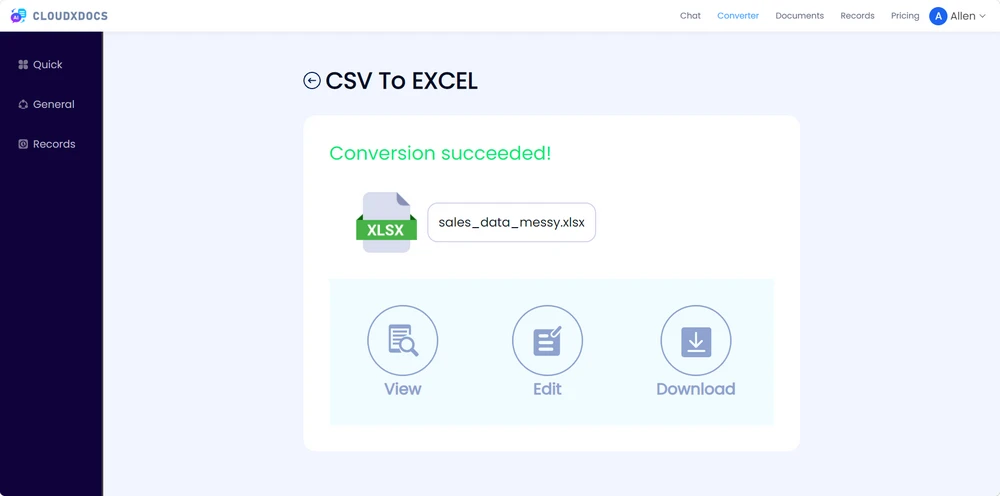
How it works:
- Upload your CSV file.
- Convert it to Excel in seconds.
- Download the generated XLSX workbook.
Online converters are ideal for straightforward format conversion. If your CSV is already well-structured, this is often the quickest solution.
When to go beyond online conversion:
- Your CSV has encoding or delimiter problems (see Section 2)
- You need to clean, merge, or analyze data before converting (see Section 3)
- You want to automate recurring conversions with code (see Section 5)
You can try the CloudXDocs CSV to Excel Converter for quick online conversion, or read our complete CSV to Excel conversion guide for supported formats, limitations, and best practices.
5. Automate CSV Processing with Python
If CSV-to-Excel conversion is part of a recurring workflow, automation can save significant time compared with manually opening and converting files. Python is a popular choice for building automated data-processing pipelines, from importing CSV files to generating formatted Excel workbooks.
For developers who need more control over Excel output, Spire.XLS for Python provides APIs for creating and managing Excel files without requiring Microsoft Excel. It can be used to import CSV data, apply spreadsheet formatting, create charts, and export professional Excel workbooks.
Convert CSV to Excel with Python
A typical CSV-to-Excel automation workflow starts with a simple conversion step:
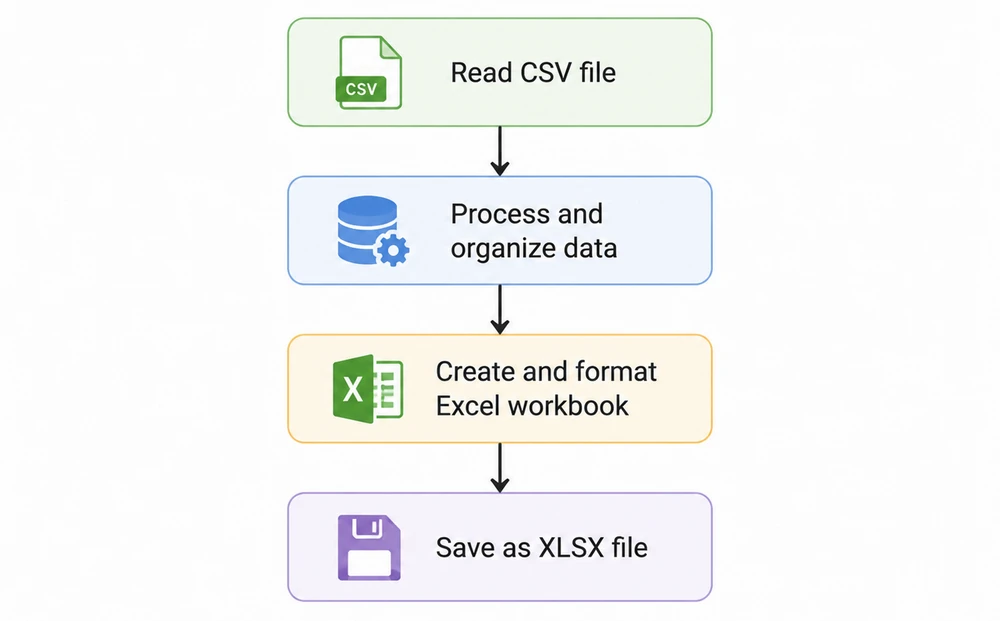
Example:
1 | from spire.xls import * |
This example demonstrates the basic CSV-to-Excel conversion process. In real-world applications, CSV files often require additional processing before the final workbook is ready, such as cleaning inconsistent data, formatting cells, adjusting column widths, adding charts, or generating reports.
For example, you can extend the workflow by:
- Applying spreadsheet formatting and styles after importing CSV data.
- Processing multiple CSV files in batches.
- Generating daily or weekly reports automatically.
- Adding charts, formulas, and other Excel features programmatically.
For a complete tutorial on converting CSV files to Excel with Python, see our step-by-step guide.
Once your Excel workbook is ready, you may also need to convert Excel to PDF for sharing or archiving — the same library can handle that workflow as well.
6. Which Method Should You Choose?
There’s no single “best” way to handle CSV files. The right approach depends entirely on your situation:
| Your situation | Best method | Why |
|---|---|---|
| Just want to view a CSV file | Open in Excel (Section 1) | Fast, no tools required |
| CSV text is garbled | Fix encoding (Section 2) or AI (Section 3) | Manual for one file, AI for many |
| Quick one-off conversion | Online converter (Section 4) | No install, seconds to finish |
| Data needs cleaning before I can use it | AI Agent (Section 3) | Finds problems you’d miss, fixes them automatically |
| Merge multiple CSV files into one spreadsheet | AI Agent (Section 3) | Handles different schemas, deduplicates, summarizes |
| Need data analysis with my conversion | AI Agent (Section 3) | Generates insights, not just a file |
| Recurring automated pipeline | Python (Section 5) | Code-level control, runs on schedule |
The short version
- One clean CSV → Excel: Online converter. Done in seconds.
- Messy CSV(s) → clean, analyzed Excel: AI agent. This is where AI meaningfully outpaces every other method.
- Ongoing, automated workflow: Python. Write it once, it runs forever.
Ready to process your CSV files?
Whether you need a quick online conversion, an AI-powered data cleanup and analysis, or code-level automation with Python, the approach you choose determines how much time you spend on the task — and how much you trust the result.
Choose your path above, and turn that messy CSV into a clean, actionable Excel file.
Frequently Asked Questions
1. Why does my CSV file look wrong when opened in Excel?
CSV files may display incorrectly in Excel because of encoding issues, incorrect delimiters, automatic date conversion, or long numbers being changed into scientific notation. To avoid these problems, import the CSV file through Excel’s Data → From Text/CSV option and check the encoding and delimiter settings before loading the data.
2. Can I convert multiple CSV files into one Excel workbook?
Yes. For simple files with the same structure, you can use Excel Power Query or Python scripts to combine multiple CSV files. If the files have different columns, inconsistent formats, or require cleaning before merging, an AI document agent can help organize the data and generate a structured Excel workbook automatically.
3. What is the difference between CSV and Excel (XLSX) files?
CSV is a plain-text format mainly used for storing and exchanging tabular data. It does not support formatting, formulas, charts, or multiple worksheets. Excel XLSX files support advanced spreadsheet features, making them better suited for data analysis, reporting, and business workflows.