How to Convert PowerPoint to HTML: 3 Practical Methods (2026 Guide)
How to Convert PowerPoint to HTML: 3 Practical Methods (2026 Guide)
A PowerPoint file is great for a boardroom, but it’s not really built for the web. If you’ve ever tried to drop a .pptx into a blog post or embed a deck on a landing page, you already know the problem — PPT files need PowerPoint (or a compatible app) to open, they don’t resize well on mobile, and search engines can’t read a word of what’s inside them.
Converting your presentation to HTML fixes all of that. HTML slides load in any browser, adapt to any screen, and — unlike a locked PPT file — their text is actually indexable, which matters if you want people to find your content through search. Course creators use this to turn training decks into web lessons. Marketers use it to publish product presentations without asking visitors to download anything. Developers use it to pipe slide content into internal dashboards or CMS pages.
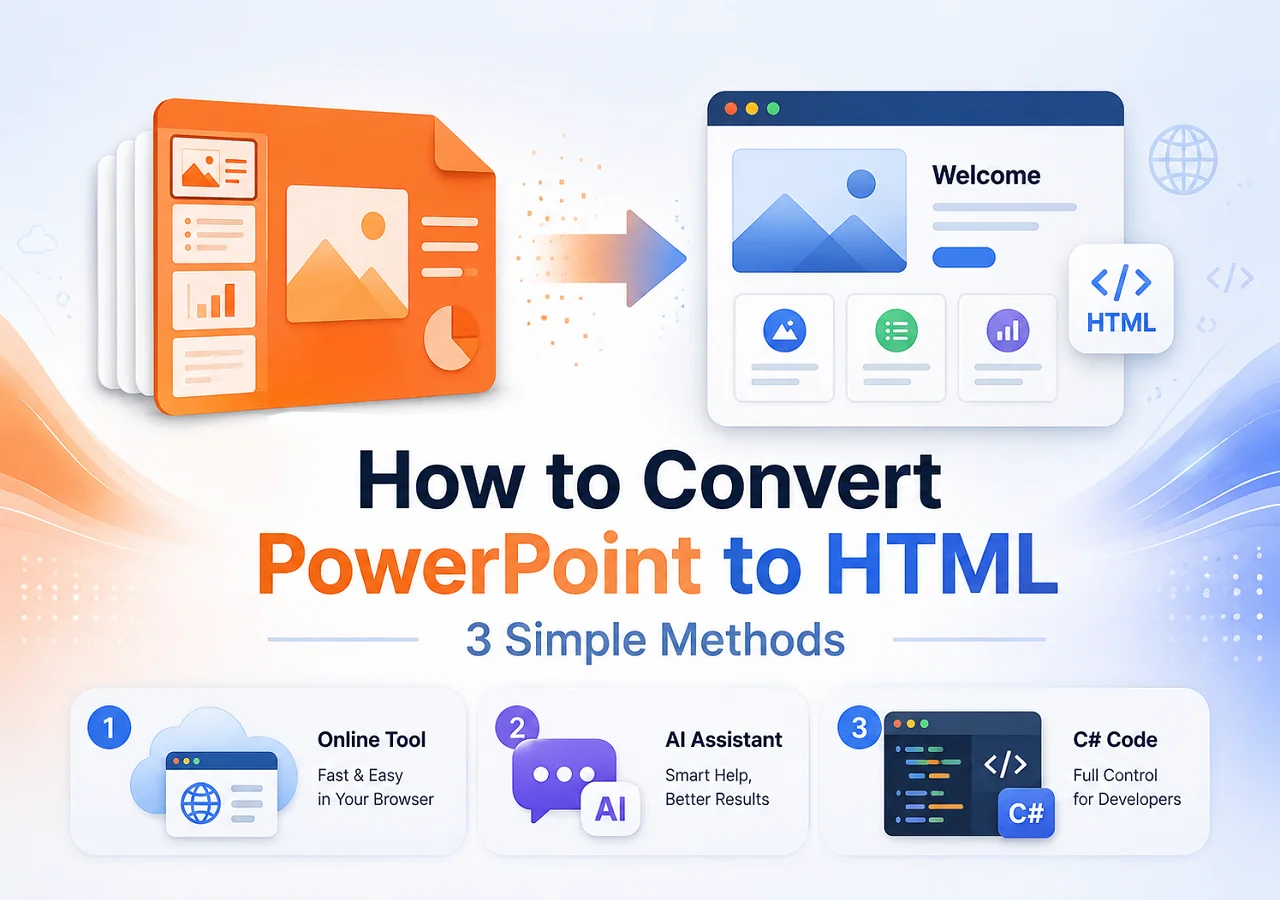
This guide walks through three ways to convert PowerPoint to HTML: a free online converter for one-off conversions, an AI Document Agent for when you want more than a straight format swap, and a C# code method for developers who need to automate the process. Pick whichever fits how you actually work.
Method 1: Convert PowerPoint to HTML Online with CloudxDocs Converter
If you just need a finished HTML file and don’t want to install anything, the CloudxDocs PowerPoint to HTML Converter is the fastest route. It runs entirely in the browser, works on Windows, Mac, and mobile, and doesn’t require you to sign up before trying it.
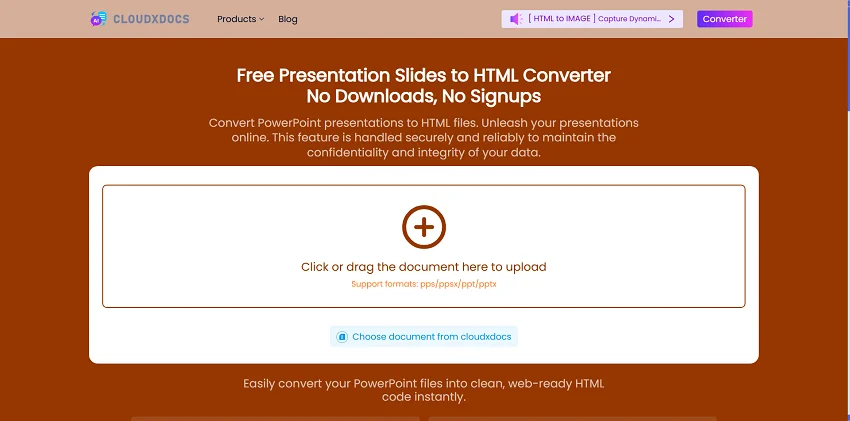
Steps to Convert PowerPoint to HTML Online
Step 1. Open the CloudxDocs PowerPoint to HTML Converter page. Drag your .ppt or .pptx file into the upload area, or click to browse for it on your computer.
Step 2. CloudxDocs reads the file automatically and starts converting your slides into HTML — including text, images, and layout — without you needing to touch any settings.
Step 3. Once the conversion finishes, preview the result right in your browser to make sure everything looks right.
Step 4. Click Download to save the HTML file, or open it directly in the editor if you want to tweak the content before publishing.
A few things worth knowing about this method:
- No software required. You don’t need PowerPoint installed, which is handy if you’re working from a Chromebook, a shared computer, or a phone.
- Files are handled securely. Uploads are processed over an encrypted connection and deleted from the server after a short window, so you’re not leaving a copy of your deck sitting on someone else’s storage.
- It’s built for straightforward conversions. This method is ideal when you want the presentation’s content and structure carried over as-is. If you need the output restructured, summarized, or turned into something more than a slide-by-slide HTML page, the next method gives you more control.
Method 2: Use CloudxDocs AI Document Agent for Smarter Conversion
A plain converter turns your slides into HTML — that’s it. But sometimes what you actually want is different: maybe you need the deck condensed into a single scrollable web page, the bullet points rewritten as proper paragraphs, or a table of contents generated at the top. That’s where the CloudxDocs AI Document Agent comes in.
Instead of applying one fixed set of rules to every file, the Agent reads your presentation, understands what’s in it, and generates the HTML based on instructions you give it using natural language. Under the hood it works through AI-driven code execution, so the output is a real, structured document rather than a rough guess at formatting.
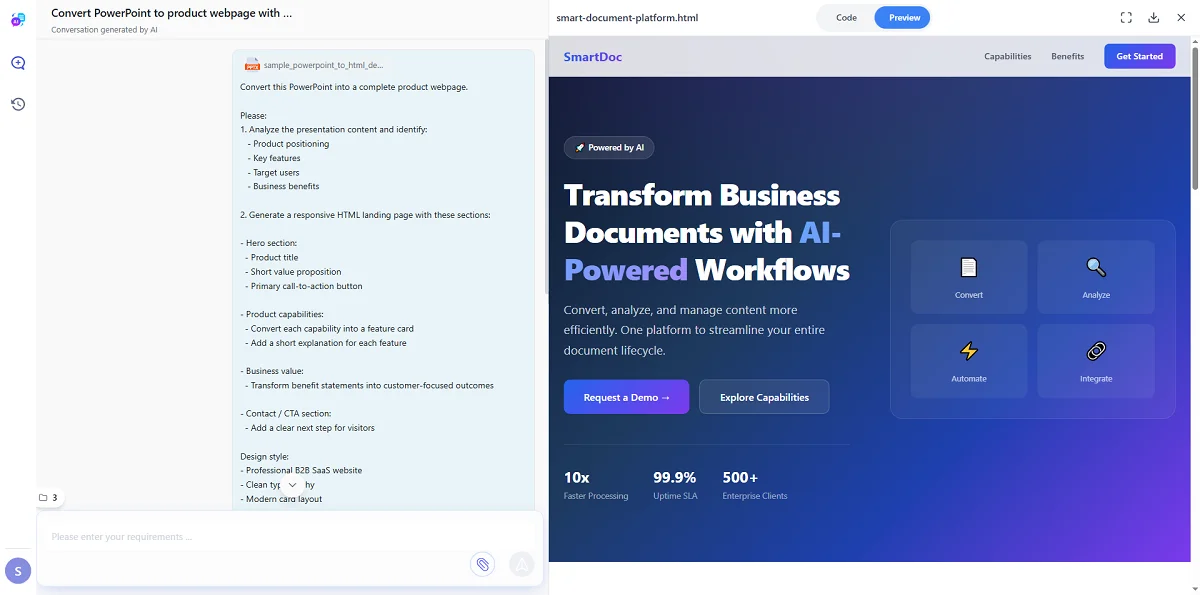
Steps to Transform PowerPoint Content into HTML Smartly with AI Agent
Step 1. Go to CloudxDocs and open the AI Document Agent (Chat with PowerPoint). Upload your presentation file.
Step 2. Tell it what you want in your own words. For example: “Convert this deck into a clean, responsive HTML page with a heading for each slide and a navigation menu at the top”, or “Turn this into responsive HTML and combine the last three slides into one summary section.”
Step 3. Review what the Agent produces. Since it’s a conversation, you can ask for changes on the spot — simplify a section, adjust the styling, or pull out just the slides that matter.
Step 4. Download the finished HTML file once you’re happy with it.
This approach is worth reaching for when:
- You want the HTML to read well on its own, not just mirror the slide layout.
- Your deck has inconsistent formatting and you’d rather describe the outcome than fix each slide by hand.
- You need extra help — a summary, a set of key takeaways, or rewritten captions — alongside the conversion itself.
It’s a slower process than a one-click converter, but for anyone repurposing a presentation into real web content, it usually saves more time than it costs.
Method 3: Convert PowerPoint to HTML with C# and Spire.Presentation
If you’re building this into an application, a batch job, or an internal tool, doing the conversion through code makes far more sense than uploading files by hand. Spire.Presentation for .NET is a library that reads and writes PowerPoint files without needing Microsoft Office installed, and it supports exporting presentations straight to HTML.
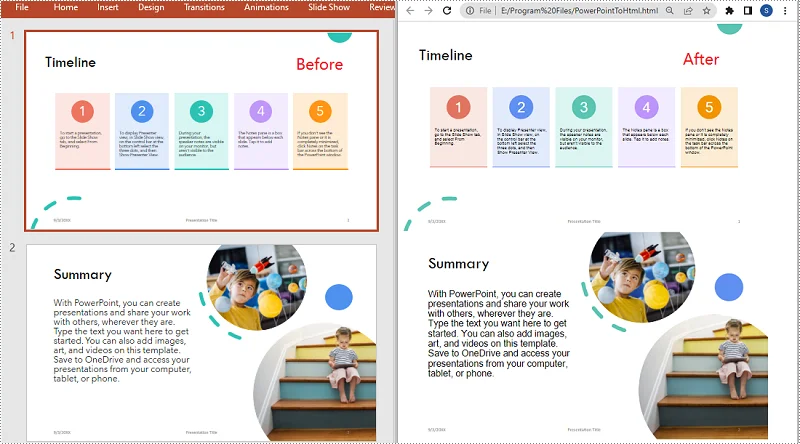
Steps to Automate PowerPoint to HTML with C#
Step 1. Install Spire.Presentation in your .NET project. The simplest way is through NuGet:
1 | Install-Package Spire.Presentation |
Step 2. Load your presentation and save it as HTML. Here’s a minimal example:
1 | using Spire.Presentation; |
That’s the entire conversion — three meaningful lines of code. Wrapping the Presentation object in a using block makes sure resources are released properly once the file is written, which matters if you’re converting many files in a loop.
Converting a single slide instead of the whole deck
Sometimes you only need one slide turned into HTML — say, for a preview thumbnail page. You can grab it by index and save just that slide:
1 | using Spire.Presentation; |
A couple of things to plan around with this method:
- Complex animations and transitions won’t carry over — HTML doesn’t have a direct equivalent for PowerPoint’s slide effects.
- The generated markup is functional rather than polished, so you may want to run it through your own CSS or template afterward if it’s going on a public-facing page.
- Without a valid license, the generated HTML output will include a watermark. You can request a free temporary license for evaluation and testing. For smaller presentations with up to 10 slides, you can also use the free edition.
For anything that needs to run unattended — nightly batch conversions, a document pipeline, a feature inside your own app — this is the method that scales.
Which PowerPoint to HTML Method Should You Use?
| Method | Best for | Setup required |
|---|---|---|
| CloudxDocs Online Converter | Quick, one-off conversions with no fuss | None — just a browser |
| CloudxDocs AI Document Agent | Restructuring or improving content during conversion | None — just a browser |
| C# with Spire.Presentation | Automating conversions inside an app or workflow | .NET project + NuGet package |
If you’re converting a single deck for a one-time need, start with the online converter — it’s free and takes under a minute. If the raw conversion isn’t quite what you want and you’d rather describe the result, the AI Document Agent gets you there without any coding. And if PowerPoint-to-HTML conversion needs to happen automatically, again and again, as part of a larger system, Spire.Presentation in C# is the tool built for that job.
Frequently Asked Questions About PPTX to HTML
Does converting PowerPoint to HTML keep my formatting?
Text, images, colors, and basic layout generally carry over well with all three methods. Animations, slide transitions, and some advanced effects typically don’t, since HTML has no built-in equivalent for them.
Can I convert a password-protected PowerPoint file?
You’ll need to remove the password first, or use a code-based method that supports supplying the password when loading the file. Online converters generally can’t process protected files directly.
Is it safe to upload a presentation with sensitive information to an online converter?
CloudxDocs processes files over an encrypted connection and deletes them from its servers after conversion. That said, for anything highly confidential, a local, code-based conversion keeps the file on your own machine the entire time.
Do I need PowerPoint installed to convert a file with Spire.Presentation?
No. Spire.Presentation reads and writes .ppt and .pptx files on its own, so it works even on servers where Microsoft Office isn’t installed.


![How to Convert RTF to Word Document for Free [Ultimate Guide]](/blog/images/convert-rtf-to-word-document-for-free/convert-rtf-to-word-for-free-in-two-simple-ways.webp)