How to Convert RTF to Word Document for Free [Ultimate Guide]
How to Convert RTF to Word Document for Free [Ultimate Guide]
Have you ever opened an RTF file only to find strange spacing or misplaced images? While Rich Text Format (RTF) was designed to share formatted text across different applications, files may lose their original layout when opened in some word processors or editing tools.
Converting RTF files to Word documents is an effective way to improve compatibility, preserve formatting, and access more advanced editing features. In this guide, we’ll explain what RTF is, why you may need to convert it, and two simple ways to save RTF files as Word documents.
Contents
- What Is the RTF Format
- Why Convert RTF to Word
- 2 Easy Ways to Convert RTF to Word for Free
- RTF vs Word
- FAQs about Converting RTF Files to Word
What Is the RTF Format
Before converting an RTF file, it is useful to understand how this format works. Developed by Microsoft in 1987, RTF stands for Rich Text Format. It was designed as a universal document format so different word processors could exchange text and basic formatting without breaking.
Unlike standard Word documents, RTF relies on plain-text control codes under the hood. In fact, if you open an RTF file in a basic text editor like Notepad, you won’t see clean and readable text, instead, you’ll see raw formatting code:
1 | {\rtf1\ansi\deff0{\fonttbl{\f0\fnil\fcharset0 Arial;}} |
Why Convert RTF to Word
You might wonder if converting an RTF file is really necessary. For simple raw text, RTF works fine. However, switching to a DOCX file gives you three practical advantages:
- Unlock Full Formatting & Collaboration: Features like track changes, automated tables of contents, advanced chart styles, and header/footer settings are either limited or missing in RTF.
- Smaller File Sizes: DOCX files often store formatting and media more efficiently, especially for documents containing complex layouts or embedded objects.
- Seamless Mobile & Web Viewing: Smartphones and browser-based editors handle Word documents natively, whereas RTF files often cause annoying visual bugs or alignment errors on mobile screens.
2 Easy Ways to Convert RTF to Word for Free
With these limitations in mind, let’s look at two practical ways to convert RTF files to Word. Whether you prefer using Microsoft Word, an online RTF-to-Word converter, or a smart AI assistant, there is a method tailored to your setup.
Convert RTF to Word Document Using Save As in MS Word
If you already have Microsoft Word installed on your computer, you have a built-in RTF to Word converter. MS Word allows users to open RTF and save it directly as DOCX. This method is both quick and secure, as the entire conversion doesn’t require connecting to the Internet.
- Step 1: Open the RTF file in Microsoft Word.
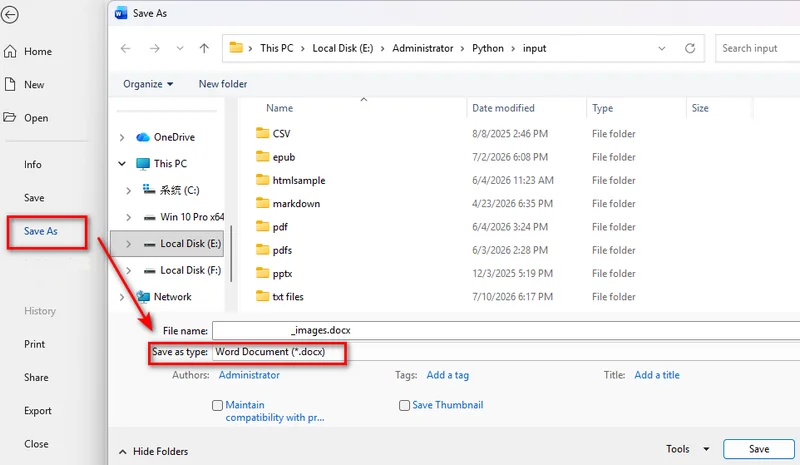
- Step 2: Go to the top menu and click File > Save As.
- Step 3: Choose your destination folder.
- Step 4: In the Save as type drop-down menu, select Word Document (*.docx).
- Step 5: Click Save.
Use an Online Free RTF to Word Converter
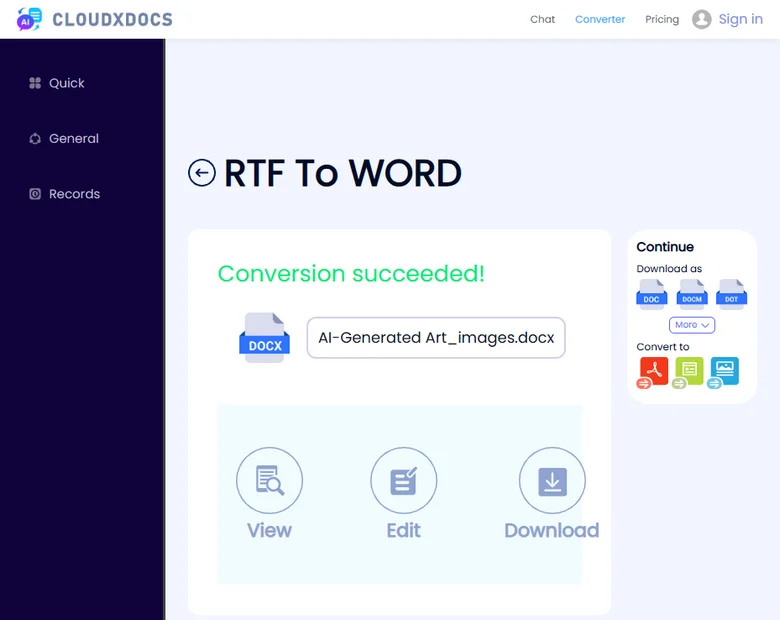
If Microsoft Word is not installed on your device, an online converter can be a convenient alternative. An online converter like CloudXDocs offers a quick, hassle-free alternative to convert RTF to Word documents across browsers or systems.
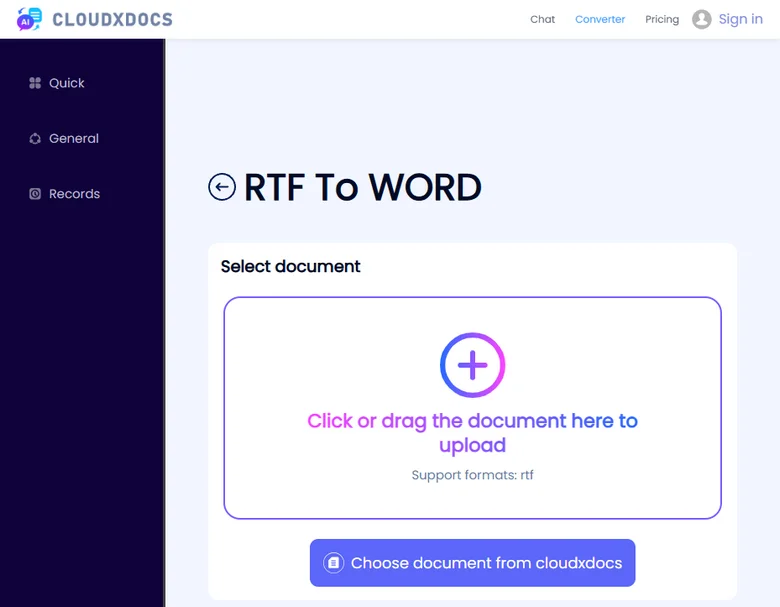
- Step 1: Navigate to CloudXDocs’s RTF-to-Word tool in your browser.
- Step 2: Upload an RTF document and wait a few seconds.
- Step 3: Download the converted Word file.
Why choose CloudXDocs?
- Zero Installation: Convert files instantly on any browser, no software downloads or plugins needed.
- Complete Data Privacy: Your files are securely encrypted during processing. If you delete a chat history or session, all associated files will be wiped out from the converter.
- Preserves Original Layout: Complex tables, custom line spacing, and fonts are accurately mapped to DOCX styling.
- Built-in AI Agent: Easily tackle complex document workflows in one place, whether you need to reformat, refine, or analyze your files post-conversion.
RTF vs Word
To help you decide when to keep a file as RTF versus when to convert an RTF file to Word, here is a quick breakdown:
| Feature | RTF Format (.rtf) |
Word Document (.docx) |
|---|---|---|
| Core Purpose | Basic, cross-platform text exchange | Full-featured document editing |
| File Size | Larger | Smaller |
| Advanced Features | Limited (basic fonts & tables) | Full support (Track changes, styles) |
| Mobile Viewing | Inconsistent rendering | Native support on iOS, Android, & Web |
| Best Used For | Basic exports from older software | Professional reports, contracts, & teamwork |
FAQs about Converting RTF Files to Word
Why do strange symbols or unreadable characters appear when I open an RTF file?
This usually happens because of missing fonts, unsupported formatting, or compatibility issues between different applications. Try opening the file with Microsoft Word or another RTF-compatible editor. If the problem continues, save the file as a Word document (.docx) to preserve the content in a more modern format.
Can I just manually rename the file extension from .rtf to .docx?
Not recommended. Renaming only changes the file label, not its code. RTF uses plain text tags, while Word files use compressed XML. Always use Word’s Save As or a converter to change formats properly.
Can I convert a Word document back to RTF if needed?
Yes, you can perform the reverse steps. In Microsoft Word, click File > Save As and pick Rich Text Format (*.rtf) from the file type menu.
Final Thoughts
Converting RTF files to Word documents is a simple process. Microsoft Word is a reliable choice for offline conversion, while online converters provide a convenient option when you need to convert files without installing software. Select the method that works best for your situation.

![How to Convert RTF to Word Document for Free [Ultimate Guide]](/blog/images/convert-rtf-to-word-document-for-free/convert-rtf-to-word-for-free-in-two-simple-ways.webp)