How to Convert PDF to Word: 3 Methods with Online, AI, and Code
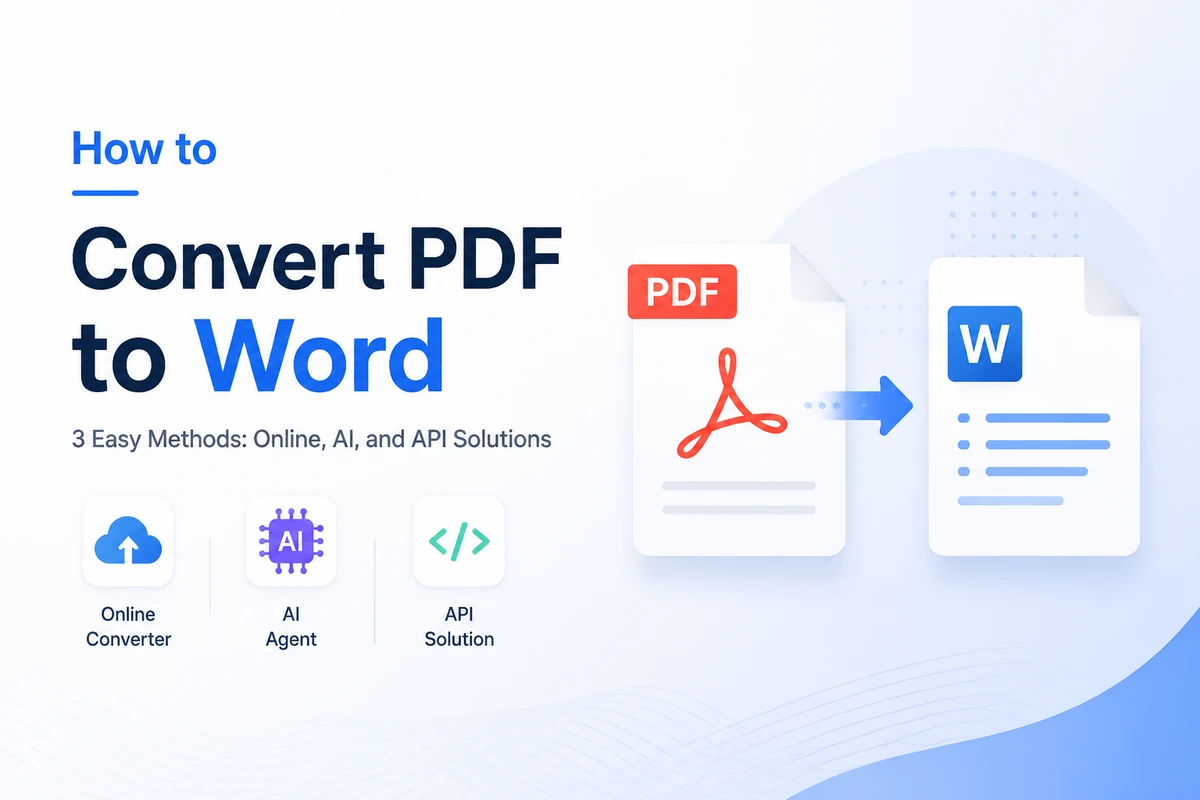
How to Convert PDF to Word: 3 Methods with Online, AI, and Code
PDF is widely used for sharing documents because it preserves formatting across devices. However, PDF files are not as flexible as Word documents when it comes to editing and content updates. Converting PDF to Word makes it easier to modify content, reuse information, and collaborate on documents while keeping the original text, images, and layout.
In this article, we will explore three practical ways to convert PDF to Word efficiently. Whether you’re a complete beginner or an experienced programmer, you’ll find a solution that fits your workflow. Let’s explore each method step by step and find the right way to turn static PDFs into editable Word documents.
Method 1: CloudxDocs Online Converter – The Easiest Way for Quick Conversions
If you only need to convert a few PDF files occasionally, an online PDF to Word converter is often the most convenient choice. CloudxDocs Online Converter allows you to convert PDF files directly from your browser without installing desktop software or setting up additional tools.
With a simple drag-and-drop workflow, CloudxDocs helps users quickly convert documents while maintaining important elements such as text, images, and basic formatting. In addition to PDF to Word conversion, it also supports other document conversion scenarios, including PDF to Excel and HTML, making it suitable for different document processing needs.
Key Highlights
- Completely web-based with a clean, intuitive interface.
- Supports drag-and-drop uploading for a faster and more convenient workflow.
- Maintains important elements such as fonts, images, and basic layouts during conversion.
- Provides fast and convenient document conversion without additional software.
- Supports multiple document conversion scenarios, including PDF, Word, Excel, and PowerPoint formats.
- Compatible with multiple browsers and devices (desktop and mobile).
Step-by-Step Guide:
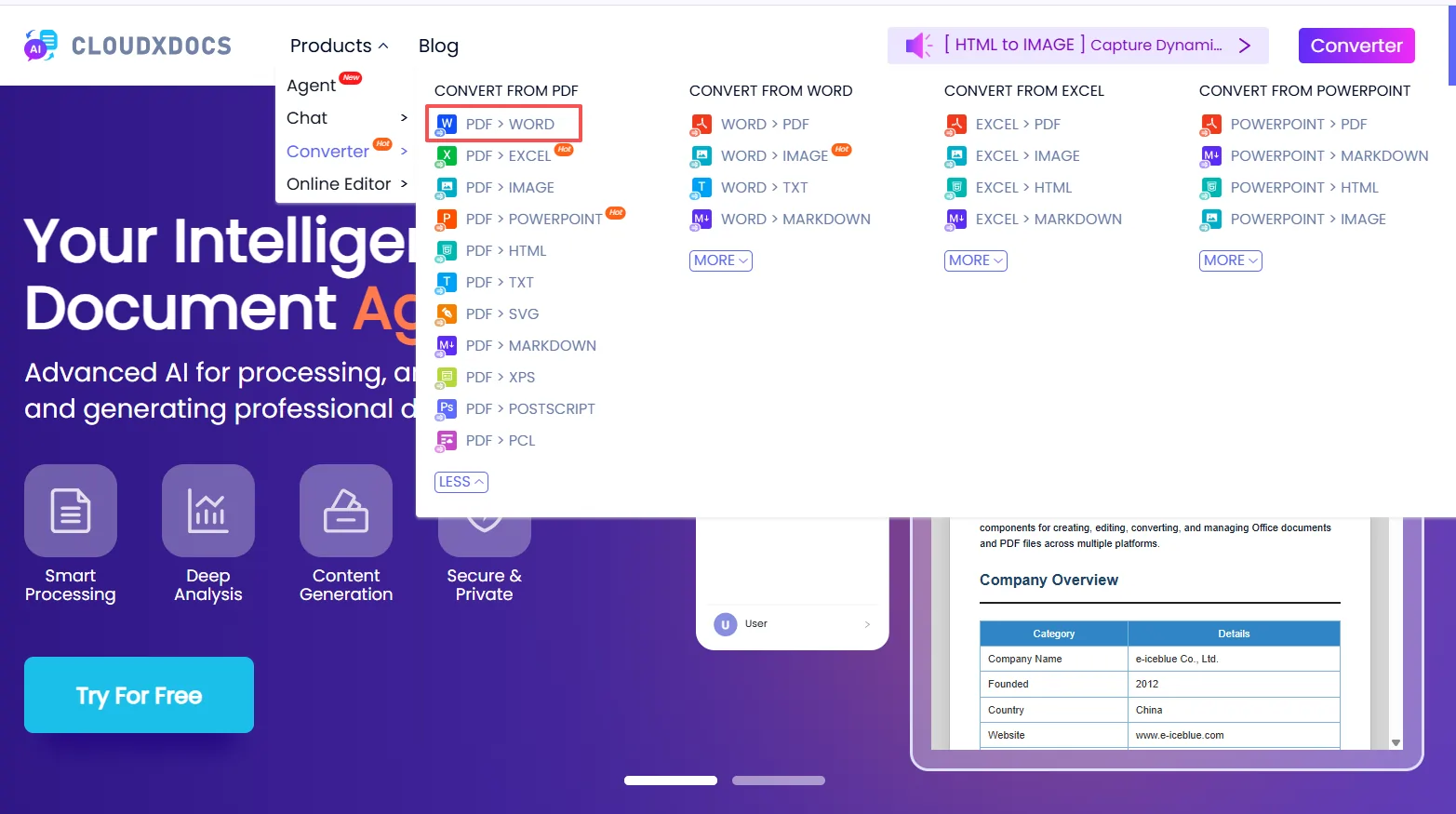
- Go to the CloudxDocs → PDF > WORD Converter website.
- Upload your PDF file (drag-and-drop supported).
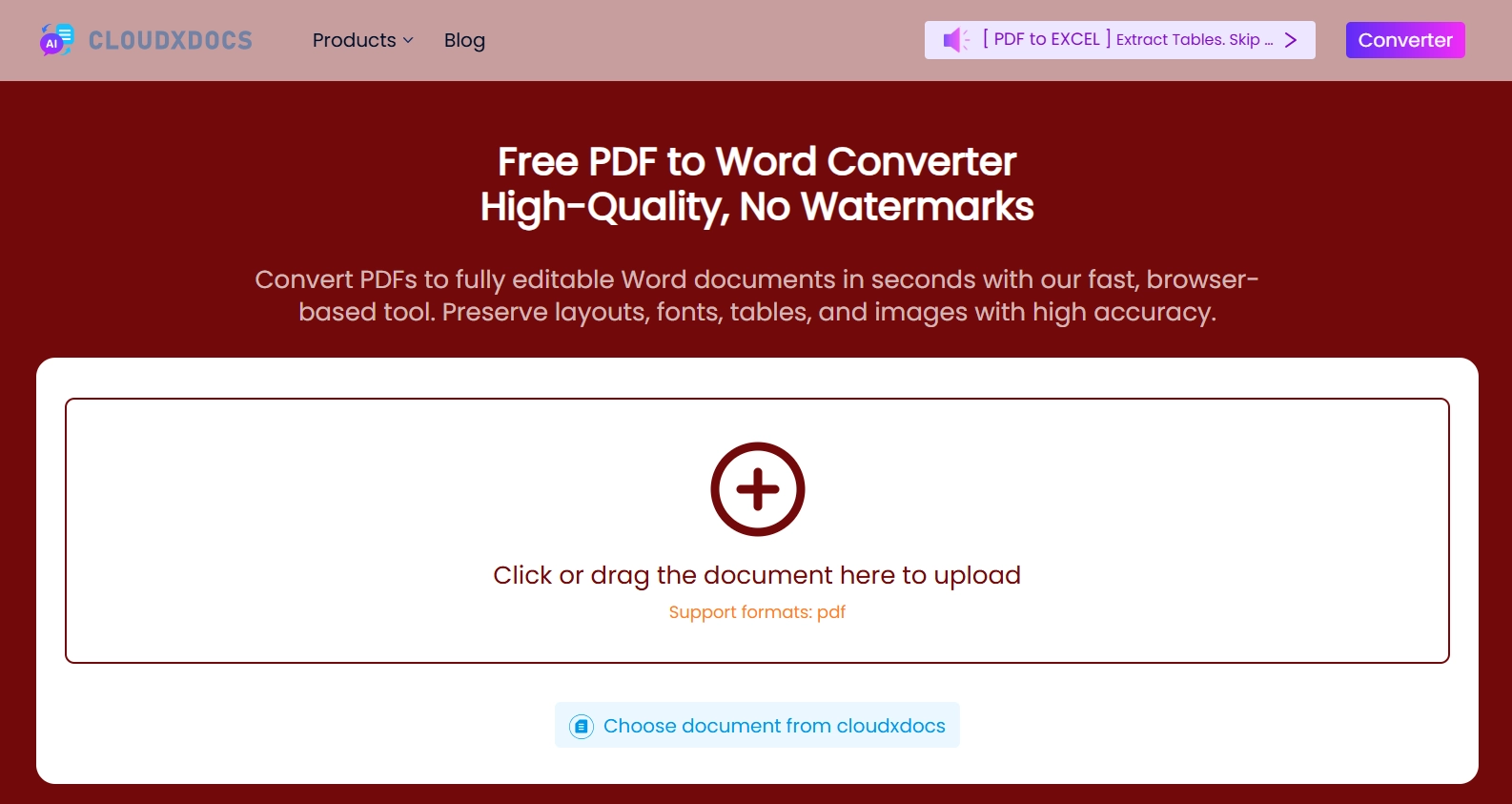
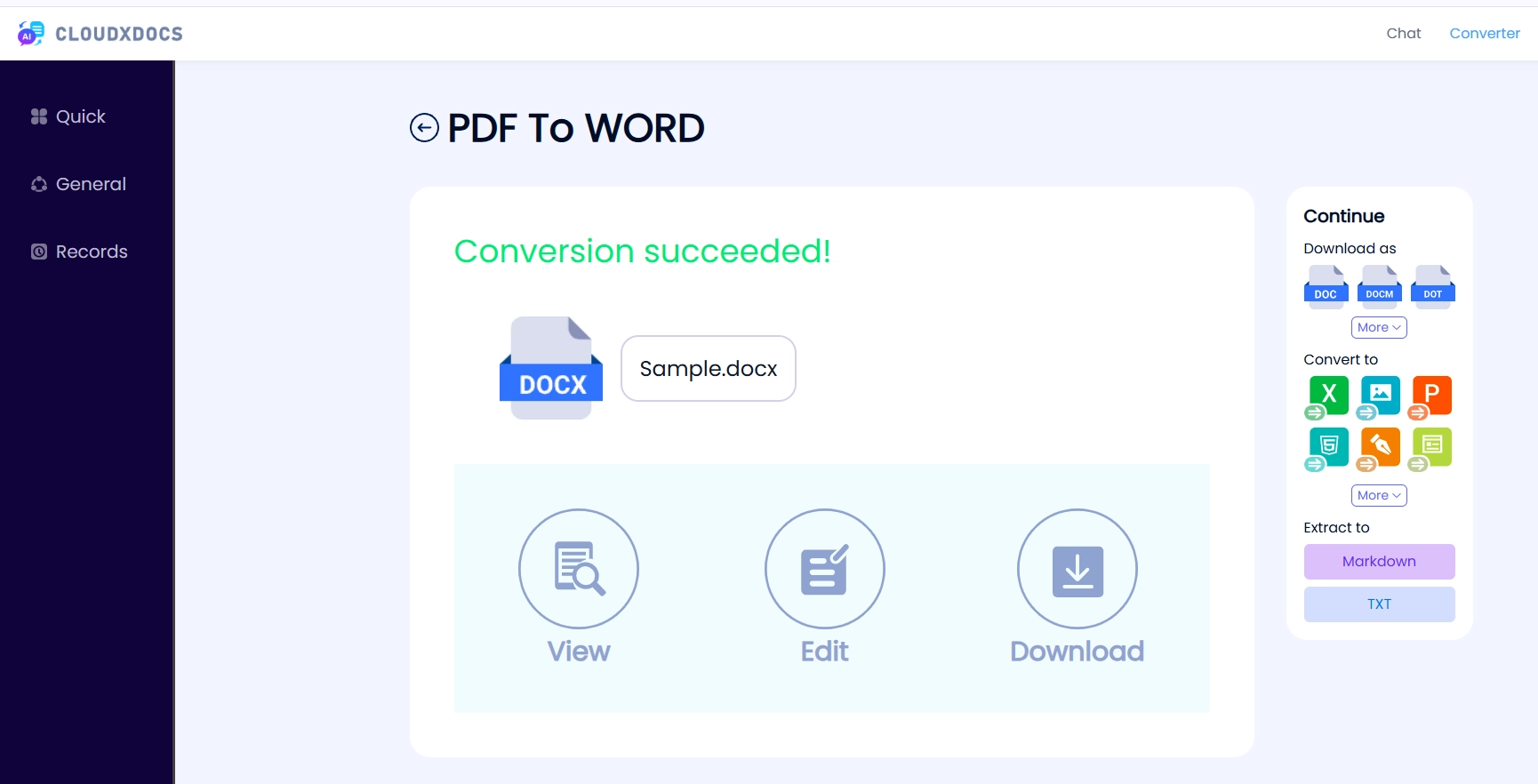
Wait a few seconds while the conversion runs.
View, edit, or download your DOCX file.
Limitations
- Requires an internet connection since the conversion process is completed online.
- Not ideal for large-scale batch conversion or automated document processing.
- Complex PDFs with scanned pages or advanced layouts may require additional adjustments after conversion.
Method 2: Convert PDF to Word Using CloudxDocs AI Agent - AI-Powered Document Processing
Traditional PDF converters mainly focus on converting files from one format to another, while AI-powered assistants provide additional capabilities for interacting with and processing document content. CloudxDocs AI Agent combines PDF conversion with AI-powered document workflows, allowing users to give natural language instructions and perform tasks such as document analysis, information extraction, summarization, and content organization.
Key Benefits
- Uses AI capabilities to assist with document processing beyond simple file conversion.
- Allows users to interact with PDFs through natural language instructions.
- Helps extract key information, summarize documents, and organize content efficiently.
- Handles complex document processing tasks with less manual effort.
- Combines PDF conversion and AI-powered document workflows in one solution.
Detailed Steps: How to Convert PDF to Word with CloudxDocs AI Agent
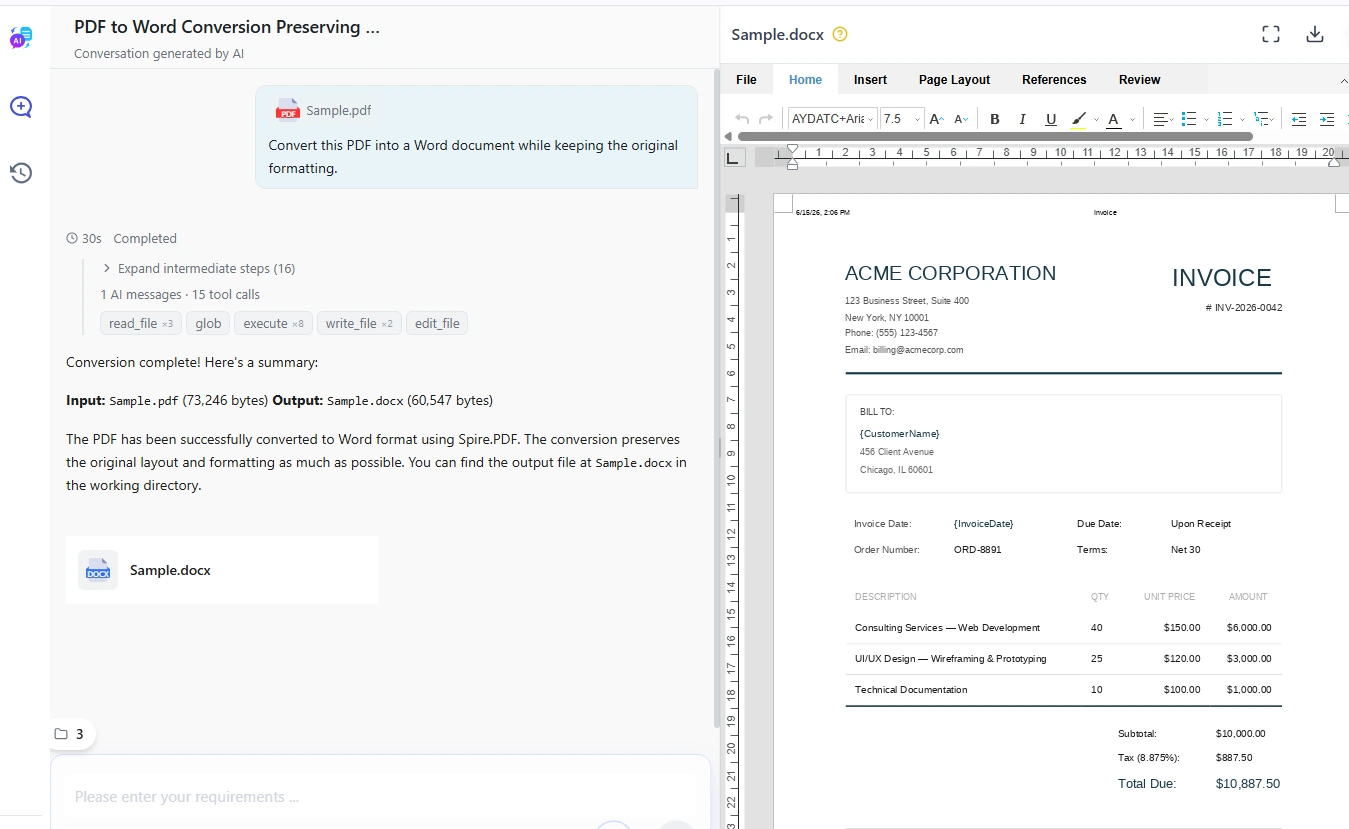
Log into CloudxDocs AI Agent.
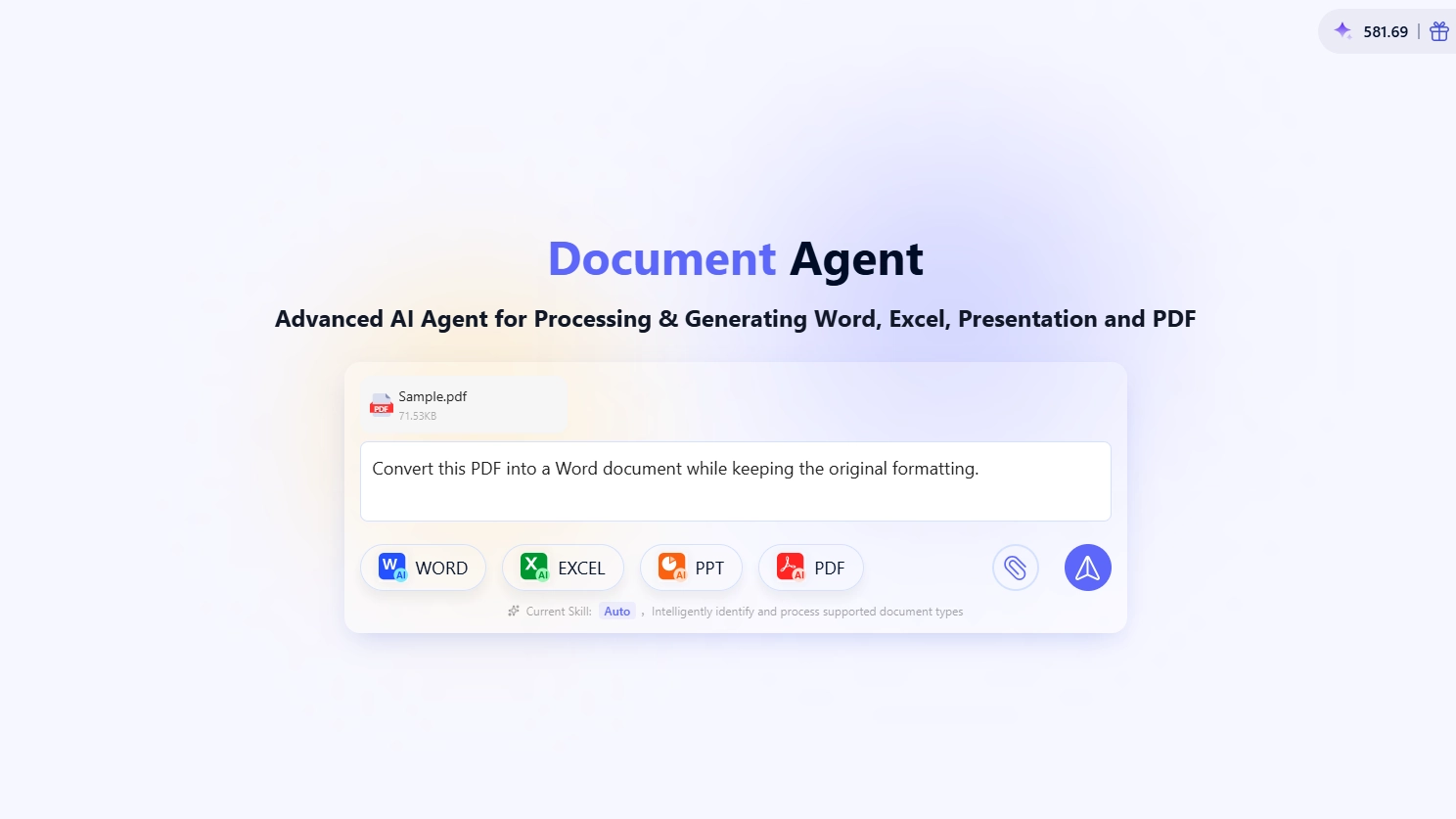
Upload your PDF file via the secure drag-and-drop or browse option.
Describe your requirements with a natural language instruction, such as asking the AI Agent to convert the PDF into an editable Word document.
For example:
“Convert this PDF into a Word document while keeping the original formatting.”
You can also request additional tasks, such as extracting tables or summarizing the document.
The AI Agent processes the uploaded PDF and performs the requested operation based on your instructions.
Check the generated Word document or processed content, then export the final result.
Limitations
- AI-powered processing may require more time than simple file conversion.
- Results may vary depending on document complexity and input instructions.
- Free plan may have usage limits or restrictions on advanced features.
Method 3: Convert PDF to Word Programmatically – Automated & Customizable Solution
For developers and businesses that need automated PDF conversion, a programming-based approach provides more flexibility and control than online tools. Spire.PDF is a professional PDF processing library that enables developers to convert PDF files to editable Word documents directly within their applications.
With support for different development environments, Spire.PDF can be integrated into software projects to automate document conversion, process files in batches, and build customized PDF workflows without relying on desktop applications such as Microsoft Word or Adobe Acrobat.
Key Highlights
- Provides APIs for handling PDF documents in different development environments.
- Works without requiring Microsoft Office or other desktop PDF software.
- Supports integration into applications, backend services, and automated workflows.
- Enables batch processing for handling large numbers of PDF documents.
- Gives developers more control over PDF conversion and document processing tasks.
How to Convert PDF to Word Programmatically with Spire.PDF
Spire.PDF supports PDF processing in multiple programming environments. The following example demonstrates how to convert PDF to Word using C#.
- Install the Spire.PDF package through NuGet Package Manager.
1 | Install-Package Spire.PDF |
- Write a simple conversion script.
- Create a PdfDocument object and load the PDF document you want to convert.
- Save the loaded PDF file as a Word document using the SaveToFile method.
1 | using Spire.Pdf; |
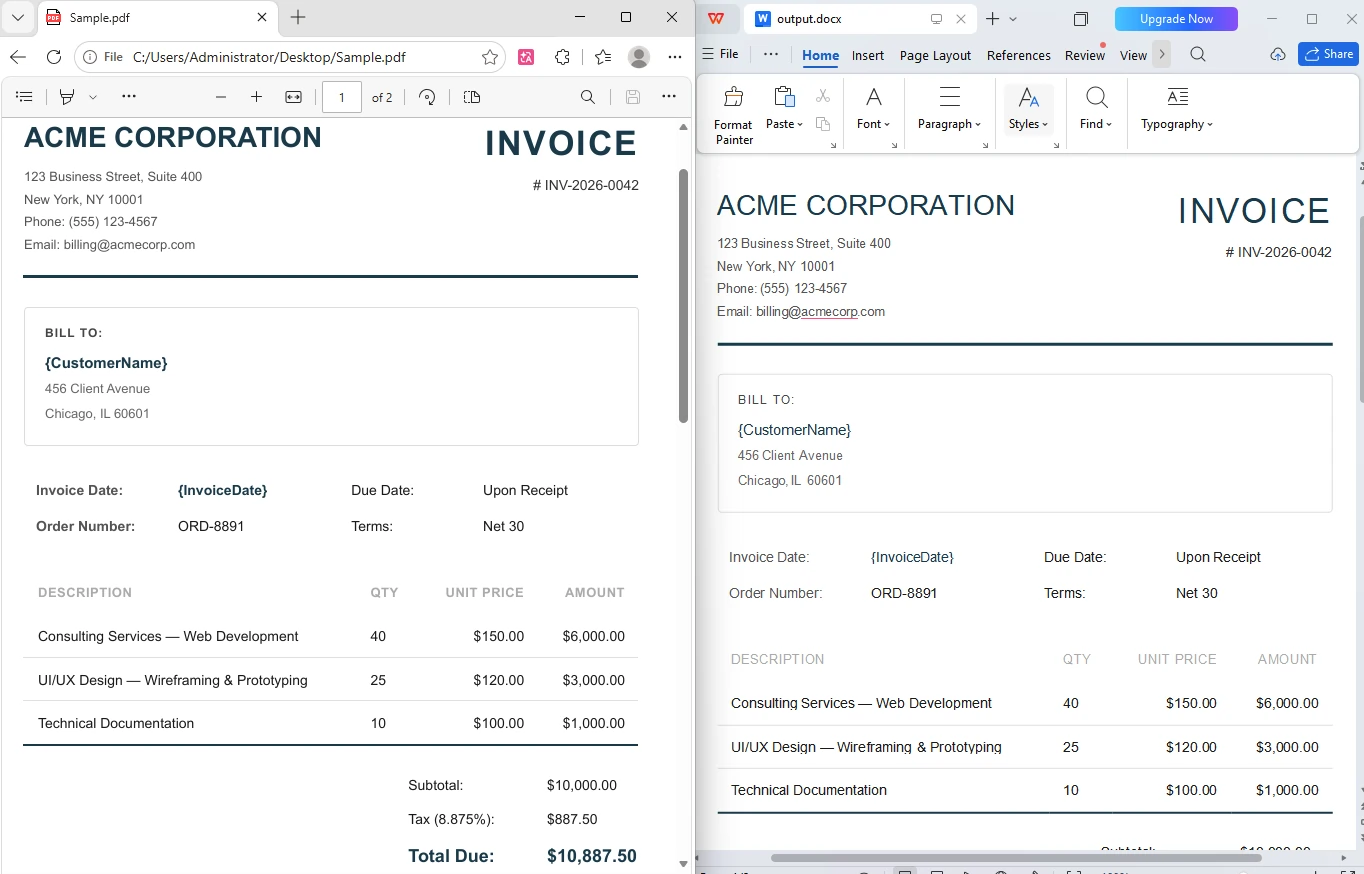
- After implementing the basic conversion, developers can extend the solution based on their business requirements, such as batch conversion, automated document processing, or integration with existing systems.
If you need more detailed information or want to convert with other code language, read the following posts to learn more:
Limitations
- Requires programming knowledge and development experience.
- Commercial library – free version has limitations (e.g., watermarks or page restrictions).
- May require additional development work for user interfaces or custom workflows.
Comparison of the Three PDF to Word Conversion Methods
The best way to convert PDF to Word depends on your specific needs. Each method has its own advantages, from quick online conversion to intelligent document processing and fully automated development solutions.
| CloudxDocs Online Converter | CloudxDocs AI Agent | Spire.PDF Programmatic | |
|---|---|---|---|
| Best for | Quick PDF to Word conversion for individual users | AI-powered document analysis and intelligent processing | Developers and businesses building automated workflows |
| Ease of Use | Simple browser-based operation | Easy to use with natural language instructions | Requires programming knowledge |
| Format Preservation | Good for standard PDF layouts | Useful when additional document processing is needed | Developer-controlled conversion workflow |
| Batch Processing | Limited | Suitable for processing documents with AI workflows | Supports automated batch processing |
| Privacy / Offline | Requires uploading files online | Cloud-based processing with session-based data handling | Can be deployed in private environments |
| OCR Support | Limited | Can assist with processing scanned or image-based documents | Requires OCR integration |
Quick Recommendation Guide
- Need it fast and simple? → Choose CloudxDocs Online Converter.
- Dealing with complex formatting? → Go with CloudxDocs AI Agent.
- Need automation or want to handle many files? → Use Spire.PDF programming.
Conclusion
Choosing the right PDF to Word conversion method depends on how you plan to use the converted document. CloudxDocs Online Converter is suitable for quick conversions, CloudxDocs AI Agent helps with intelligent document workflows, and Spire.PDF provides a flexible solution for developers who need automation.
Whether you prefer a quick online tool, intelligent AI assistance, or a customizable coding approach, these options provide flexibility for various scenarios. By selecting the method that matches your workflow, you can easily transform static PDF files into editable and reusable Word documents.
Frequently Asked Questions (FAQs)
Can I convert a PDF to Word for free?
Yes, you can convert PDF to Word for free. Online PDF converters such as CloudxDocs Online Converter allow users to convert documents without installing software. If you need more advanced features, CloudxDocs AI Agent provides AI-powered document processing options, while developers can use Spire.PDF’s free version for testing before choosing a license.
What is the best PDF to Word converter?
The best PDF to Word converter depends on your needs. Online tools work well for occasional conversions, AI-powered solutions are useful for document understanding, and APIs are better for automated workflows.
How do I convert PDF to Word without losing formatting?
Most PDF converters can preserve basic elements such as text, fonts, images, and layouts. However, complex PDFs with advanced formatting, scanned pages, or unusual structures may require additional adjustments after conversion.
Is it safe to upload sensitive PDFs online?
For confidential documents, it’s recommended to use the offline Spire.PDF method. Always check the privacy policy of any online service before uploading important files.
Can I convert scanned PDF files to editable Word documents?
Yes, but scanned PDFs require OCR (Optical Character Recognition) technology to recognize text before conversion. AI-powered tools can provide additional help when processing scanned or image-based documents.
![How to Convert RTF to Word Document for Free [Ultimate Guide]](/blog/images/convert-rtf-to-word-document-for-free/convert-rtf-to-word-for-free-in-two-simple-ways.webp)