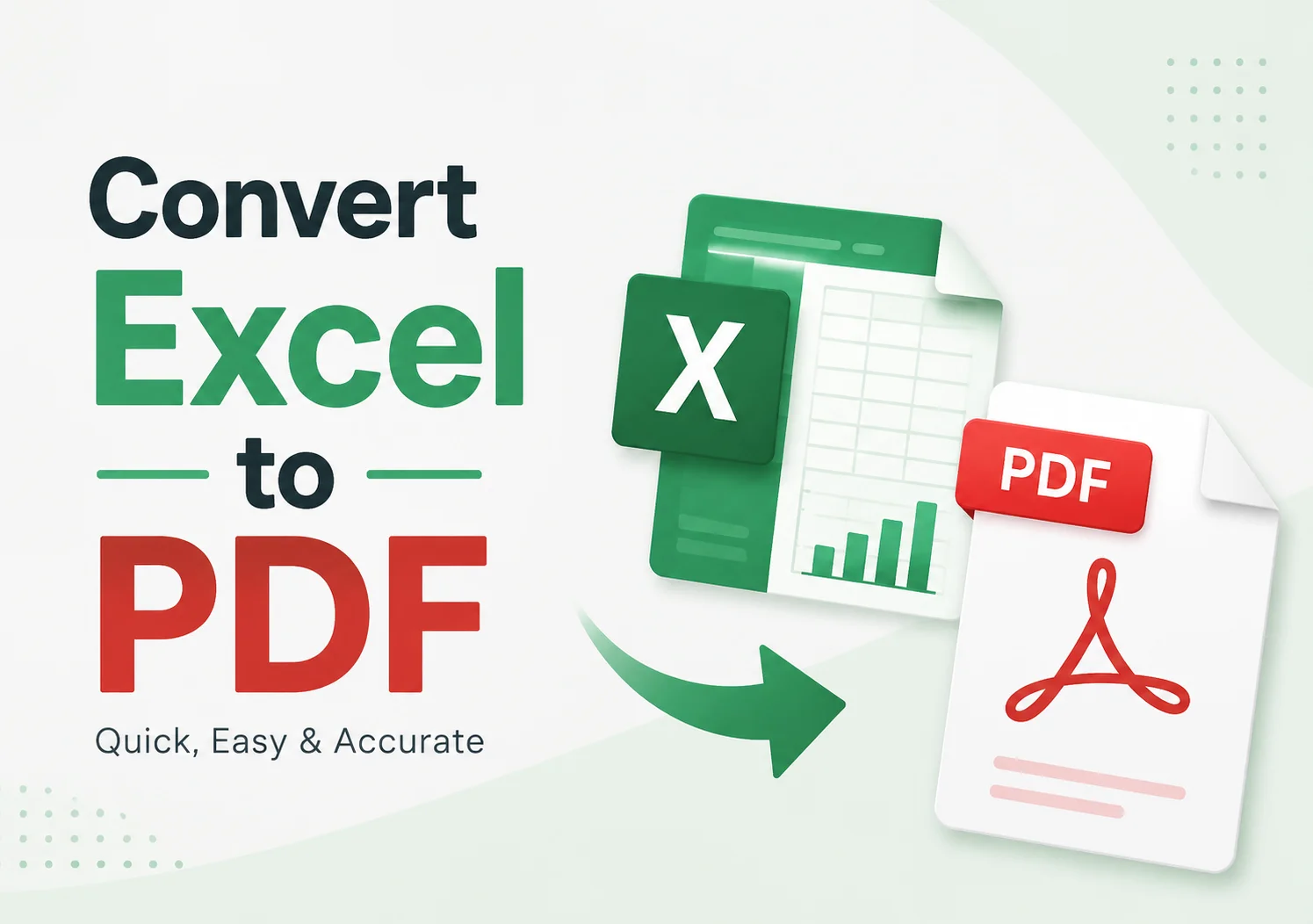
How to Save Excel as PDF: 3 Easy Methods to Convert Excel Files
A Complete Guide to Save Excel Files as PDF Format
Page Content:
- Reasons to Save Excel as PDF Format
- Method 1. Save Excel as PDF Using Microsoft Excel
- Method 2. Convert Excel to PDF with an Online Converter
- Method 3. Save Multiple Excel Files as PDF with C# Code
- Tips for Better Excel to PDF Conversion Results
- FAQs
Excel is one of the most popular tools for organizing data, creating reports, and managing spreadsheets. However, sharing an Excel file is not always convenient. Different versions of Excel, screen sizes, or software settings may affect the layout, formulas, fonts, and page formatting.
Saving an Excel file as a PDF is a simple way to preserve the original appearance of your spreadsheet. PDF files are easier to share, print, and view on different devices without changing the formatting.
In this guide, we will show you how to save Excel as PDF using three different methods, including Microsoft Excel, online conversion tools, and programmatic solutions.
Reasons to Save Excel as PDF Format
Before learning how to export Excel to PDF, it is helpful to understand why PDF is often preferred for sharing spreadsheets. Excel files are widely used for creating and editing data, but their formatting may change when opened on different devices or software versions. This can affect elements such as page layout, fonts, charts, and table alignment.
PDF provides a more reliable way to share spreadsheets because it keeps the original appearance of the document. Whether you are sharing a report, invoice, financial statement, or data summary, converting Excel files to PDF helps ensure that the content looks consistent and professional across different platforms.
1. Keep the original formatting
Excel files are designed for editing, which means the layout can change depending on the device or software used to open them. When you save Excel as PDF, the page layout, fonts, charts, and tables remain consistent.
2. Make files easier to share
PDF is a widely supported format that can be opened on almost any device. Because of its compatibility, PDF is often used as a final sharing format for different types of documents, including spreadsheets, reports, and text files. Users can also convert other document formats, such as Word to PDF, TXT to PDF, or JPG to PDF, when they need a consistent viewing experience.
3. Prevent unwanted edits
Unlike Excel files, PDF documents are not intended for direct editing. Converting Excel files to PDF can help protect important information before sharing it with others.
Method 1. Save Excel as PDF Using Microsoft Excel
Advantages:
- No additional software required
- Keeps Excel formatting
- Works well for individual files
Limitations:
- Requires Microsoft Excel installation
- Not convenient when converting multiple files
- Some advanced formatting may require manual adjustment
The easiest way to save an Excel spreadsheet as a PDF is by using Microsoft Excel’s built-in export feature. This method does not require any additional software and allows you to quickly convert your workbook while keeping the original layout, formatting, and page settings. It is a convenient option for users who only need to convert individual Excel files and want a reliable way to prepare documents for sharing or printing.
Follow these steps to export your Excel file as a PDF with Microsoft Excel:
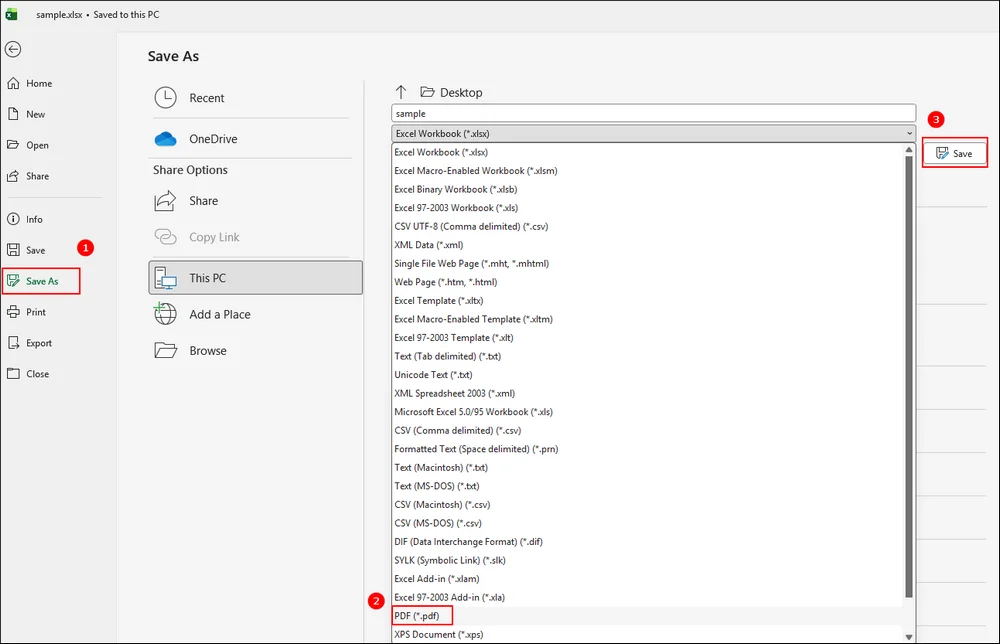
Step 1. Open the workbook that you want to convert. Before exporting, check the spreadsheet layout, including Page orientation, Margins, Print area, and Column widths.
Step 2. Click File in the top-left corner of Excel. Then select “File → Save As“.
Step 3. Select the location where you want to save your file. Make sure the file type is set to PDF. Your Excel spreadsheet will now be saved as a PDF document.
Method 2. Convert Excel to PDF with an Online Converter
If you do not have Microsoft Excel installed or need a faster solution, using an online Excel to PDF converter can be a convenient alternative. Online conversion tools allow you to upload an Excel file and convert it directly from your browser without installing additional software.
For users who need a quick and simple conversion process, CloudxDocs provides a free online document conversion solution that supports converting Excel files to PDF directly in a web browser. It requires no installation and helps users quickly transform spreadsheets into PDF documents while maintaining the original content and layout.
CloudxDocs also supports other online conversions, including Excel to Markdown, RTF to PDF, CSV to Excel, etc., allowing users to process different types of documents directly from a browser.
How to save an Excel file as PDF format online:
Step 1. Open CloudxDocs Excel to PDF Converter and upload your XLS or XLSX file.
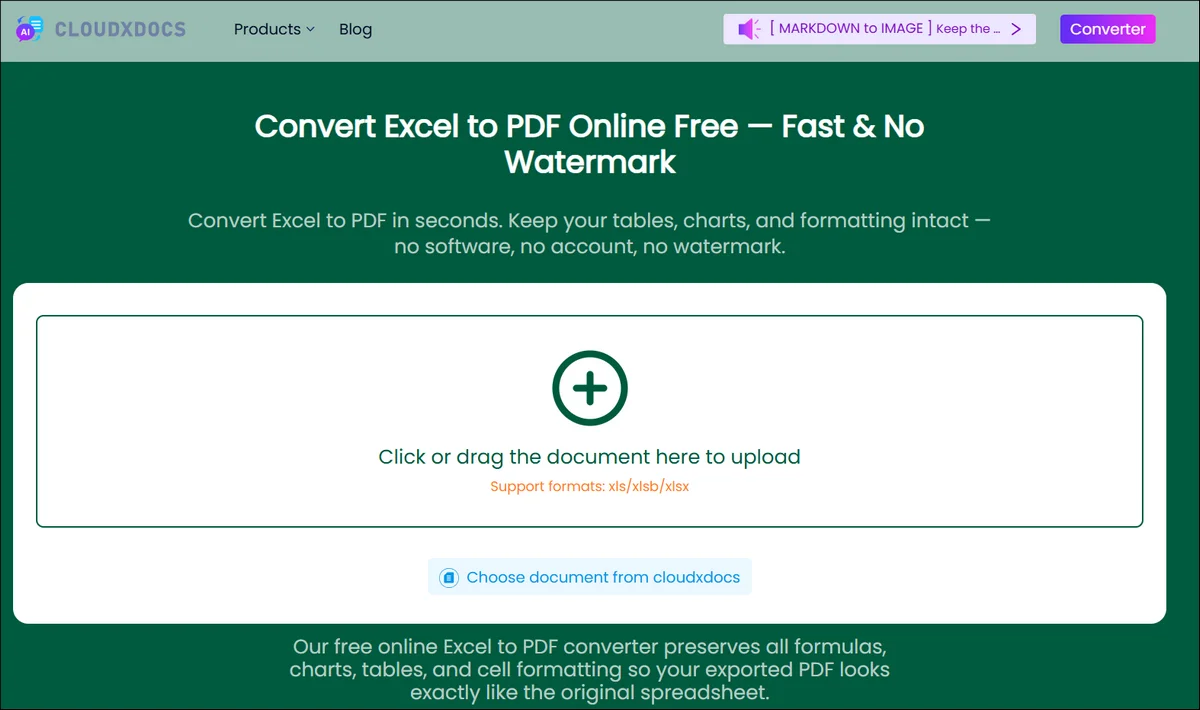
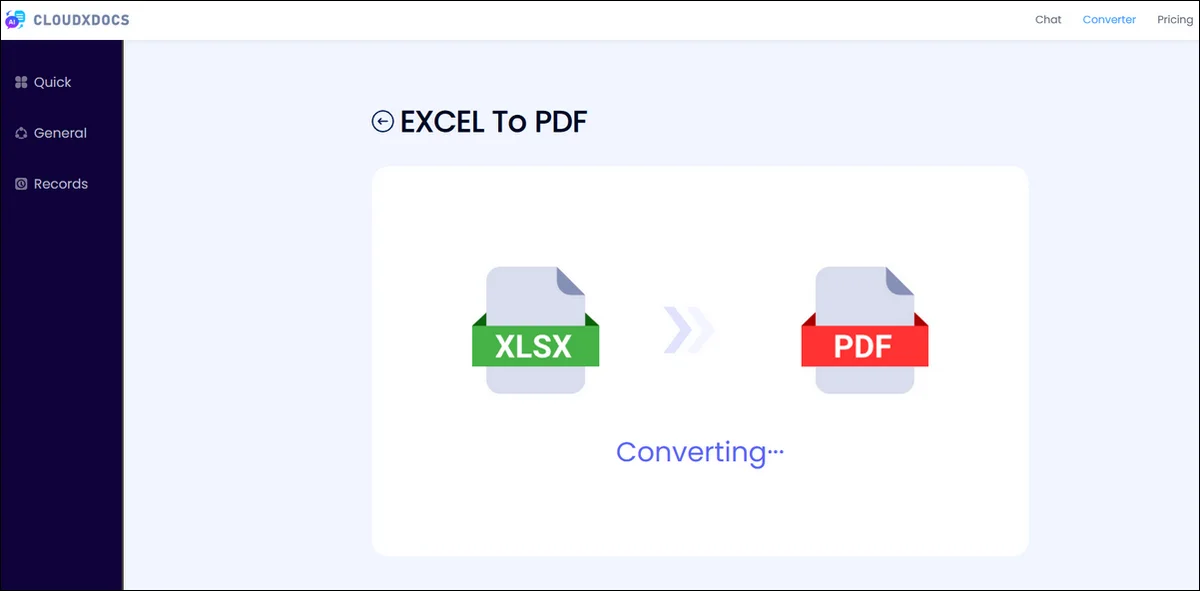
Step 2. The tool will automatically process your spreadsheet and convert it into PDF format.
Step 3. After conversion, download the generated PDF document and check whether the formatting meets your requirements.
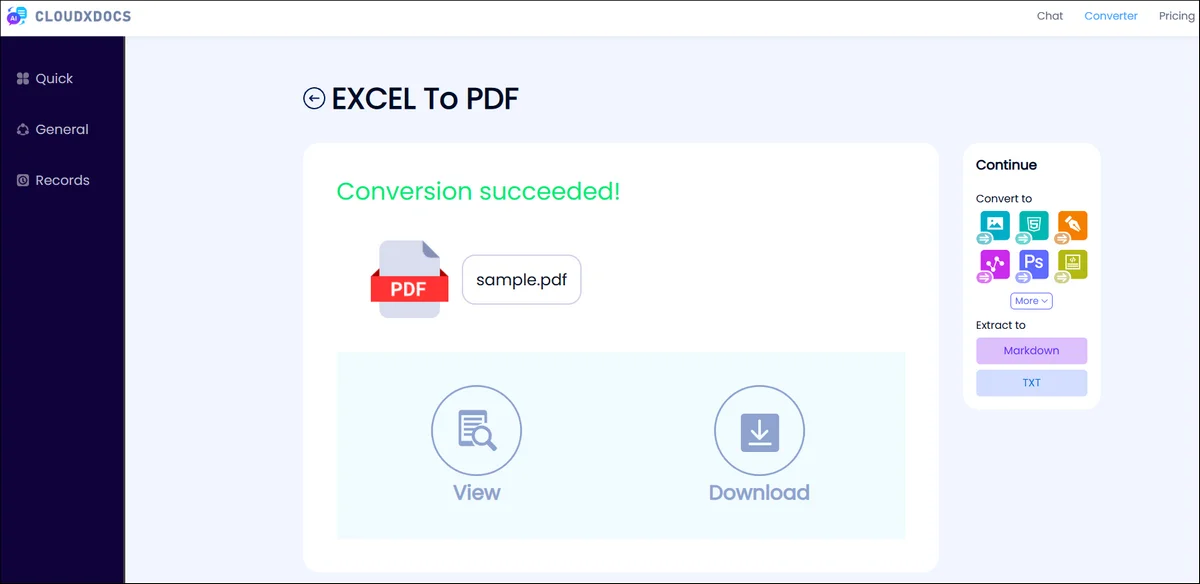
Online conversion tools are especially useful when you need to quickly convert files from different devices.
Bonus Tip: Analyze Your Converted Documents with AI
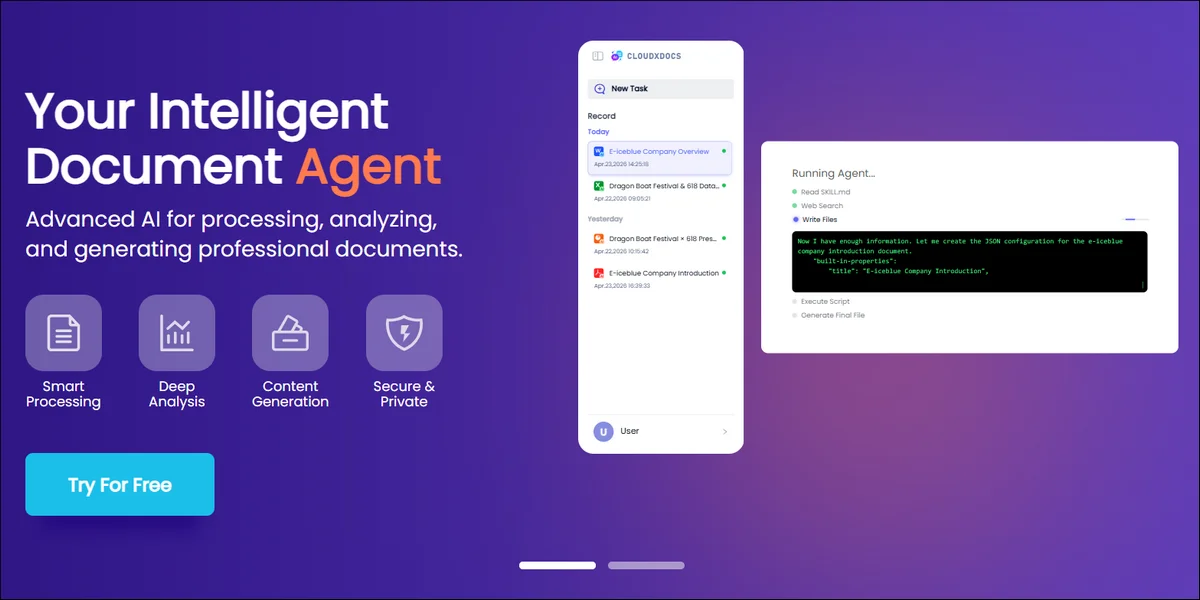
After converting Excel spreadsheets into PDF files, you can use CloudxDocs AI to quickly review and understand your documents. Whether you need to summarize reports, find key information, or ask questions about your files, AI can help you process document content more efficiently.
Method 3. Save Multiple Excel Files as PDF with C# Code
For developers or users who need automated document processing, C# provides a flexible way to convert Excel files into PDF documents. This approach is especially useful when working with large numbers of spreadsheets or when integrating document conversion capabilities into an existing application.
This method is useful when you need to:
- Convert multiple Excel files automatically
- Add Excel-to-PDF conversion functionality to an application
- Process documents as part of an automated workflow
- Generate PDF reports from spreadsheet data programmatically
For example, you can use .NET-compatible libraries to load an Excel workbook, process the spreadsheet content, and export it as a PDF file. For .NET developers who require more advanced Excel processing capabilities, libraries such as Spire.XLS provide APIs for working with Excel files, including reading, editing, formatting, and converting spreadsheets to PDF while preserving the original layout and styles.
By using programming-based solutions, developers can build customized document processing workflows and handle Excel conversion tasks efficiently without relying on manual operations.
Example Code:
1 | using Spire.Xls; |
Full tutorial: Convert Excel to PDF with Spire.XLS for .NET
Tips for Better Excel to PDF Conversion Results
Although saving Excel as PDF is simple, some formatting settings can affect the final output quality. A spreadsheet that looks perfect in Excel may have layout issues after conversion, such as split tables, missing content, or unnecessary blank pages. Before exporting, adjusting a few settings can help create a cleaner and more professional PDF document.
Here are some tips to improve Excel to PDF conversion quality:
1. Adjust the print area
Large spreadsheets may be split into multiple pages after conversion. Before exporting, select the important data range and set the print area.
2. Check page orientation
For spreadsheets with many columns, landscape mode usually provides better results.
Go to: Page Layout → Orientation → Landscape
3. Adjust column width
If columns are too wide, your PDF may contain unnecessary blank pages. Adjusting column sizes can help create a cleaner document.
4. Preview before saving
Always use the print preview feature before converting. This helps you identify missing content or layout issues.
FAQs
1. Can I save multiple Excel files as PDF at once?
Yes. If you need to convert many Excel files, manual conversion may take a lot of time. Automated solutions using programming languages such as C# can process multiple Excel files and convert them to PDF in batches.
2. Why does my Excel PDF look different from the original file?
Excel and PDF handle page layouts differently. Issues such as incorrect page breaks, missing columns, or extra blank pages usually happen because of print settings. Before saving, check the print area, page size, margins, and orientation to improve the final PDF output.
3. Is PDF better than Excel for sharing documents?
It depends on your purpose. Excel is better when recipients need to edit data or perform calculations. PDF is usually better for sharing reports, invoices, presentations, and other documents because it preserves the layout and prevents accidental changes.
Conclusion
Saving Excel as PDF is a practical way to share spreadsheets while keeping the original formatting. Whether you use Microsoft Excel, an online converter, or a C#-based solution, converting Excel files into PDF only takes a few steps.
For occasional conversions, Excel’s built-in export feature works well. For quick and convenient conversions without installing software, online Excel to PDF converters provide a simple alternative.
With the growing use of AI-powered web tools, converting documents into accessible formats like PDF also helps create smoother workflows for analyzing and managing digital content.


![How to Convert RTF to Word Document for Free [Ultimate Guide]](/blog/images/convert-rtf-to-word-document-for-free/convert-rtf-to-word-for-free-in-two-simple-ways.webp)