How to Create PDF Online: 4 Easy Ways to Make PDF Files
How to Create PDF Online: 4 Easy Ways to Make PDF Files
Creating a PDF is one of the most common document tasks — but how you do it depends entirely on what you’re starting with.
Are you holding a finished Word document or spreadsheet that just needs to be converted? Do you only have a rough idea and need AI to write and format the whole thing? Are you planning to type the content yourself, but want to do it online without installing anything? Or are you a developer who needs to generate hundreds of PDFs automatically?
Each of these scenarios calls for a different approach. And that’s exactly what this guide covers.
An online PDF creator can help you convert, generate, edit, and automate PDF files — and each approach fits a different workflow.
CloudXDocs provides multiple ways to create PDF online — from instant file conversion and AI-powered document generation to full online editing and automated PDF workflows. Whether you have a file, an idea, or a complex automation requirement, there’s a method that fits.
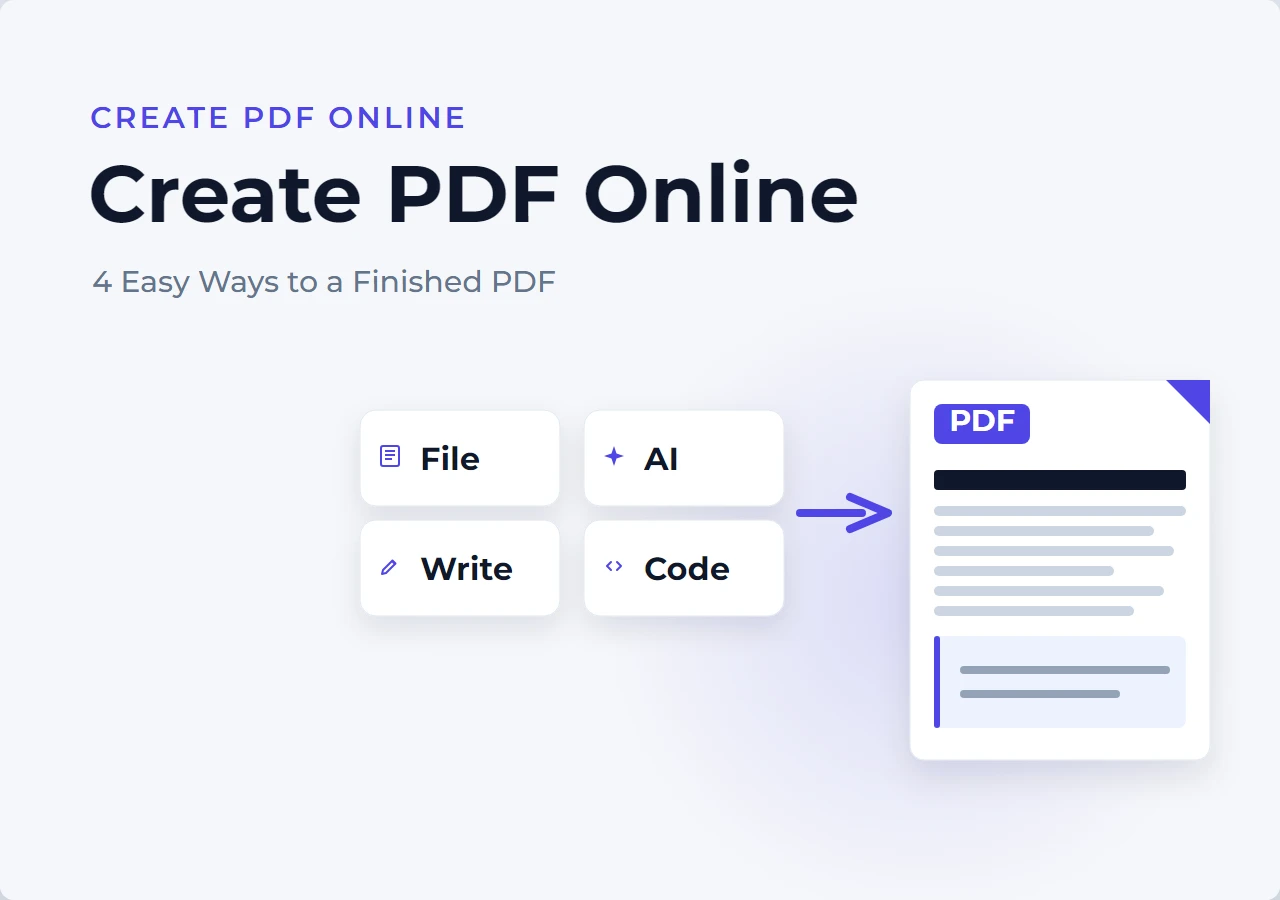
Here’s a quick overview of the four paths to a finished PDF:
| Starting Point | How to Create PDF | Jump To |
|---|---|---|
| Existing files (Word, Excel, PPT) | Convert to PDF instantly | Method 1 |
| Ideas or topics (no content yet) | AI generates a complete PDF | Method 2 |
| New content (write it yourself) | Online editor → export as PDF | Method 3 |
| Data & systems (bulk or automated) | Generate PDFs with Python code | Method 4 |
Still not sure which to pick? See Which Method Should You Choose? — or skip to the FAQs.
Let’s walk through each one.
1. Create PDFs by Converting Existing Files Online
If you already have a Word document, spreadsheet, or presentation — and need to create a PDF online — conversion is the fastest path.
Instead of recreating your content or installing desktop software, you can use an online PDF converter to upload your file, convert it automatically, and download the finished PDF.
CloudXDocs Online Converters support common document formats, including Word, Excel, and PowerPoint, allowing you to create PDF files directly from your browser.
1.1 What File Types Can You Convert to PDF?
A good online PDF creator should support more than just Word documents. CloudXDocs can convert popular file formats — including documents, spreadsheets, presentations, and plain text — into PDF:
| Source File | Common Use Case |
|---|---|
| Word (.docx, .doc) | Reports, contracts, articles, proposals |
| Excel (.xlsx, .xls) | Financial tables, data reports, invoices |
| PowerPoint (.pptx, .ppt) | Presentations, slide decks, training materials |
| Text (.txt) | Notes, logs, transcripts, plain-text documents |
When converting files to PDF, the original document structure, formatting, tables, and images are preserved as much as possible.
If you need to create PDF from Word, convert spreadsheets, or archive plain-text documents, online conversion provides a quick solution without rebuilding your content.
1.2 How the Conversion Works
Creating a PDF from an existing file only takes a few steps:
- Upload your Word, Excel, PowerPoint, or text file to CloudXDocs.
- The converter automatically processes your document.
- Download the converted PDF file.
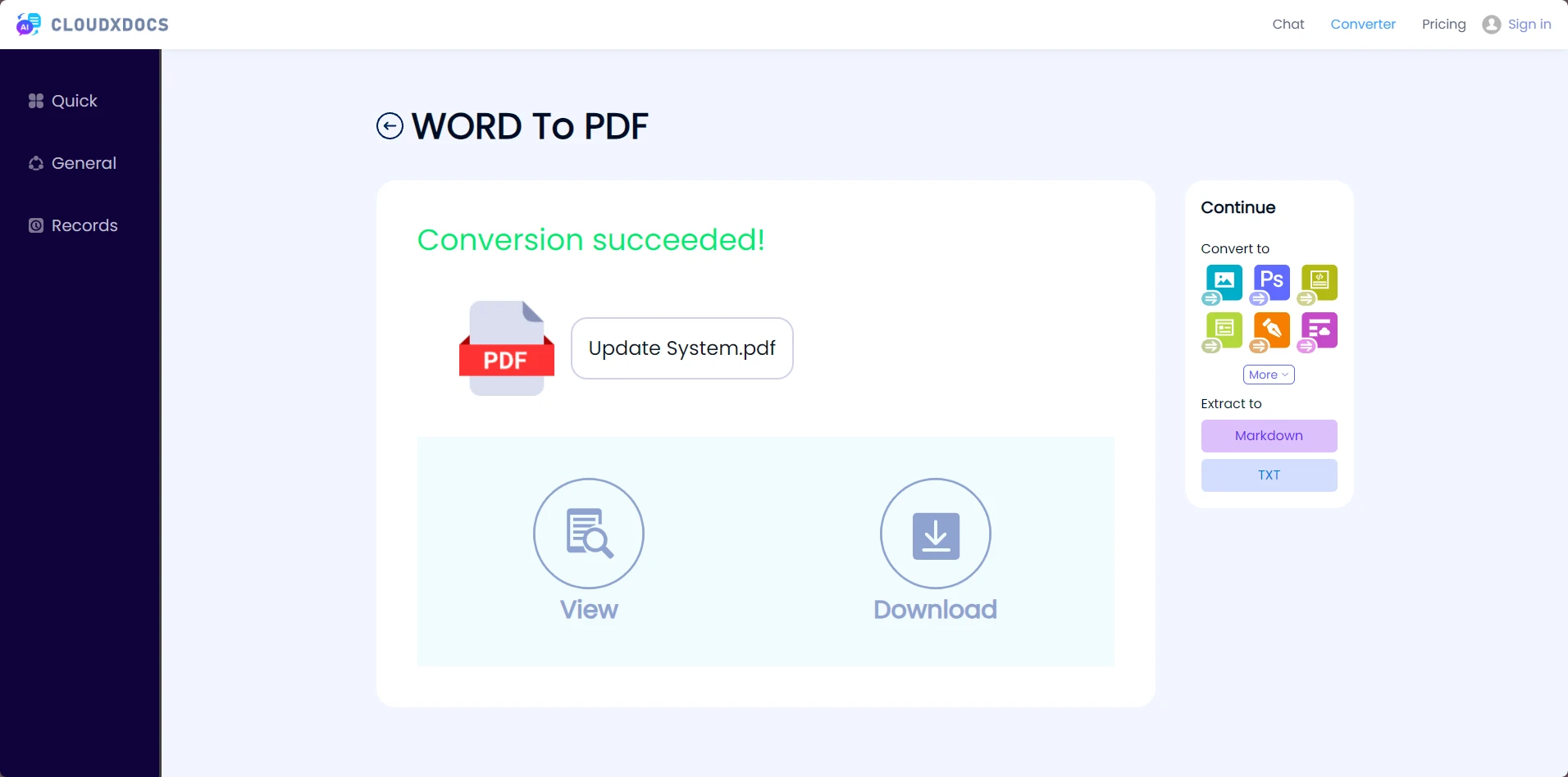
The entire process happens online, so you can create PDFs directly from your browser without installing additional software.
1.3 When to Use File Conversion
This method is the best choice when:
- You already have a complete document and only need a PDF version
- You want to keep the existing layout and formatting
- You need to quickly make a PDF from Word, Excel, or PowerPoint
- You want a simple PDF workflow without desktop applications
For more detailed instructions, see:
2. Create PDFs with AI — From Ideas to Professional Documents
What if you don’t have a file at all? What if you only have a topic, an idea, or a rough requirement — and you need a complete, professional PDF document?
This is where AI-powered PDF creation becomes different. With CloudXDocs Document Agents, users can transform simple instructions into structured PDF documents without manually writing every section — and it’s the method that most sets CloudXDocs apart from traditional online PDF generators.
2.1 Traditional vs. AI-Powered PDF Creation
Traditional PDF creation often involves multiple manual steps, from writing content and formatting layouts to exporting the final file. AI-powered PDF creation streamlines this workflow by generating and structuring documents automatically.
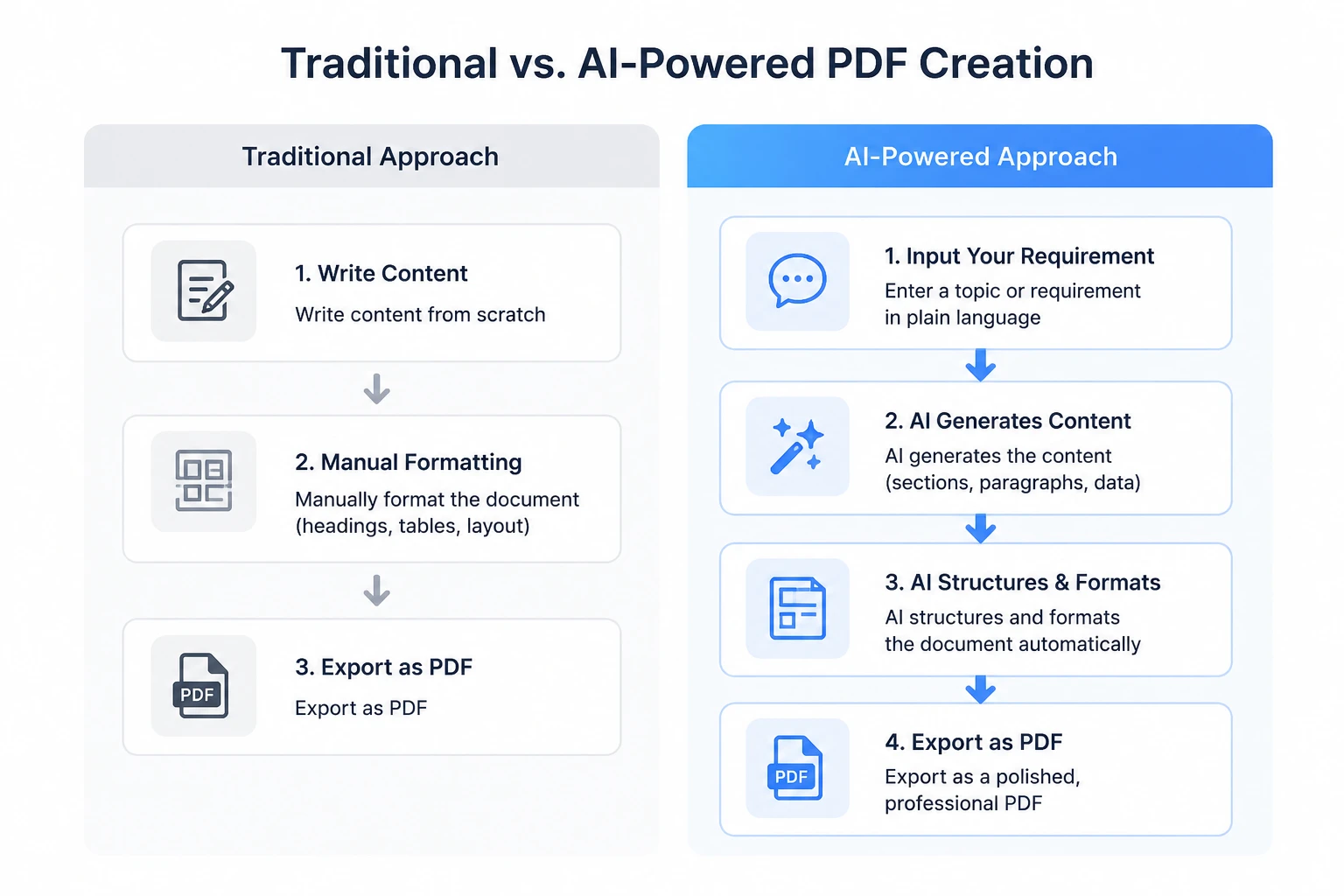
With AI, users can turn a simple text description into a professionally formatted PDF with minimal manual effort.
2.2 How AI Creates a PDF — Step by Step
Here’s how CloudXDocs Document Agents create a PDF from a simple prompt:
Step 1: Describe what you need. Type a natural-language prompt. For example:
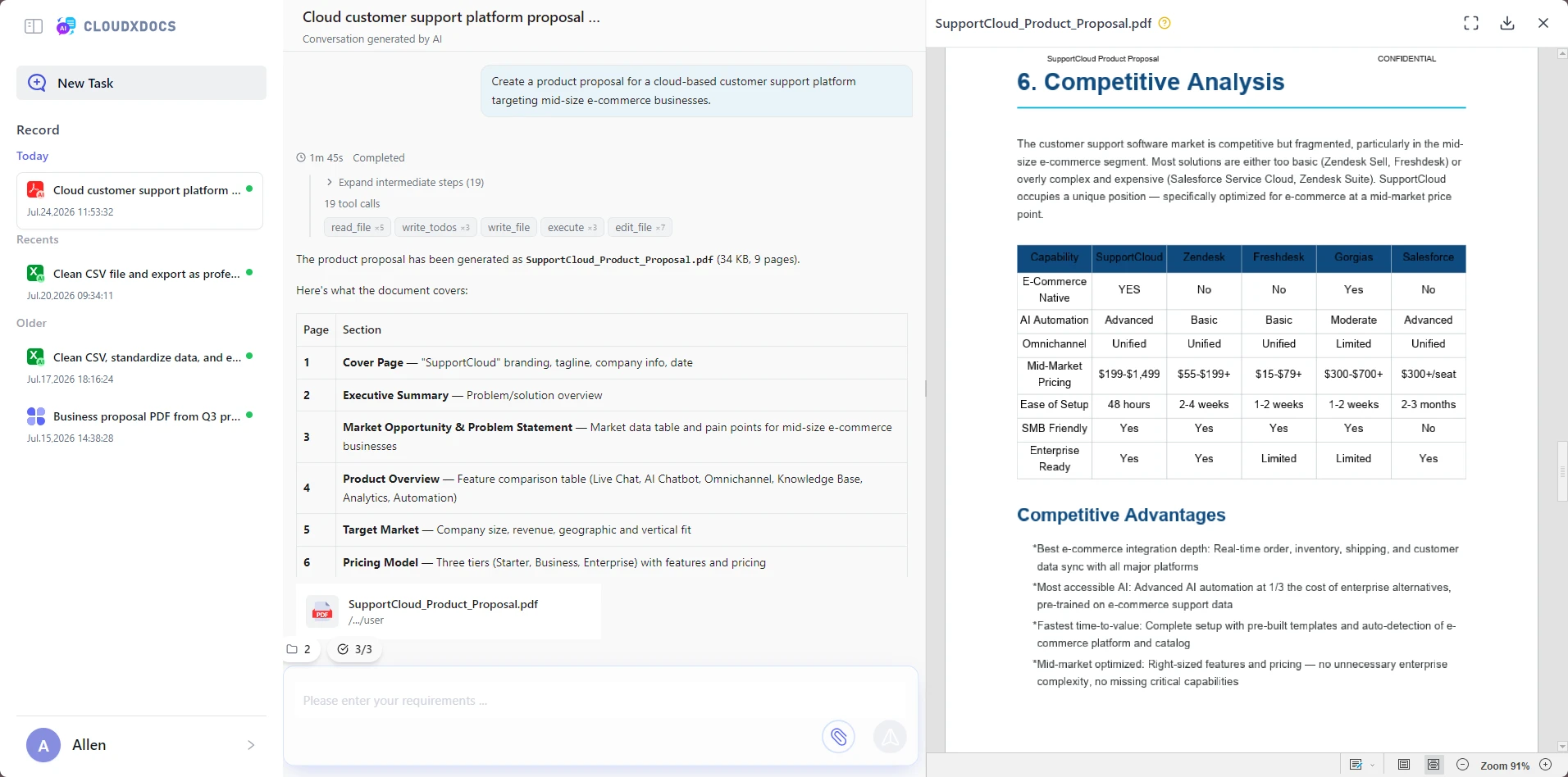
“Create a product proposal for a cloud-based customer support platform targeting mid-size e-commerce businesses.”
Step 2: AI generates the document structure. The AI analyzes your prompt and produces a complete outline, including:
- Document title and executive summary
- Section headings with logical flow
- Supporting paragraphs under each section
- Tables and structured data where relevant
- Conclusions and recommendations
Step 3: AI applies professional formatting. Beyond just writing, the AI handles:
- Consistent heading hierarchy and font styling
- Proper paragraph spacing and alignment
- Table formatting with borders and shading
- Professional page layout with appropriate margins
Step 4: Export as PDF. The finished document — fully written, structured, and formatted — can be downloaded as a ready-to-use PDF with a single click.
Here’s an example of a PDF document generated by CloudXDocs Document Agents from a single prompt — complete with structured sections, formatted tables, and professional layout:
2.3 Common Use Cases for AI PDF Generation
AI-powered PDF creation is especially useful when you need a complete document but don’t want to start from a blank page.
Common use cases include:
Business Documents
Create proposals, reports, plans, and other business documents by describing your goals and requirements. AI can help organize information into professional sections with structured formatting.
Research and Analysis Reports
Generate structured reports from topics or requirements, including summaries, key findings, comparisons, and recommendations.
Project and Internal Documents
Create project reports, meeting summaries, requirement documents, and other internal materials without manually designing the document structure.
Marketing and Presentation Materials
Generate brochures, product documents, and promotional materials with consistent layouts and professional formatting.
The key advantage of AI PDF generation is that it helps you move from an idea to a structured document faster — while reducing the manual work involved in writing and formatting.
2.4 How AI PDF Generation Differs from Text-to-PDF Conversion
This is an important distinction, especially if you’ve used text-to-PDF converters before:
| Text-to-PDF Conversion | AI PDF Generation | |
|---|---|---|
| Starting point | Existing text you’ve already written | An idea, topic, or requirement |
| Content creation | You write everything yourself | AI writes and structures the content |
| Formatting | Manual or basic formatting | Automatic professional formatting |
| Best for | Archiving or sharing existing text | Creating new documents from scratch |
Already have the text and just need to format it as a PDF? Try the CloudXDocs Text to PDF Converter for instant conversion — no installation or login required.
3. How to Create a PDF Document Online from Scratch
Not every PDF starts with an existing file or an AI prompt. Sometimes you already know what you want to write — you just need a convenient way to create the document and export it as PDF.
CloudXDocs provides browser-based Word, spreadsheet, and presentation editors that allow you to create documents online and export them as PDF files without installing desktop software.
3.1 Create Documents Online with CloudXDocs Editors
You can create different types of PDF documents directly in your browser:
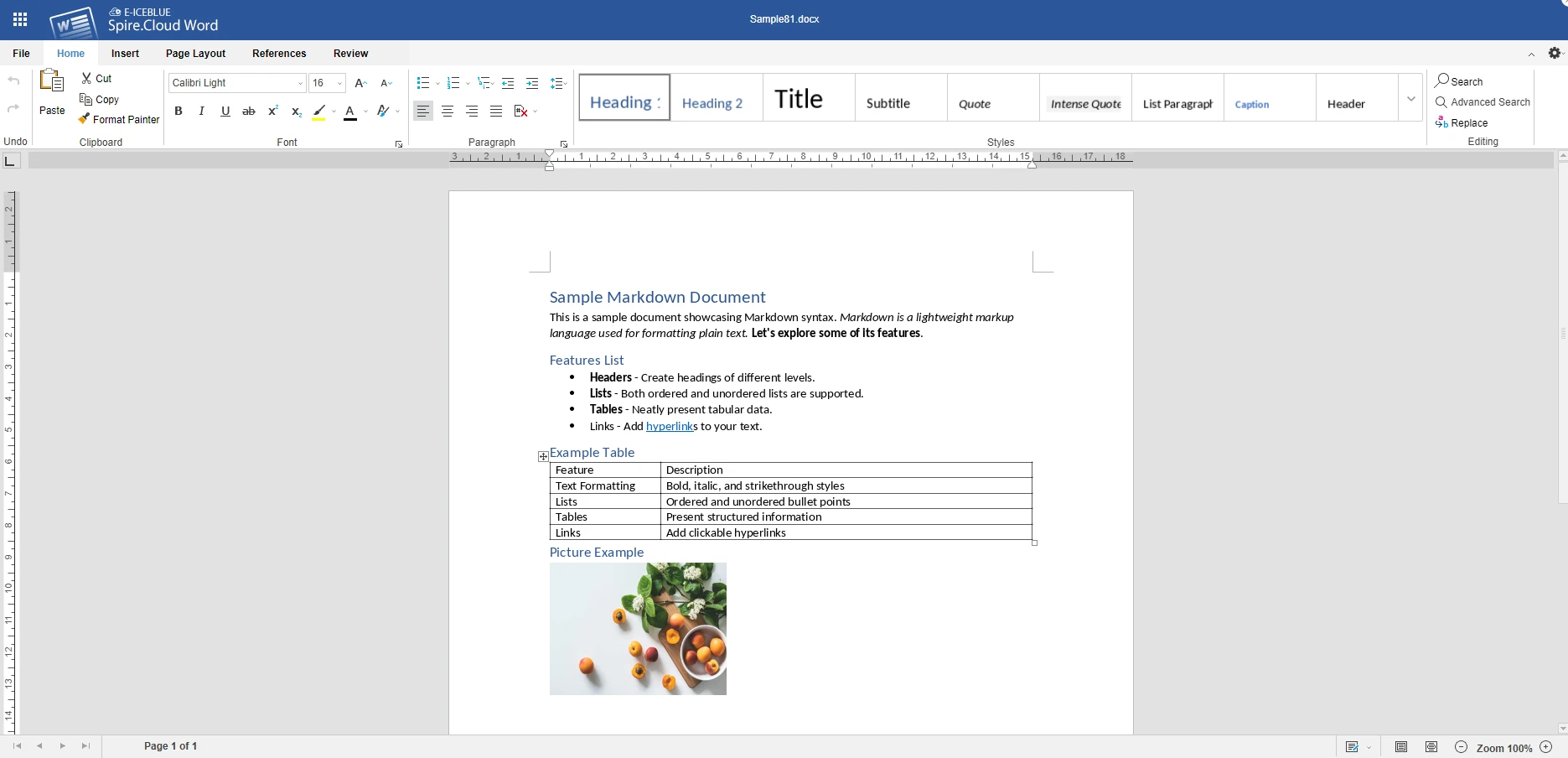
Online Word Editor — ideal for reports, articles, proposals, and text-based documents
→ Open CloudXDocs Word Editor and click Quick Start in the top-right corner to begin.Online Spreadsheet Editor — suitable for tables, financial reports, invoices, and data-driven documents
→ Open CloudXDocs Excel Editor and click Quick Start to start editing.Online Presentation Editor — useful for slides, training materials, and visual documents
→ Open CloudXDocs PowerPoint Editor and click Quick Start to create your presentation.
The workflow is simple:
- Create and format your document online.
- Add text, images, tables, or other content as needed.
- Export the finished document as a PDF.
3.2 Why Use an Online Editor to Create PDFs?
An online editor is a good choice when you want full control over your content but don’t want to install desktop applications.
Compared with traditional desktop software, CloudXDocs online editors provide:
| Desktop Office Software | CloudXDocs Online Editors | |
|---|---|---|
| Installation | Required | Browser-based |
| Access | Limited to installed devices | Available anywhere |
| Editing | Desktop application required | Edit directly online |
| PDF Export | Multiple steps | Export directly from the editor |
For users who want to create a PDF document online from scratch, an online editor provides the flexibility of a document editor with the convenience of browser-based access.
4. Create PDFs Programmatically with Python
For developers who need full control over PDF creation, generating PDFs with code provides a flexible alternative to online tools and manual editing.
Using a Python PDF library, you can create documents automatically, add text and images, draw tables, apply formatting, and generate PDF files directly from your applications.
Spire.PDF for Python provides APIs for creating, editing, and processing PDF documents with Python, making it suitable for automated document workflows.
4.1 When Should You Create PDFs with Python?
Programmatic PDF generation is useful when you need to:
- Generate reports automatically from database records
- Create invoices, certificates, or business documents in batches
- Build PDF generation into your own applications
- Create documents with custom layouts and formatting
- Process PDF files as part of an automated workflow
4.2 How Python PDF Generation Works
A typical workflow looks like this:
- Create a PDF document object.
- Add content such as text, images, tables, or graphics.
- Apply formatting and layout settings.
- Save the generated PDF file.
With a Python PDF library like Spire.PDF, developers can create PDF documents without manually controlling low-level PDF structures.
4.3 Create a PDF with Python
For example, you can create a PDF document using Spire.PDF for Python:
1 | from spire.pdf.common import * |
This approach allows developers to generate PDFs dynamically based on application data, user input, or automated processes.
Need more examples? See this Python PDF creation guide for detailed instructions and code samples.
5. Which Method Should You Choose?
Here’s a decision guide based on what you’re starting with:
| Your Starting Point | Best Method | Time to PDF |
|---|---|---|
| Already have a complete file (Word, Excel, PPT, image) | Method 1: Convert to PDF | Under 30 seconds |
| Only have an idea or topic — no content yet | Method 2: AI PDF Generation | 1–2 minutes |
| Know what to write, but no software installed | Method 3: Online Editor | Depends on document length |
| Need to generate PDFs programmatically | Method 4: Python PDF Generation | Setup once, then instant |
Frequently Asked Questions
How can I create a PDF online for free?
CloudXDocs provides several free ways to create PDFs online. You can convert existing files, generate documents with AI, or create documents using online editors. File conversion is available without login, while other features include free usage options.
Can I create a PDF without Word or Acrobat?
Yes. CloudXDocs allows you to create PDF files directly in your browser without installing Microsoft Word, Adobe Acrobat, or other desktop software. You can convert existing files, edit documents online, or generate PDFs with AI.
Can AI generate PDF files?
Yes. AI-powered PDF generation can create structured documents from simple prompts. CloudXDocs AI Document Agents can help generate content, organize sections, apply formatting, and export the result as a PDF.
What is the easiest way to create a PDF?
The easiest method depends on your starting point. Convert an existing file if your content is ready, use AI generation if you only have an idea, use an online editor if you want to write the document yourself, or use code-based tools for automated PDF creation.
Conclusion
CloudXDocs provides four ways to create PDF online — convert existing files, generate with AI, write from scratch in a browser editor, or automate with code. File conversion is free with no login required; AI and editor features include free quotas.
Ready to make your first PDF? Start creating PDF documents online with CloudXDocs.
![How to Convert RTF to Word Document for Free [Ultimate Guide]](/blog/images/convert-rtf-to-word-document-for-free/convert-rtf-to-word-for-free-in-two-simple-ways.webp)