HTML Online to SVG Converter for Accurate Web Graphics
HTML Online to SVG: Practical Ways to Convert Web Content into Scalable Graphics
Page Content:
- Option 1. Using Online HTML to SVG Converter (Recommended)
- Option 2. Saving HTML as SVG Directly from the Browser
- Option 3. Converting HTML to Image Using Code
Modern web content is dynamic, responsive, and visually rich. Yet when you need to reuse that content as a scalable graphic—for documentation, design assets, or UI components—HTML itself is not portable enough. Converting HTML to SVG has become a practical solution for designers and developers who want precision without sacrificing flexibility.
SVG files preserve vector quality at any resolution, remain lightweight, and integrate seamlessly into both web and design workflows. In this article, we’ll explore three practical approaches to converting HTML into SVG: using browser tools, using code-based methods, and using a dedicated online converter like CloudXDocs—and explain when each option makes sense.
Option 1. Using Online HTML to SVG Converter (Recommended)
For most users, a dedicated online converter strikes the best balance between accuracy, speed, and usability.
This is where CloudXDocs Online Converter stands out. It removes the complexity of manual exporting and tool switching, while delivering consistent, high-quality document format conversion entirely online. Built for real-world use, CloudXDocs focuses on speed, reliability, and a clean user experience. Its advantages can be summarized in four key areas:
- Fully Online Conversion: Runs entirely in the browser with no installation required, delivering high-quality results that preserve layouts and visual details.
- Diverse Format Compatibility: Supports a wide range of document and image formats conversion including Excel to Image, Markdown to Word, PDF to PPT, etc.
- Fast and Secure Processing: Converts files quickly through a secure workflow that protects documents throughout the process.
- Automatic File Deletion: Automatically removes uploaded and converted files within 24 hours to safeguard user privacy.
- Clean and Intuitive Interface: Offers a simple, user-friendly interface that makes uploading, previewing, and downloading files easy.
Instead of piecing together tools, CloudXDocs focuses on a streamlined workflow: upload or input HTML, preview the rendered result, and export a clean SVG file—all in a single interface.
Full steps to save HTML into SVG format with CloudxDocs are listed below:
Step 1. Open your browser and go to the official website of CloudxDocs Online HTML to SVG Converter.
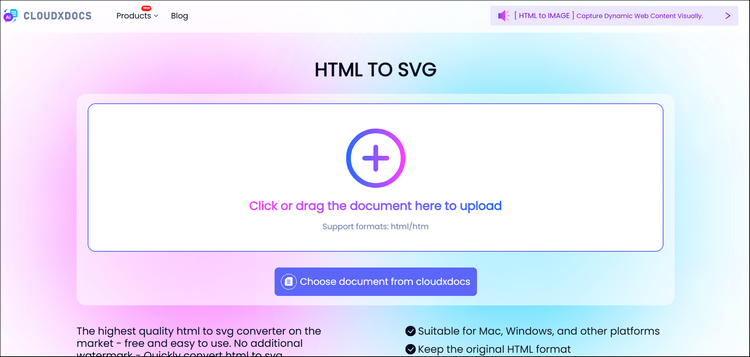
Step 2. Click or drag to upload your HTML file. CloudxDocs will begin to analyze your file after uploading.
Tip: If you only get the URL instead of the original HTML file, you can open the URL on your browser > press “Ctrl + S“ > click “Save as“ to save the webpage in HTML file for smooth upload.
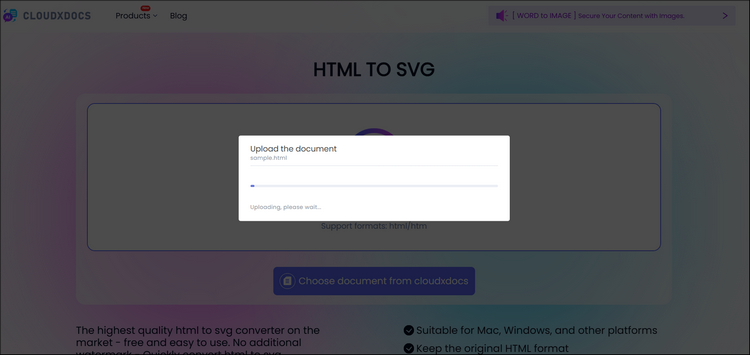
Step 3. CloudxDocs will automatically begin the conversion process after file analysis. Just wait patiently as the whole process won’t take too much time.

Step 4. After conversion, you can click the “Download“ button to save the zipped image files to your local file location. Don’t forget to unzip to get full images.

Option 2. Saving HTML as SVG Directly from the Browser
Caution: Browser-based exporting is suitable for quick experiments or simple SVG elements, but it lacks reliability for styled layouts or production-ready graphics.
Before using external tools, many users may try exporting content directly from their web browser. This approach relies on built-in browser capabilities and works best for simple or already vector-based elements.
Before guiding you through the whole steps of how to save HTML webpage in SVG format with browser, you should be aware that this method suits for the HTML with SVG elements only.
The steps below will show you how to check and convert:
Step 1. Open the target page in any browser.
Load the HTML content in any browser like Chrome and Edge. Make sure all styles, fonts, and dynamic elements are fully rendered before proceeding.
Step 2. Inspect the element you want to export.
Right-click the target area and choose “Inspect“ to open Developer Tools. Press “Ctrl + F“ to search for the svg elements of the webpage.

Right click the svg tag, click “Copy“ and then choose “Copy outerHTML“ to convert HTML in SVG format.

If you can’t find any SVG content in the “Elements“ panel, it means the webpage can’t be directly saved as an SVG file. In that case, you can first save the HTML page and try CloudxDocs Online HTML to SVG Converter for fast and smooth conversion.
Option 3. Converting HTML to Image Using Code
For developers, a library-based approach is often the most practical next step. Spire.Doc for .NET provides a straightforward way to work with HTML content programmatically and convert it into other formats with consistent layout and styling.
Compared to browser-based rendering, Spire.Doc for .NET significantly streamlines both setup and maintenance. Its stable, well-documented API fits naturally into backend services, desktop applications, and automated pipelines. Except for simply converting HTML to Image format, it also supports seamless HTML-to-PDF conversion.
To use Spire.Doc for .NET, you should download and add the DLL files as references in your .NET project. You can download from the official download page or install directly through NuGet.
1 | PM> Install-Package Spire.Doc |
Example codes of converting HTML to Image format are listed below:
1 | using Spire.Doc; |
Final Thoughts
Converting HTML to SVG has become a practical requirement across design, development, and content workflows. While browsers and code-based tools can work in some cases, they often struggle to deliver the accuracy and efficiency modern projects demand.
CloudxDocs Online Converter offers a focused, reliable solution for turning HTML into clean, scalable SVG files without unnecessary complexity. If you need consistent results and a smooth workflow, it’s a tool worth adding to your toolkit.




![How to Convert RTF to Word Document for Free [Ultimate Guide]](/blog/images/convert-rtf-to-word-document-for-free/convert-rtf-to-word-for-free-in-two-simple-ways.webp)