Word to Markdown Conversion: Online Tools, AI Agents, and Python APIs
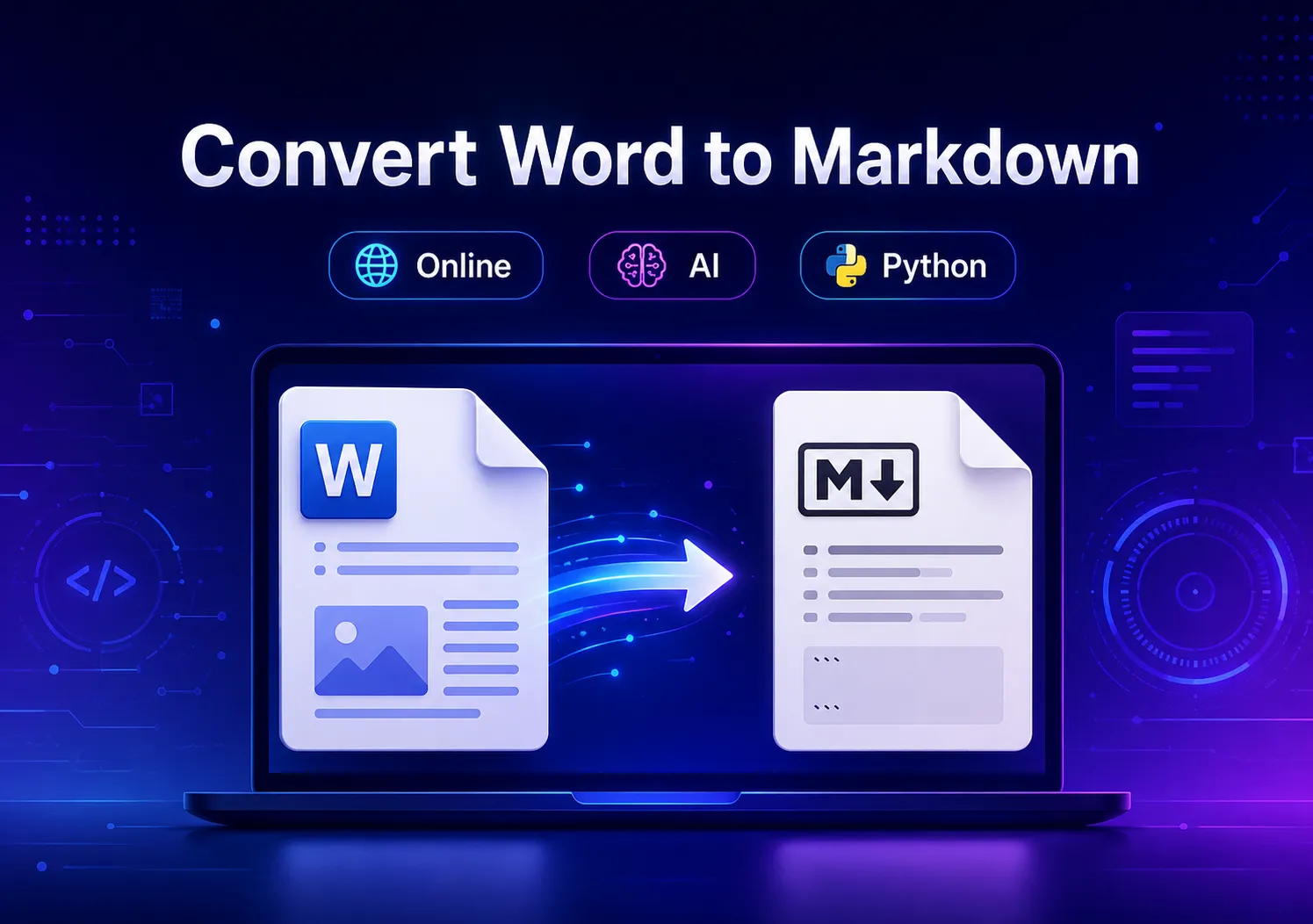
Convert Word to Markdown: Online, AI, and Python Methods
Microsoft Word is one of the most widely used formats for creating and sharing documents. It provides powerful editing and formatting features, making it suitable for reports, articles, and business documents. However, when content needs to be published online, stored in a documentation system, or processed by developers, Markdown is often a better choice because of its simplicity, portability, and compatibility with modern platforms.
Converting Word documents to Markdown allows you to reuse existing content in blogs, knowledge bases, GitHub repositories, and other Markdown-based workflows. However, different conversion methods provide different levels of control. Some tools focus on quick conversion, while others allow you to customize the output or automate the process.
In this article, we will explore three practical ways to convert Word documents to Markdown: using an online converter, an AI Agent, and a Python library.
Why Convert Word Documents to Markdown?
Markdown is a lightweight markup language that uses simple syntax to define document structures such as headings, lists, links, and tables. Unlike Word files, Markdown files are plain text, making them easy to read, edit, version, and process.
Converting Word documents to Markdown is useful in many scenarios:
- Publishing articles on Markdown-supported platforms
- Migrating documents to documentation systems
- Managing content with Git and version control
- Preparing documents for AI processing workflows
- Creating lightweight and portable content files
However, Word documents may contain complex formatting, embedded images, tables, and other elements. The conversion result depends heavily on the tool and the level of customization required.
Method 1. Convert Word to Markdown Online
For users who need a quick conversion without installing any tools, online converters are usually the most convenient choice. These browser-based tools handle the conversion process automatically and work well for standard Word documents.
For example, the CloudXDocs Word to Markdown Converter provides a quick way to transform DOCX files into Markdown format directly in your browser.
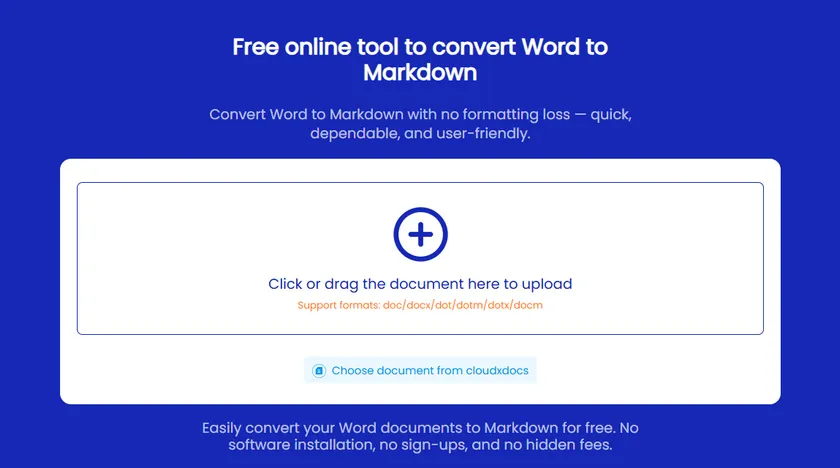
The process is straightforward:
- Upload your Word document (
.docx). - Start the conversion process.
- Download the generated Markdown file.
Online converters are suitable for common document structures, including:
- Headings
- Paragraphs
- Basic text formatting
- Tables
- Ordered and unordered lists
They are especially useful when you need a quick conversion without worrying about technical details.
However, online converters usually provide limited control over the final Markdown output. For example, you may not be able to specify how images should be embedded, how tables should be formatted, or how certain Word elements should be converted.
If your document requires specific Markdown rules, an AI-based approach may provide more flexibility.
Method 2. Convert Word to Markdown with an AI Agent
AI Agents provide a more flexible approach to document conversion. Unlike traditional converters that follow fixed conversion rules, AI Agents can understand your specific requirements and refine the output through natural language instructions.
For example, the CloudXDocs AI Agent allows you to convert Word documents into Markdown and further customize the result through conversation.
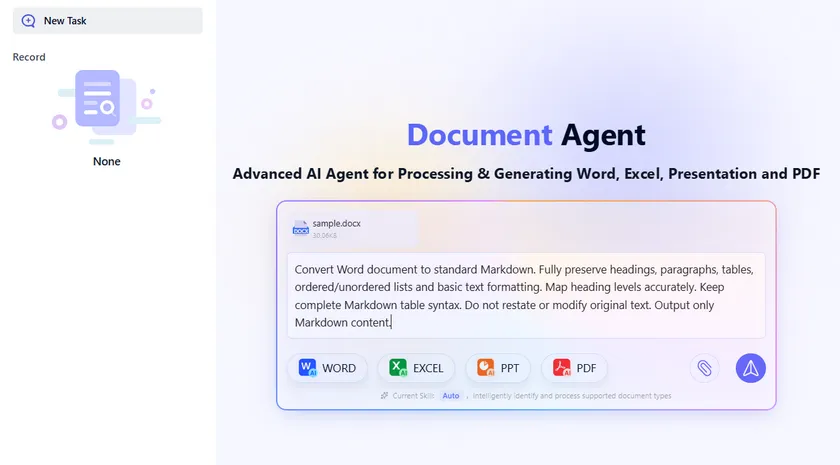
Start with a basic conversion request:
1 | Convert Word document to standard Markdown. |
The AI Agent can analyze the Word document and generate Markdown content while following your instructions.
For a typical document, the result may include:
- Correct heading levels (
#,##,###) - Markdown paragraphs
- Ordered and unordered lists
- Markdown table syntax
- Basic text formatting such as bold and italic
Customize the Markdown Output Through Conversation
One advantage of using an AI Agent is that you can continue refining the result after the first conversion.
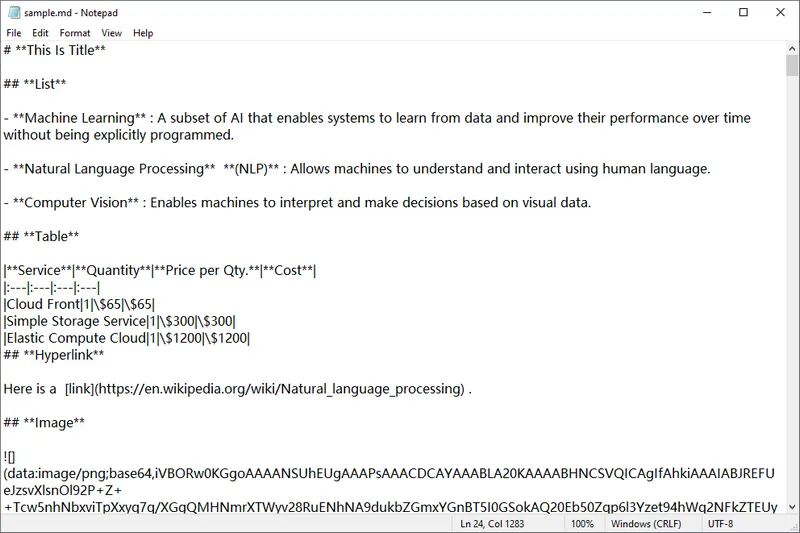
For example, Word documents often contain images. A default conversion may reference images using file paths:
1 |  |
If you prefer embedded images, you can provide an additional instruction:
1 | Embed all Word images in Markdown as Base64 strings |
The AI Agent can then modify the Markdown output and convert images into embedded Base64 data:
1 |  |
This conversational workflow makes AI Agents useful when you need more control over the final Markdown structure, such as:
- Changing image handling methods
- Adjusting heading styles
- Cleaning unnecessary formatting
- Following specific Markdown conventions
Compared with traditional converters, AI Agents are more flexible because the conversion process can be refined based on your requirements.
Method 3. Convert Word to Markdown Programmatically with Python
For developers who need to automate Word-to-Markdown conversion, using a document processing library is a practical solution. Spire.Doc for Python provides APIs for loading Word documents and exporting them as Markdown files directly from Python applications.
This approach allows Word-to-Markdown conversion to be integrated into automated workflows, such as batch document processing, content migration, and backend document management systems.
Install Spire.Doc for Python
First, install the required package:
1 | pip install spire.doc |
Convert Word Document to Markdown
The following example loads a Word document and saves it as a Markdown file:
1 | from spire.doc import * |
This approach is suitable for automated scenarios, such as:
- Converting multiple Word files in batches
- Building document migration tools
- Integrating Word conversion into backend services
- Creating automated publishing workflows
Compared with online tools, a programming solution provides more control over the conversion process and can be integrated directly into existing applications.
Comparison of the Three Methods
| Method | Ease of Use | Customization | Automation | Best For |
|---|---|---|---|---|
| Online Converter | Very Easy | Limited | Low | Quick document conversion |
| AI Agent | Easy | High | Medium | Custom Markdown requirements |
| Python Library | Medium | Medium | High | Developers and automated workflows |
Conclusion
There is no single best way to convert Word documents to Markdown. The right method depends on your workflow and requirements.
For quick conversions, an online converter provides the simplest solution. If you need to adjust the output format, handle images differently, or follow specific Markdown rules, an AI Agent offers greater flexibility. For developers building automated workflows, a Python-based solution provides the control and scalability needed for large-scale document processing.
By choosing the right approach, you can efficiently transform existing Word documents into clean, reusable Markdown content.
FAQs
1. Can I convert DOCX files to Markdown?
Yes. DOCX files can be converted to Markdown using online converters, AI tools, or programming libraries. The conversion quality depends on the complexity of the original document and the selected method.
2. Does Word to Markdown conversion preserve formatting?
Most conversion tools can preserve common formatting such as headings, paragraphs, lists, tables, bold text, and italic text. Complex Word layouts may require additional adjustments.
3. How are images handled when converting Word to Markdown?
Image handling depends on the conversion method. Some tools save images as separate files and reference them with paths, while AI-based workflows can convert images into embedded Base64 strings if requested.
4. Can Markdown preserve Word tables?
Yes. Standard Word tables can usually be converted into Markdown table syntax. However, complex tables with merged cells or advanced formatting may require manual adjustment.
5. Can I convert multiple Word documents to Markdown automatically?
Yes. A programming solution is the best choice for batch conversion. Developers can integrate Word-to-Markdown conversion into automated workflows and process multiple documents without manual operations.
![How to Convert RTF to Word Document for Free [Ultimate Guide]](/blog/images/convert-rtf-to-word-document-for-free/convert-rtf-to-word-for-free-in-two-simple-ways.webp)