RTF to PDF: Convert Rich Text to PDF for Free
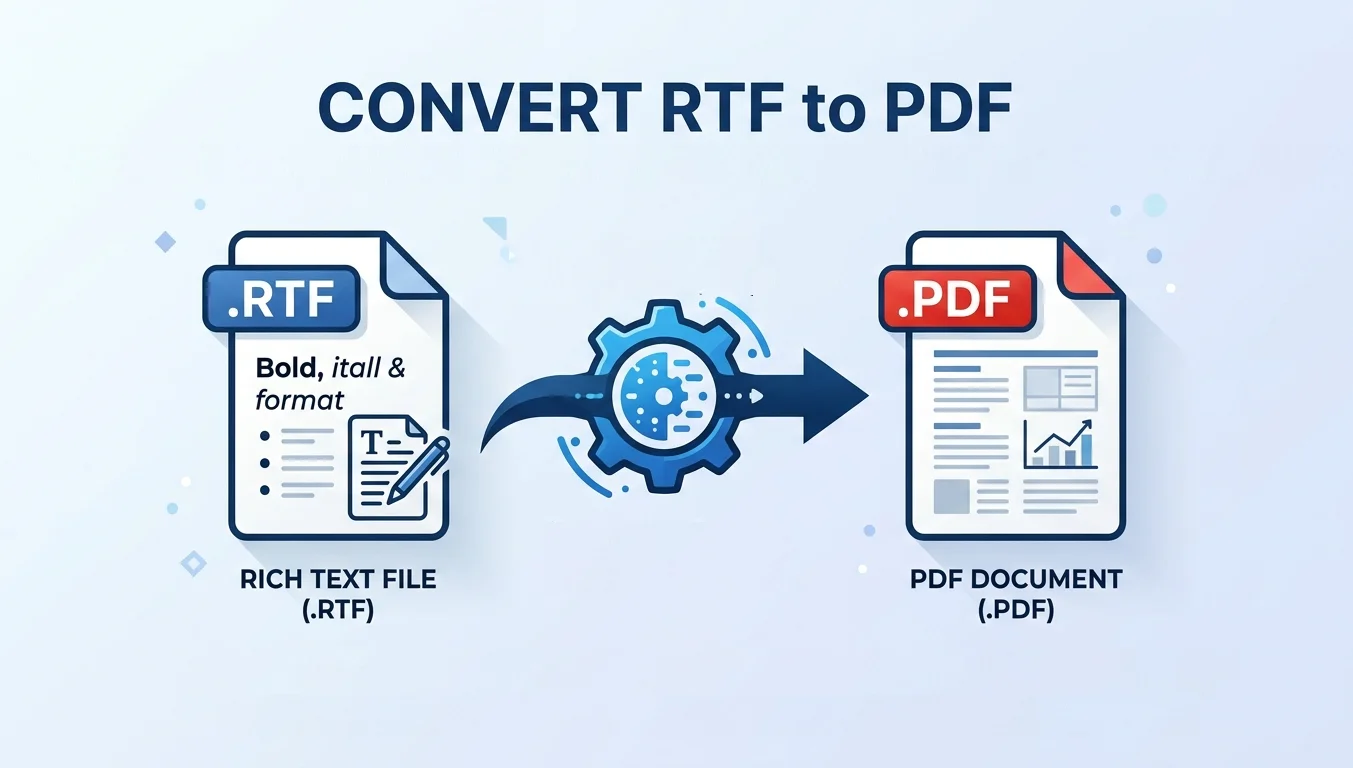
RTF to PDF: Convert Rich Text to PDF for Free
Struggling to open an old RTF file on your phone, or worried about your resume formatting breaking when sent to a recruiter? You need a PDF.
Converting RTF to PDF is the universal solution for preserving your document’s layout, fonts, and images. While there are countless converters online, most either watermark your files, charge hidden fees, or compromise your privacy.
In this guide, we break down the CloudxDocs RTF to PDF Converter — a reliable, completely free online tool for fast, high-fidelity conversions. We’ll explain its core advantages, walk you through a step-by-step usage guide, cover an AI-powered post-conversion editing for refinement, and also provide a custom code option for developers who need to automate conversions at scale.
RTF vs. PDF: Understanding the Formats
Before choosing a tool, it helps to understand what each format is designed for:
RTF (Rich Text Format):
A universal text format compatible with nearly every word processor (Word, Google Docs, WordPad). It supports basic formatting like bold, italics, and font sizes, but lacks strict layout controls.
PDF (Portable Document Format)
The industry gold standard for sharing files. PDFs lock in layout, fonts, graphics, and formatting so your document looks identical on Mac, Windows, iOS, Android, and Linux — every time.
✅ Key Takeaway: Use RTF for drafting, editing, and collaborative text work. Convert to PDF when finalizing documents for professional sharing, distribution, or archival.
CloudxDocs RTF to PDF Converter
If you just need to turn rich text format to PDF instantly without any hassle, the CloudxDocs RTF to PDF Converter is the ultimate free online tool.
Why Choose This Converter?
- 100% Free with Zero Watermarks: Convert RTF to PDF for free, with no hidden charges, no ads or watermarks added to your documents.
- Lightning-Fast Conversion: Upload your RTF and receive your PDF in under 10 seconds—perfect for tight deadlines.
- Flawless Formatting: The tool maintains fonts, images, tables, and layouts during conversion.
- No Account Required: Instant conversions without any sign-up or registration.
- Secure and Private: Utilizes SSL/TLS encryption. All files are automatically and permanently deleted from the server after processing.
How to Change RTF to PDF Online
Step 1: Prepare Your RTF File
Before uploading, double-check that your RTF file is finalized. Save any last-minute edits and ensure all images and fonts display correctly in your source editor.
Step 2: Upload to the Converter
Navigate to the converter page and either:
- Drag your RTF file directly into the drop zone, or
- Click to select your file from your computer
The tool accepts standard .rtf format files for typical documents.
Step 3: Wait for Processing
The conversion runs automatically as soon as your file uploads. For most standard documents, this takes just a few seconds. Larger files with many images may take slightly longer.
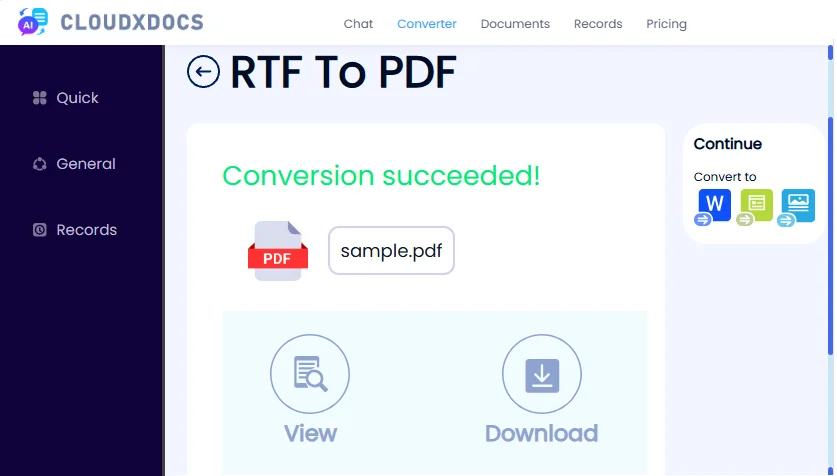
Step 4: Review and Download
Once complete, you can preview the converted PDF directly in your browser to verify formatting. If everything looks correct, click “Download” to save the PDF to your device.
✅ Pro Tip: Post-Conversion Editing with CloudxDocs AI Agent
Once you have generated your PDF from the RTF converter, you may still need to adjust content, fix minor formatting issues, or extract key information.
With traditional converters, you would have to go back to the original RTF, fix it, and re-convert, or switch to a separate PDF editing tool.
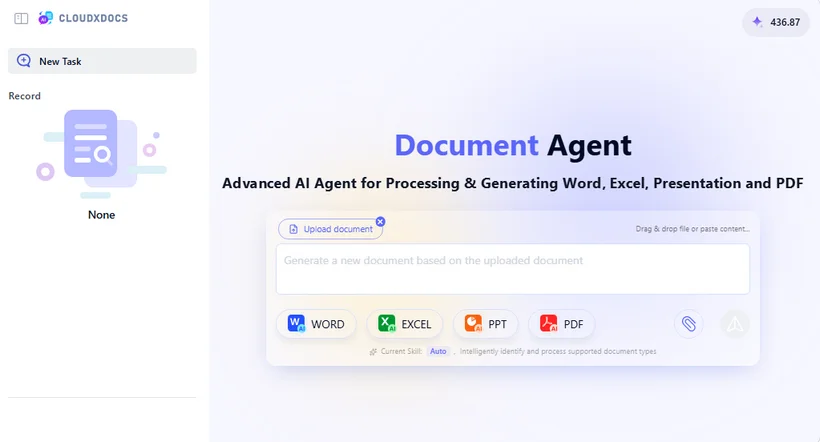
Luckily, the CloudxDocs AI Document Agent within the same platform is designed for these post-conversion tasks. You do not need to start over; simply take the converted PDF and upload it to the AI Agent to perform advanced edits and analysis.
Steps to Use the AI Agent:
Upload the Converted PDF: After downloading your PDF from the converter, navigate to the CloudxDocs AI Agent . Upload the same PDF file to the Agent’s interface.
Issue Commands in Plain English: Type your instructions into the chat box. For example:
- “Replace ‘Q1 2025’ with ‘Q2 2025’ on page 3.”
- “Translate the second paragraph to Spanish.”
- “Extract all contact information from this resume.”
Review and Export: The AI processes your request in seconds. Once you are satisfied with the results, export the PDF to your device.
Best for: Students submitting assignments, employees sending quick reports, and anyone who values privacy and doesn’t want to install software
Alongside RTF to PDF exports, you can also convert RTF files directly to Word (.docx) format. Perfect for modernizing legacy RTF documents into a fully editable, collaboration-friendly standard.
Advanced: Build Your Own RTF to PDF Converter (For Developers)
The browser-based rich text format to PDF converter above covers nearly all casual and professional use cases with zero setup. But if you need to embed RTF-to-PDF conversion directly into your software, automate bulk conversions at scale, or run fully offline conversions for data privacy, a custom code solution is the right choice.
Prerequisites
- Python 3.6 or higher
- The Spire.Doc for Python library (no Microsoft Word installation required)
- Install the library via pip:
1 | pip install Spire.Doc |
Minimal Working Code Example
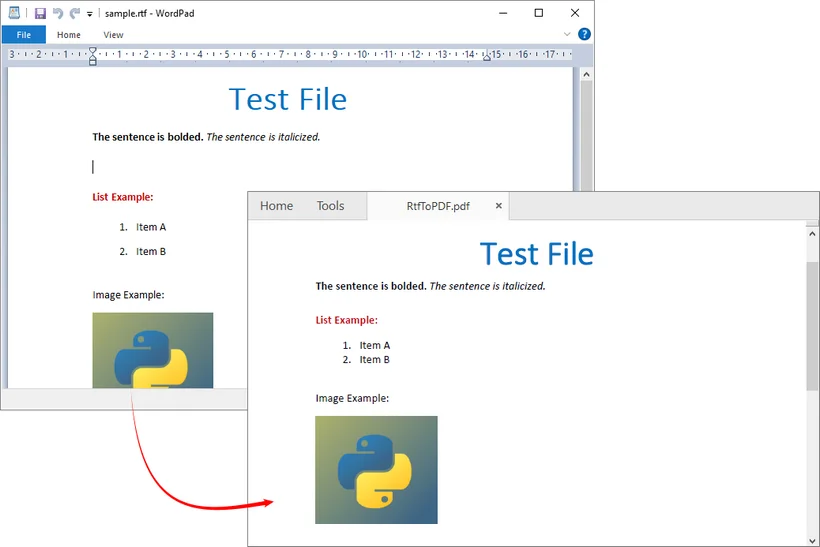
With Spire.Doc for Python, you can convert an RTF file to PDF in just a few lines of production-ready code:
1 | from spire.doc import * |
Result:
Is the Code Approach Right for You?
Choose the custom Python solution if:
- You need to automate recurring bulk RTF-to-PDF conversions
- You want to embed conversion features into an internal tool or customer-facing application
- You work with confidential documents and require an on-premise, offline conversion pipeline
- You need to add custom pre-processing or post-processing steps to your files
Final Thoughts
Converting RTF to PDF is one of the most common small tasks in daily work and study. A low-quality converter may seem like a minor inconvenience, but it can lead to hours of reformatting, unprofessional first impressions, or even privacy risks.
The CloudxDocs RTF to PDF Converter delivers professional-grade results completely for free and with strong privacy protections. For everyday single-file conversions, it is the fastest, simplest option available, requiring zero technical skill or setup. With integrated AI post-conversion editing, you can also refine text, extract insights, and polish documents without ever leaving the platform.
For teams and developers with advanced needs, a code-based custom pipeline provides full control, scalability, and offline deployment. Whichever approach fits your workflow, you can turn any RTF file into a polished, reliable PDF that looks exactly as intended on every device.
Frequently Asked Questions (FAQs)
Q1: Is the converter truly free? Are there any hidden charges?
A: Yes, the converter is 100% free. There are no limits, no page restrictions, and no watermarks. The AI Agent also offers a generous free tier for post-editing tasks.
Q2: Is it safe to convert RTF to PDF online?
A: Yes, when using a trusted, secure service. CloudxDocs uses SSL/TLS encryption for all file transfers and permanently deletes all uploaded files. Your documents are never shared with third parties or used for data analysis.
Q3: Will my fonts and images look different in the PDF?
A: No. Unlike standard text editors, the CloudxDocs converter preserves the exact layout, fonts, tables, and embedded images from your original RTF file.
Q4: Do I need to create an account to convert RTF to PDF?
A: No. The dedicated RTF to PDF Converter allows instant conversions without any sign-up or registration. The AI Agent does require an account to save your chat history and documents.
![How to Convert RTF to Word Document for Free [Ultimate Guide]](/blog/images/convert-rtf-to-word-document-for-free/convert-rtf-to-word-for-free-in-two-simple-ways.webp)